
- Introduction to SureContact Dashboard
- How to Install and Connect the SureContact WordPress Plugin
- What Do Contact Fields Mean in the SureContact WordPress Plugin
- How to Invite Members to a Workspace in SureContact
- How to Switch Organizations in SureContact
- Workspace-Level Contact Allocation in SureContact
- Workspace-Level Timezone Settings in SureContact
- How to Add a Custom Tracking Domain in a Workspace in SureContact
- SureContact MCP Server
- Creating Forms in SureContact
- Create Forms & assign lists & tags
- Multi Language Support(WordPress)
- Page Visit Tracking Guide (WordPress)
- Forms Custom Fields Sync Guide
- Landing Pages User Flow Guide
- SureContact Organization Workspace Setup Guide
- Companies User Flow Guide
- FAQs
- Bulk Operations SureContact
- SureContact Double Opt-In Guide
- SureContact API Keys Guide
- SureContact 2FA User Guide
- SureContact Bookings User Flow Guide
- SureContact MultiStep Forms Guide
- Zoom Integration with SureContact
- Group Booking User Flow Documentation
- Global Search – User Flow Documentation
- Folders in SureContact
- SureContact Email Tracking Pixel Regulations
- Email Open Tracking Consent SureContact
- Forms Custom Success Message Redirect Guide
- Partial Form Submission Guide
- Shopify Integration with SureContact Guide
- Migrate to Unified Preference Page
- Setup SMTP in SureContact
- Email Campaigns in SureContact
- How to Add a Preferences URL in Your Emails
- How to Share Email Templates in SureContact
- Spintax Feature in SureContact
- Deleting Sent Campaigns in SureContact
- A/B Testing Integration Guide
- Unsubscription Guide
- SureContact SMTP Setup Guide
- SMTP Routing User Flow
- FluentCRM Integration with SureContact
- SureContact Third-Party Integration — Step-by-Step Guide
- Fluent Forms Integration with SureContact
- SureForms Integration with SureContact
- WPForms Integration with SureContact
- Bulk Sync WordPress Users to SureContact
- Contact Form 7 Integration with SureContact
- Sync WooCommerce Customers with SureContact
- FluentCart & FluentCommunity Integration With SureContact
Group Booking User Flow Documentation
Group Booking lets a host offer one time slot to multiple invitees, for example, a webinar, office hours, or a group consultation, instead of the default 1-on-1 model where one slot equals one attendee. Invitees book the same slot independently until it reaches its attendee cap.
This guide walks through the complete Group Booking user flow: how a host sets up a group event, how invitees book a shared slot, and how the host manages and cancels group sessions.
Part 1: Setting Up a Group Booking Event (Host/Admin)
1. Choose the Event Kind
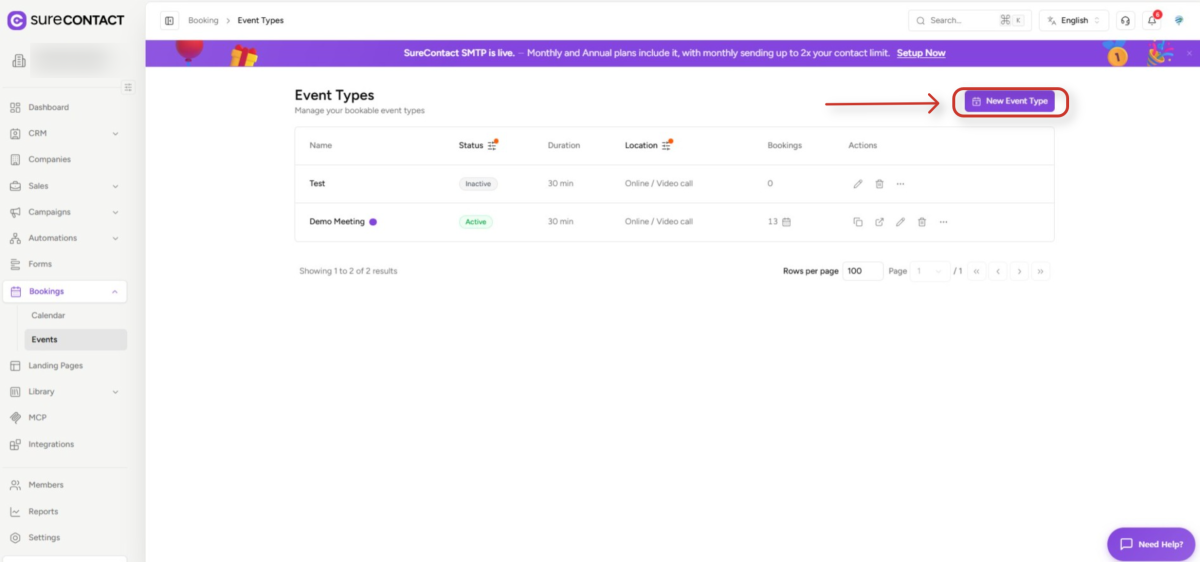
- Go to Bookings< Events and click on New Event Type.
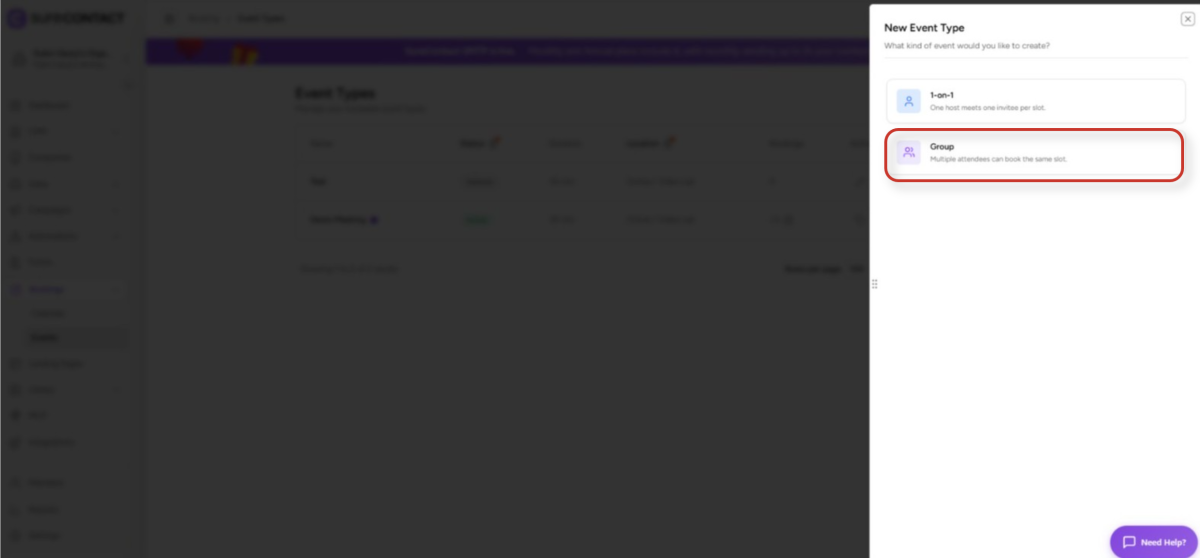
- Select Group to enable multi-attendee bookings for a single slot.
2. Set Max Attendees
- Once Group is selected, a Max Attendees field appears on the form
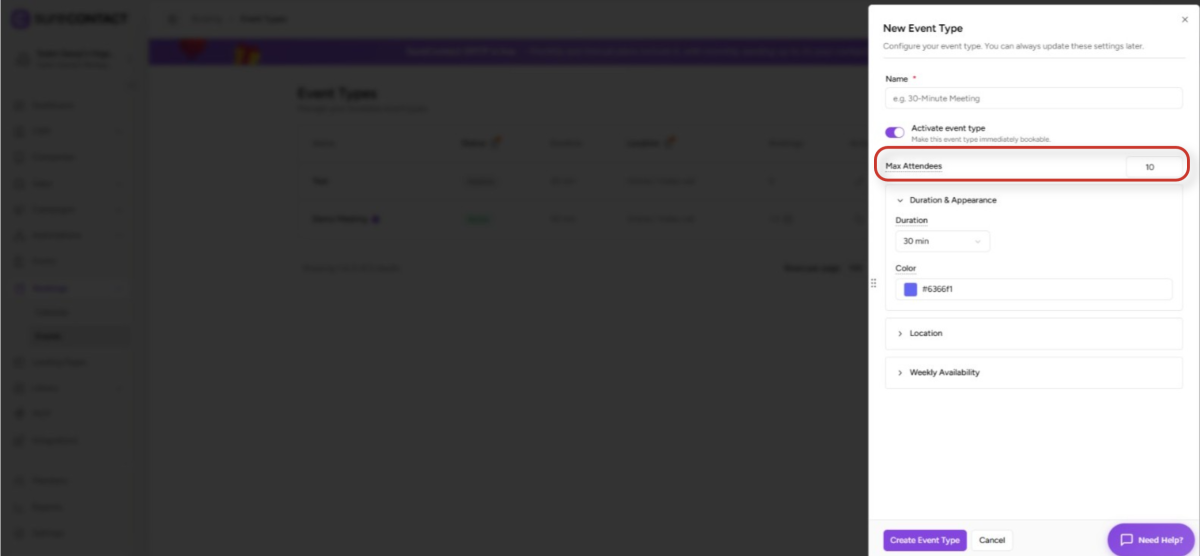
- Default is 10, with a minimum of 2 and a maximum of 500.
- This field is required for group events.
3. Configure the Rest of the Event (same as 1-on-1)
- Name (required) and an Activate toggle to control whether the event is immediately bookable.
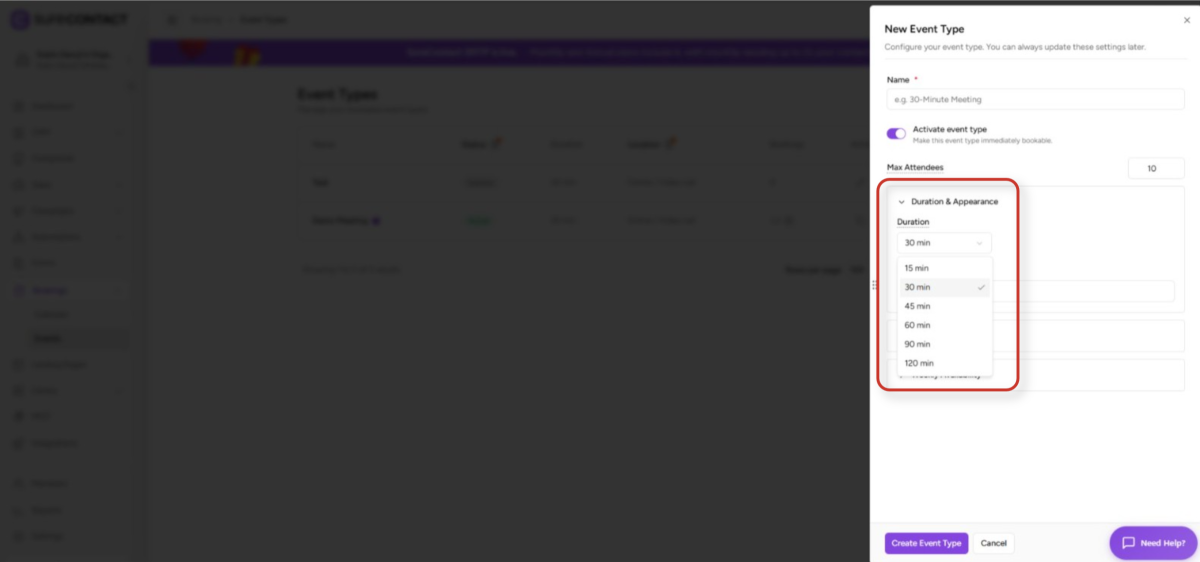
- Duration & Appearance – duration of 15, 30, 45, 60, 90, or 120 minutes, plus an accent color.
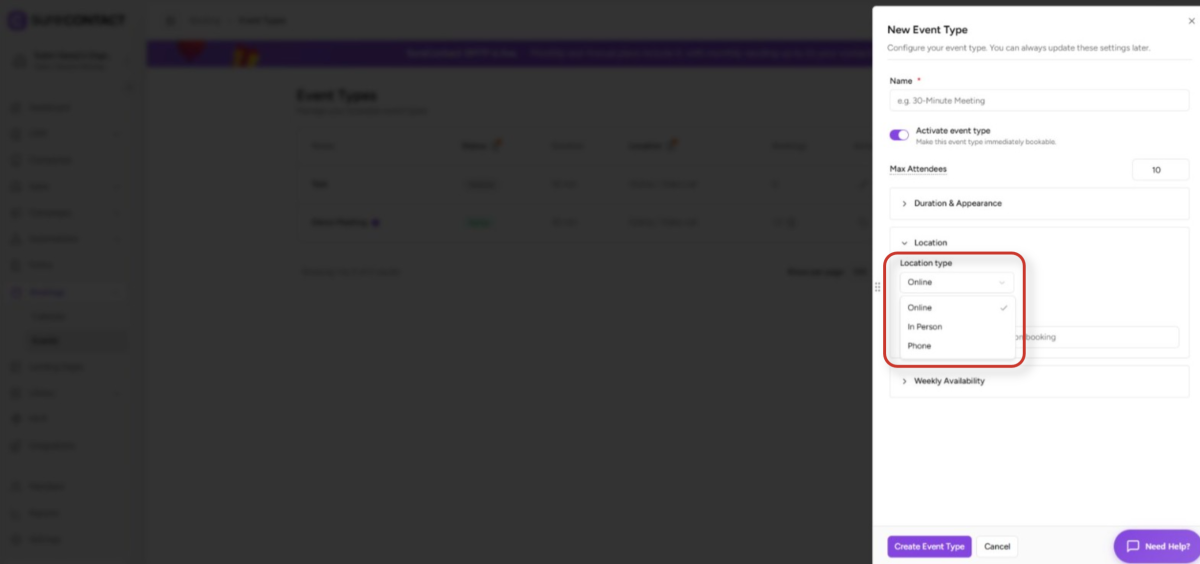
- Location – Online (Zoom / Google Meet / custom URL), In Person, or Phone.
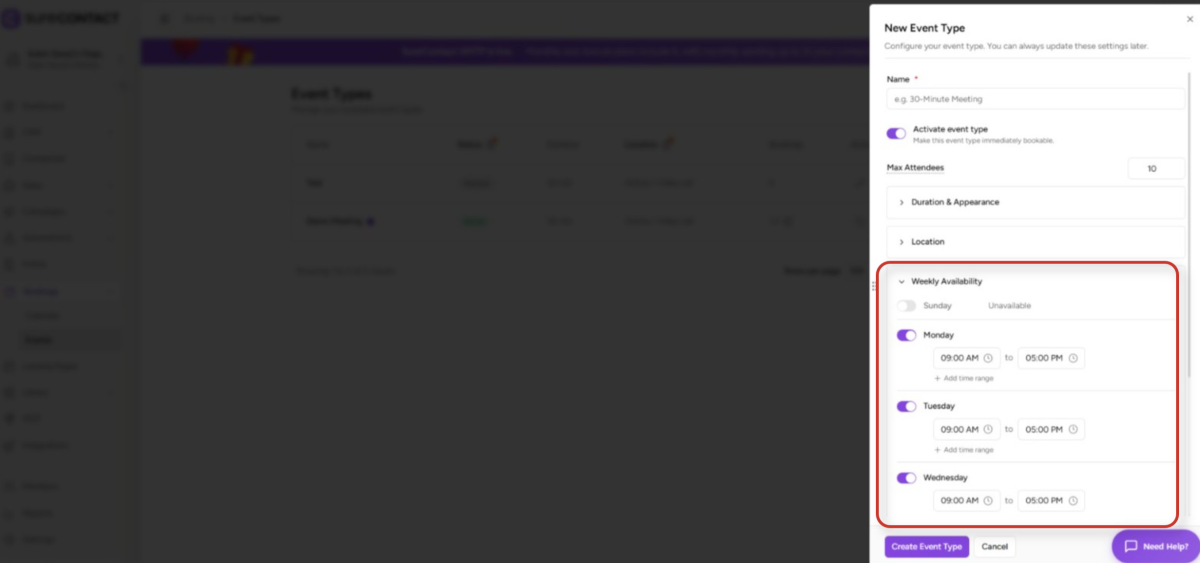
- Weekly Availability – time ranges per day of the week, plus a timezone.
4. Create the Event Type
- Click Create Event Type to publish it.
- Each event type gets a public booking link in the format:
- https://<frontend-url>/book/<workspace-uuid>/<event-slug>
Part 2: How Invitees Book a Group Slot
1. Open the Public Booking Link
- The invitee opens the public booking link and picks a date.
2. View Remaining Capacity
- The slot picker shows remaining capacity for each time, e.g. “3 of 10 spots left.”
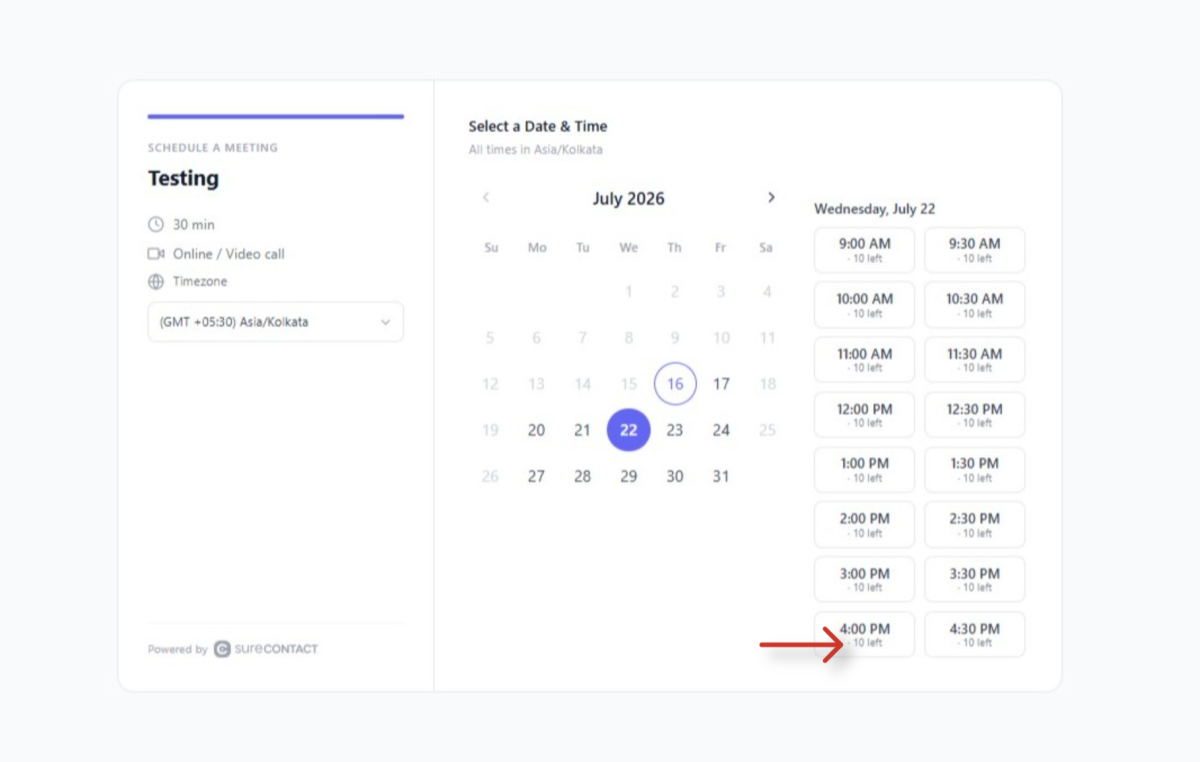
- Slots that are completely full disappear from the picker.
3. Enter Details and Confirm
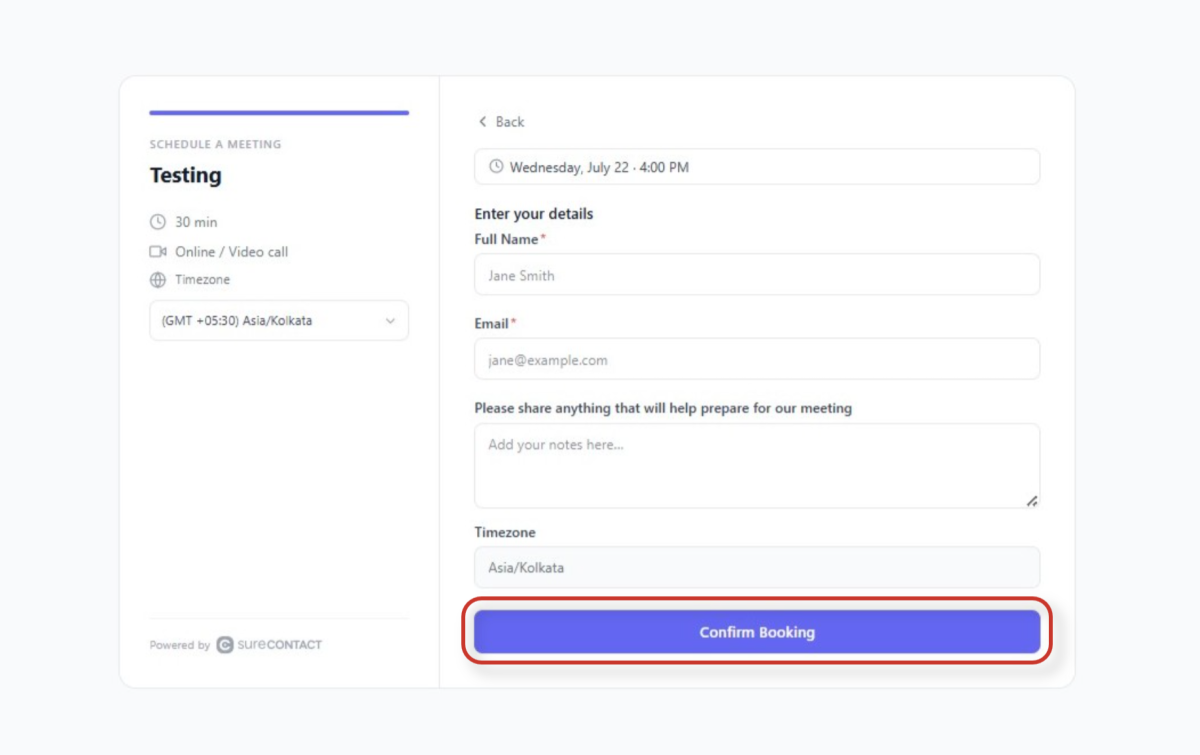
- The invitee enters their name, email, phone (if required), and any notes, then confirms.
4. What Happens Behind the Scenes
- The system locks the slot and rechecks capacity to prevent overbooking.
- Duplicate bookings from the same email for the same slot are blocked.
- The invitee is created or updated as a CRM contact.
- A shared Zoom/Google Meet link and calendar event are created for the first booking; later attendees join the same meeting and event.
5. Confirmation and Reminders
- Confirmation emails are sent to the invitee and the host, unless disabled.
- Reminders are scheduled 24 hours and 1 hour before the session.
Part 3: Managing a Group Session (Host/Admin)
1. Calendar View
- Each group session appears as a single session card showing the total attendee count.
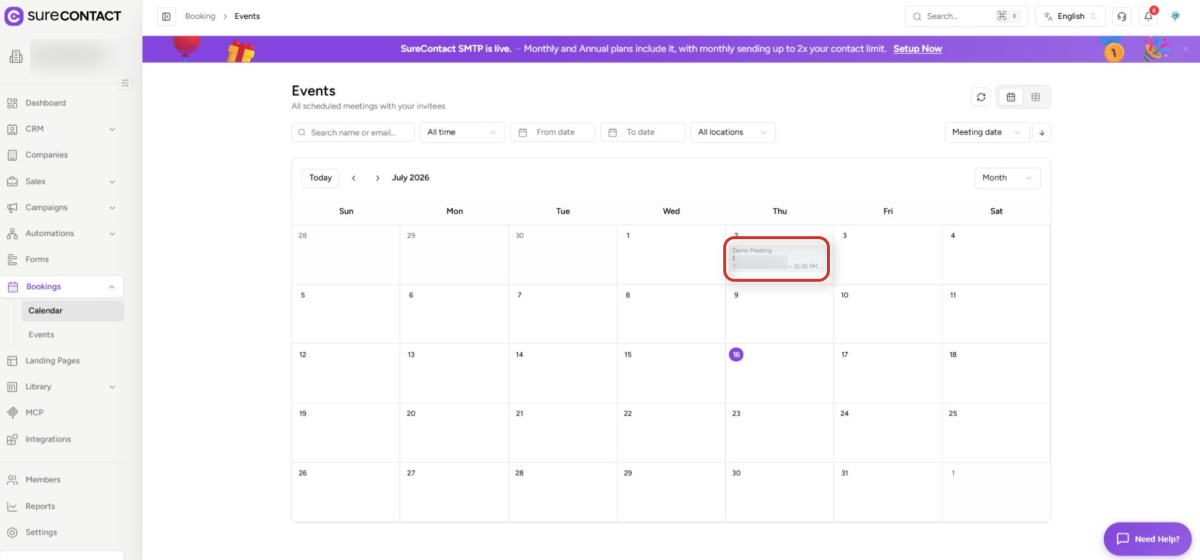
2. Table View
- Each attendee is listed as an individual booking row, with their own status and actions.
3. Cancel an Individual Attendee
- A single attendee can be cancelled from their row without affecting any other attendee in the session.
4. Cancel the Entire Session
- Cancels all confirmed bookings for the slot and sends cancellation emails to every attendee.
- Deletes the shared calendar event/meeting after the last attendee is removed.
- Optionally includes a cancellation reason, and returns the total number of bookings cancelled.
Key Behavior Notes
The table below summarizes how Group Booking differs from the standard 1-on-1 booking model.
| Behavior | 1-on-1 | Group |
|---|---|---|
| Capacity gate | Slot blocked once booked | Slot remains open until Max Attendees is reached |
| Reschedule | Allowed (if enabled) | Not available – invitee must cancel and rebook |
| Duplicate email for same slot | N/A | Blocked |
| Calendar / Zoom event | One per booking | One shared event per slot |
| Cancellation | Single booking | Individual attendee or entire session |
Need Help?
If you need any assistance, please email [email protected], and our support team will be happy to help you.
Was this doc helpful?
What went wrong?
We don't respond to the article feedback, we use it to improve our support content.