
- Introduction to SureContact Dashboard
- How to Install and Connect the SureContact WordPress Plugin
- What Do Contact Fields Mean in the SureContact WordPress Plugin
- How to Invite Members to a Workspace in SureContact
- How to Switch Organizations in SureContact
- Workspace-Level Contact Allocation in SureContact
- Workspace-Level Timezone Settings in SureContact
- How to Add a Custom Tracking Domain in a Workspace in SureContact
- SureContact MCP Server
- Creating Forms in SureContact
- Create Forms & assign lists & tags
- Multi Language Support(WordPress)
- Page Visit Tracking Guide (WordPress)
- Forms Custom Fields Sync Guide
- Landing Pages User Flow Guide
- SureContact Organization Workspace Setup Guide
- Companies User Flow Guide
- FAQs
- Bulk Operations SureContact
- SureContact Double Opt-In Guide
- SureContact API Keys Guide
- SureContact 2FA User Guide
- SureContact Bookings User Flow Guide
- SureContact MultiStep Forms Guide
- Zoom Integration with SureContact
- Group Booking User Flow Documentation
- Global Search – User Flow Documentation
- Folders in SureContact
- SureContact Email Tracking Pixel Regulations
- Email Open Tracking Consent SureContact
- Forms Custom Success Message Redirect Guide
- Partial Form Submission Guide
- Shopify Integration with SureContact Guide
- Migrate to Unified Preference Page
- Setup SMTP in SureContact
- Email Campaigns in SureContact
- How to Add a Preferences URL in Your Emails
- How to Share Email Templates in SureContact
- Spintax Feature in SureContact
- Deleting Sent Campaigns in SureContact
- A/B Testing Integration Guide
- Unsubscription Guide
- SureContact SMTP Setup Guide
- SMTP Routing User Flow
- FluentCRM Integration with SureContact
- SureContact Third-Party Integration — Step-by-Step Guide
- Fluent Forms Integration with SureContact
- SureForms Integration with SureContact
- WPForms Integration with SureContact
- Bulk Sync WordPress Users to SureContact
- Contact Form 7 Integration with SureContact
- Sync WooCommerce Customers with SureContact
- FluentCart & FluentCommunity Integration With SureContact
Email Open Tracking Consent SureContact
SureContact’s Email Open-Tracking Consent feature lets you require a contact’s explicit permission before their email-open activity is tracked, giving contacts control over their tracking preference without ever blocking them from receiving your emails.
To check on Email Tracking Pixel Regulations with SureContact, you can follow our guide here.
This guide explains how to enable Tracking Consent, what the default Tracking Withheld status means, and how a contact opts in through the preference link they receive by email.
How to Enable Tracking Consent
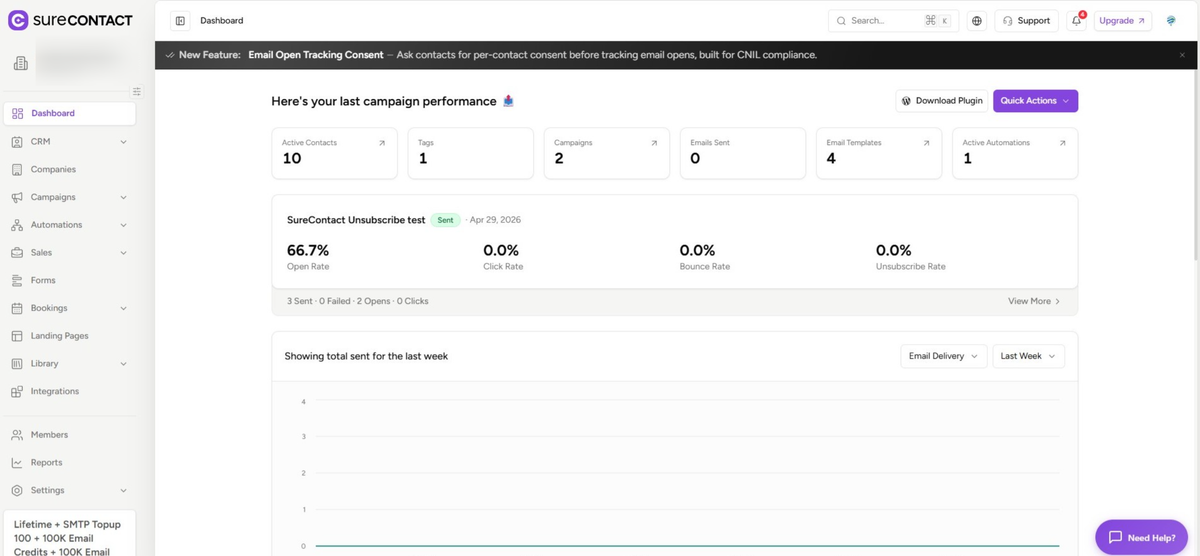
1. Log in to Your SureContact Account
- Open your SureContact account.
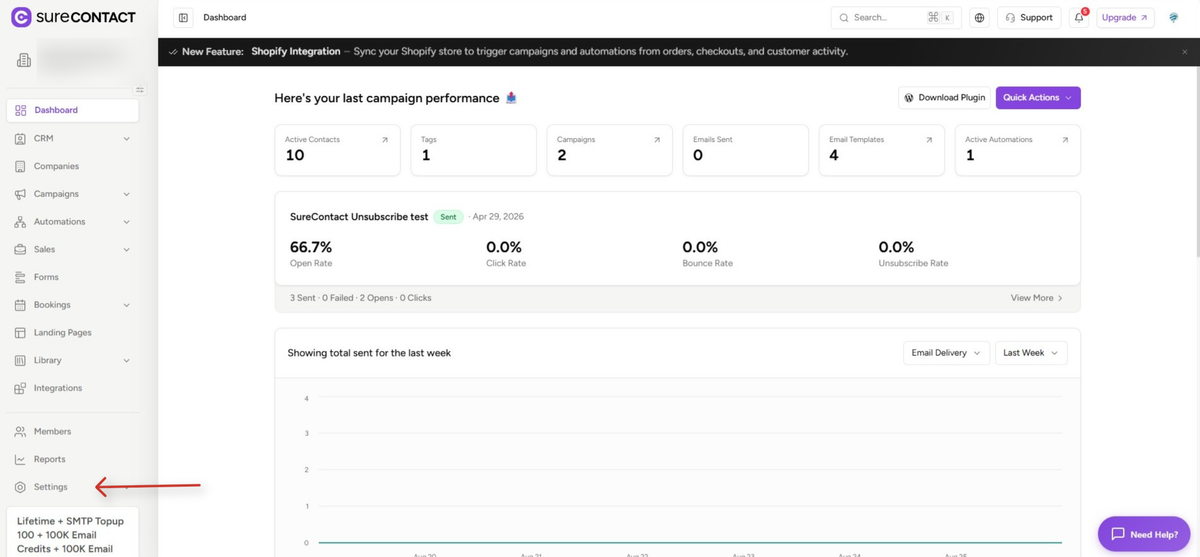
2. Go to Settings
- Click on Settings on the left-hand side of your account
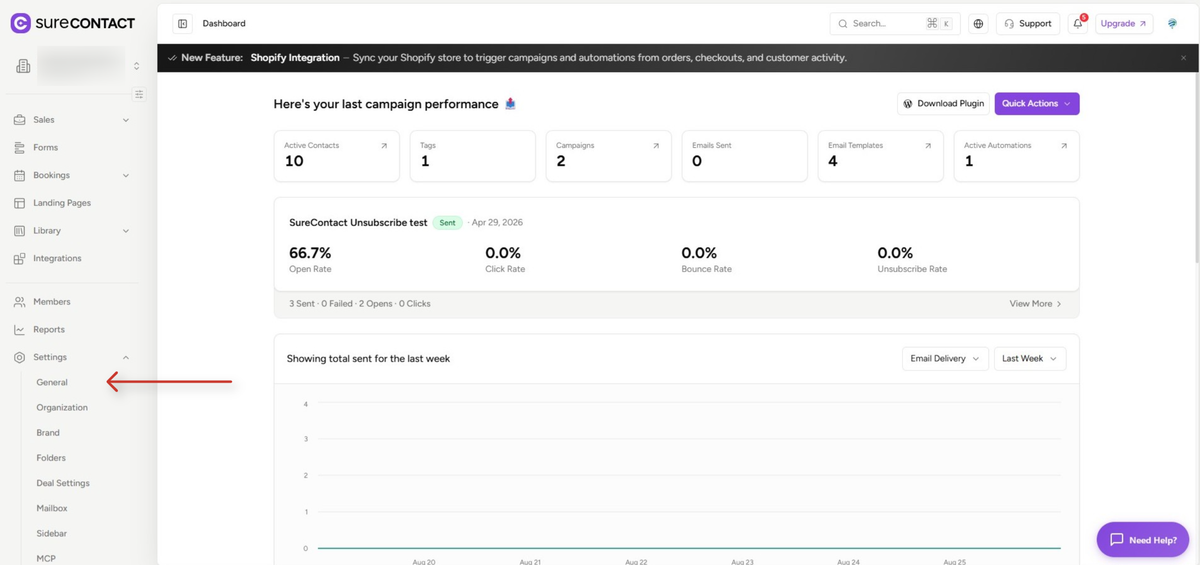
3. Open the General Tab
- Under Settings, select General.
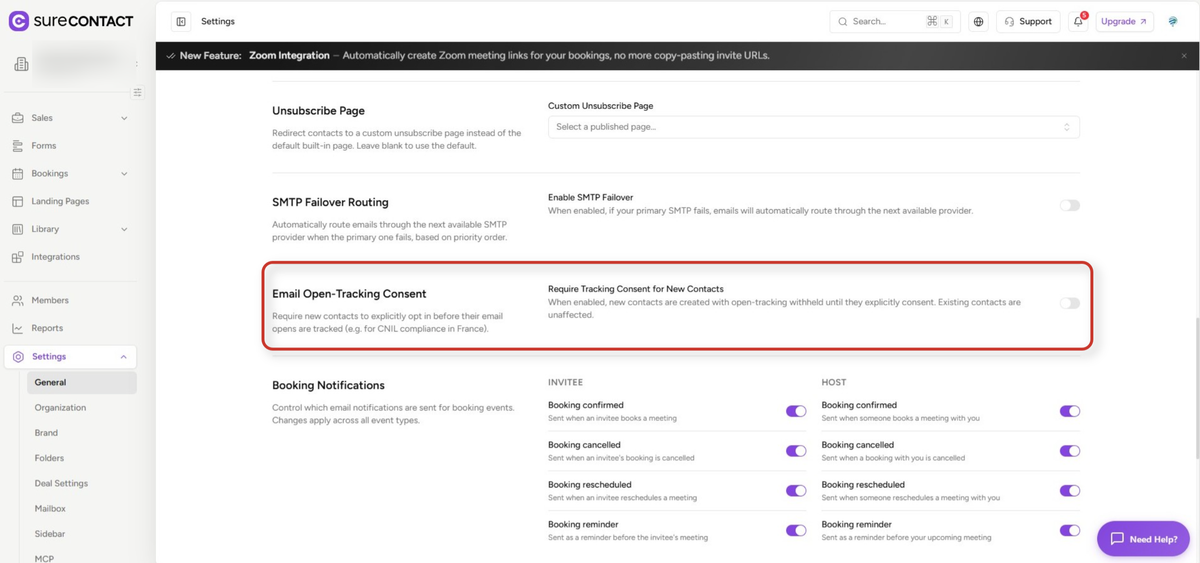
4. Enable Email Open-Tracking Consent
- Scroll down to the Email Open-Tracking Consent section.
- Enable the toggle button under it to turn on tracking consent.
How Tracking Consent Works for Contacts
5. Open Your Contacts
- Go to your contacts and either add a new contact or choose a contact for whom you need to check the settings.
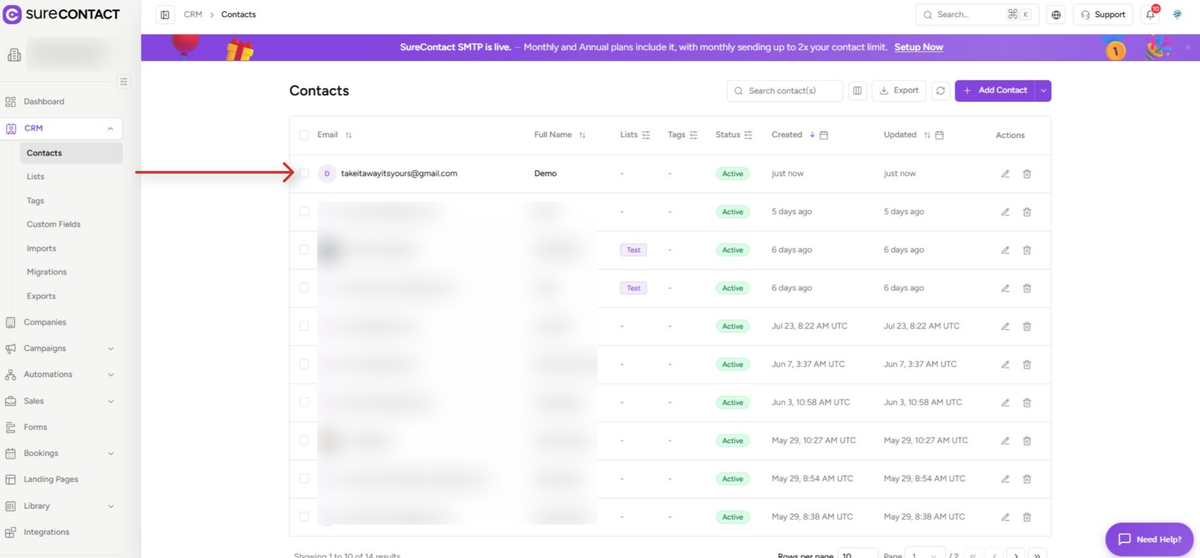
6. View the Contact’s Tracking Status
- Click on the contact you want to check.
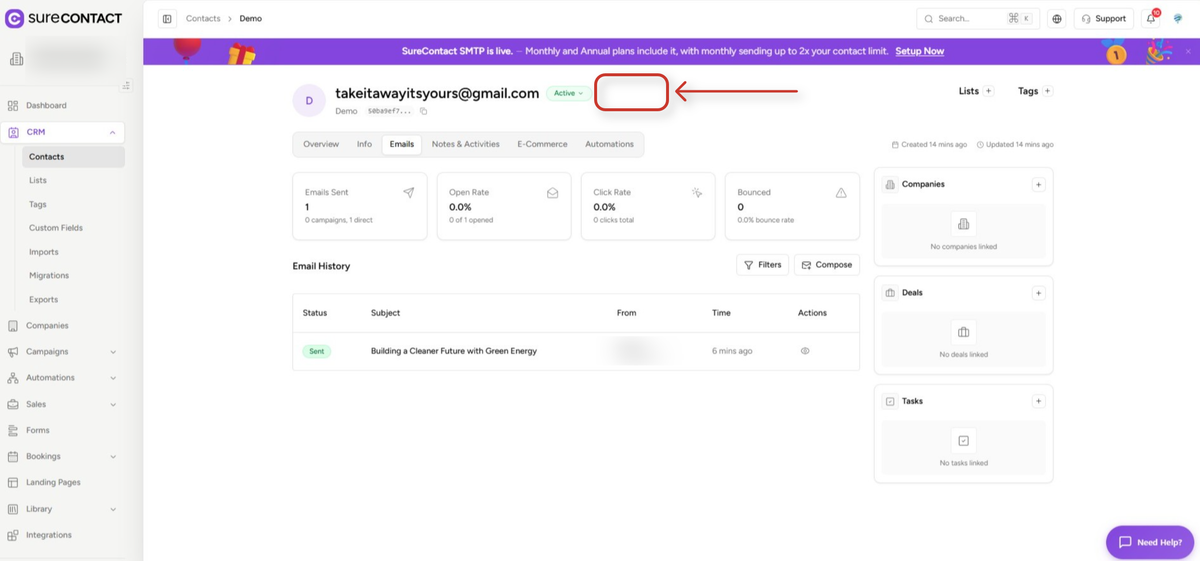
- Inside the contact profile, you will see a Tracking Withheld status shown alongside Active.
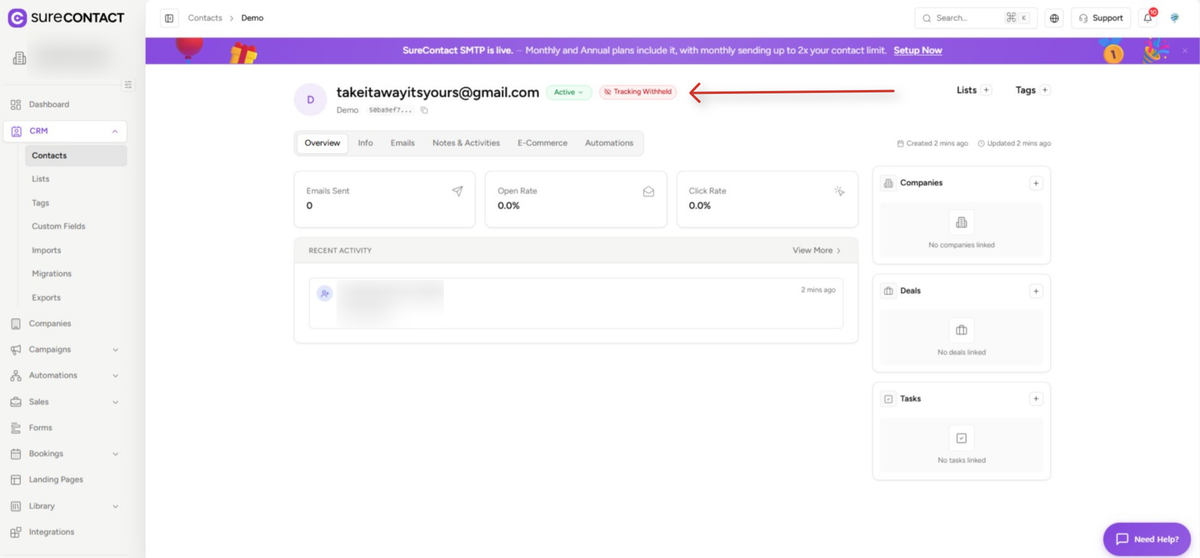
By default, a contact remains in Tracking Withheld status until they accept the tracking preference on their end.
7. Send an Email to the Contact
- Send an email to the contact through a Campaign, an Automation, or directly from their contact profile.
- Along with the email, the contact will receive a preference link.
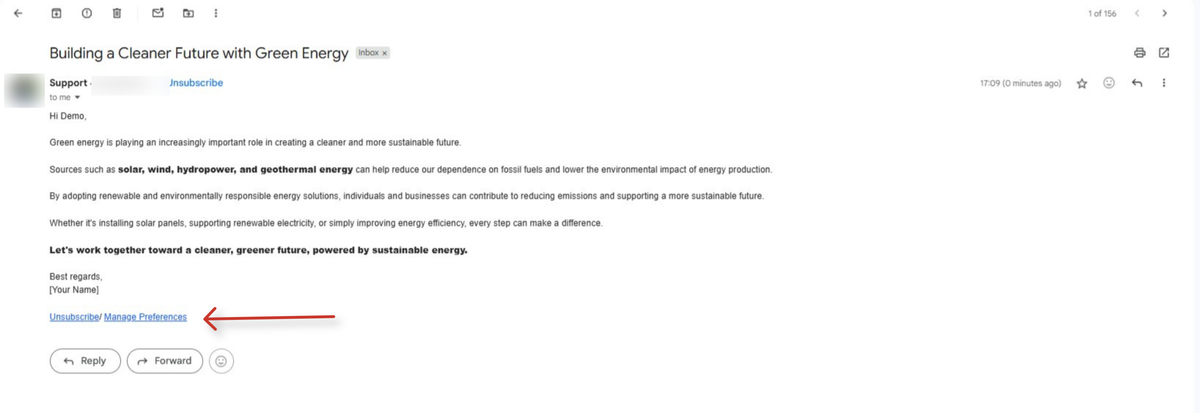
8. Contact Clicks the Preference Link
- When the contact clicks the preference link they received in the email, a new tab opens with the preference page.
- On this page, they are given the option to enable tracking.
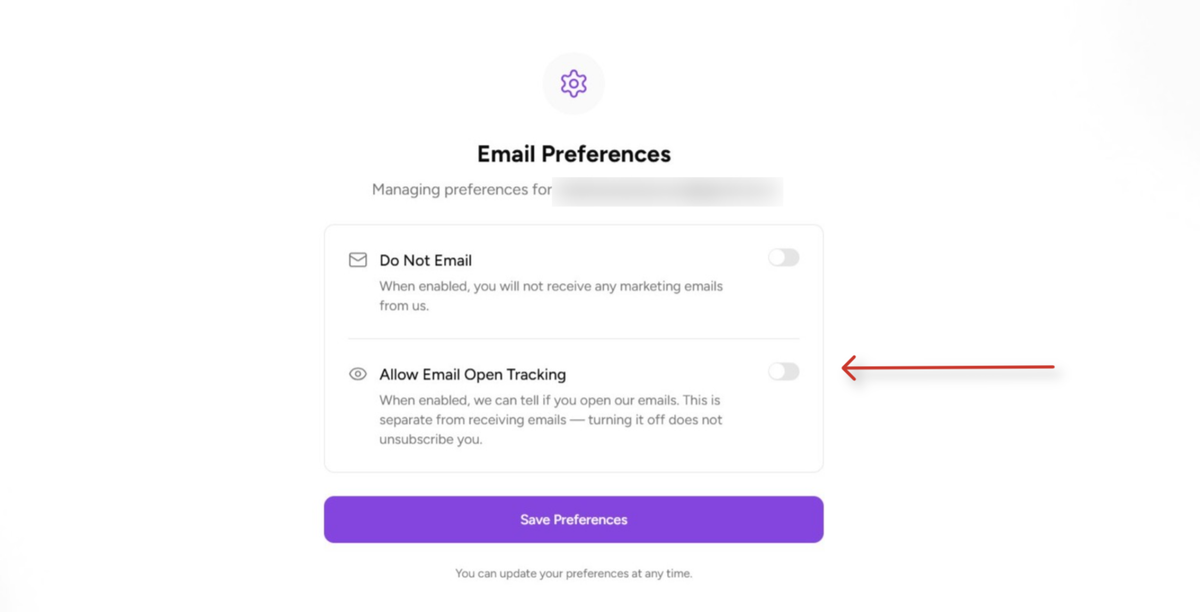
9. Outcome Based on the Contact’s Choice
9.1 If the Contact Enables Tracking
- They will be tracked on every email sent to them from that point onward.
9.2 If the Contact Does Not Enable Tracking
- They will not be tracked further, but they will continue to receive your emails as usual.
10. Confirm the Updated Status
- Once the contact enables tracking, the Tracking Withheld status is removed from their contact profile.
That’s it! This is how Email Open-Tracking Consent is configured and how it works for your contacts.
Need Help?
If you need any assistance, please email [email protected], and our support team will be happy to help you.
We don't respond to the article feedback, we use it to improve our support content.