
- Introduction to SureContact Dashboard
- How to Install and Connect the SureContact WordPress Plugin
- What Do Contact Fields Mean in the SureContact WordPress Plugin
- How to Invite Members to a Workspace in SureContact
- How to Switch Organizations in SureContact
- Workspace-Level Contact Allocation in SureContact
- Workspace-Level Timezone Settings in SureContact
- How to Add a Custom Tracking Domain in a Workspace in SureContact
- SureContact MCP Server
- Creating Forms in SureContact
- Create Forms & assign lists & tags
- Multi Language Support(WordPress)
- Page Visit Tracking Guide (WordPress)
- Forms Custom Fields Sync Guide
- Landing Pages User Flow Guide
- SureContact Organization Workspace Setup Guide
- Companies User Flow Guide
- FAQs
- Bulk Operations SureContact
- SureContact Double Opt-In Guide
- SureContact API Keys Guide
- SureContact 2FA User Guide
- SureContact Bookings User Flow Guide
- SureContact MultiStep Forms Guide
- Zoom Integration with SureContact
- Group Booking User Flow Documentation
- Global Search – User Flow Documentation
- Folders in SureContact
- SureContact Email Tracking Pixel Regulations
- Email Open Tracking Consent SureContact
- Forms Custom Success Message Redirect Guide
- Partial Form Submission Guide
- Shopify Integration with SureContact Guide
- Migrate to Unified Preference Page
- Setup SMTP in SureContact
- Email Campaigns in SureContact
- How to Add a Preferences URL in Your Emails
- How to Share Email Templates in SureContact
- Spintax Feature in SureContact
- Deleting Sent Campaigns in SureContact
- A/B Testing Integration Guide
- Unsubscription Guide
- SureContact SMTP Setup Guide
- SMTP Routing User Flow
- FluentCRM Integration with SureContact
- SureContact Third-Party Integration — Step-by-Step Guide
- Fluent Forms Integration with SureContact
- SureForms Integration with SureContact
- WPForms Integration with SureContact
- Bulk Sync WordPress Users to SureContact
- Contact Form 7 Integration with SureContact
- Sync WooCommerce Customers with SureContact
- FluentCart & FluentCommunity Integration With SureContact
Companies User Flow Guide
SureContact’s Companies feature lets you organize your contacts by the business they belong to, giving you a B2B account-level view of your CRM. You can create company profiles, link contacts, attach notes, define custom fields, and manage everything through a unified workspace-level catalog.
This guide walks through the complete user journey: creating a company, viewing and editing its details, linking contacts, adding notes, configuring custom fields, and managing companies in bulk. Each step is illustrated with annotated screenshots from the live SureContact workspace.
1. Overview
The Companies section in SureContact is your central hub for managing the businesses your contacts belong to. Use it whenever you want to group contacts by organization, track firmographic data (industry, employee range, revenue), or build an account-based view of your sales pipeline.
Common reasons to use the Companies feature include:
- Maintaining a clean B2B account list separate from your contact roster.
- Tracking lifecycle stage, type, and lead status at the company level.
- Linking multiple contacts to one organization, with a designated primary contact.
- Capturing custom firmographic data via workspace-level custom fields.
Note: Companies is a plan-level feature. Availability depends on your active SureContact subscription tier.
2. Navigating to Companies
Open Companies from the main sidebar. The list view shows every active company in your workspace along with filters and column sorting.
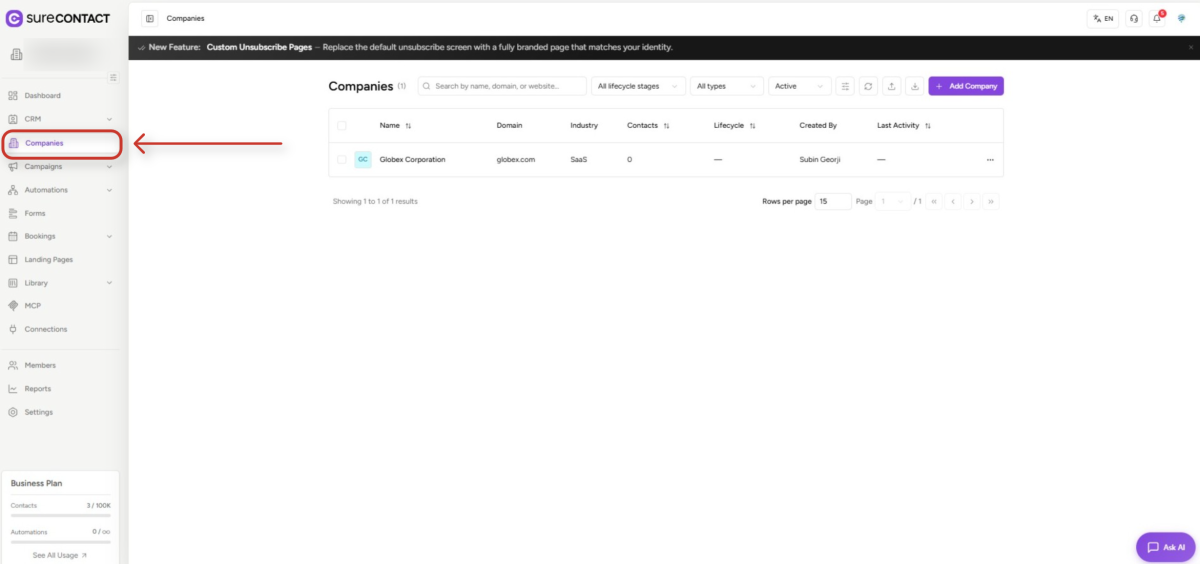
Available filters and controls
- Search by name, domain, or website.
- Filter by lifecycle stage (e.g., Lead, Customer, Subscriber).
- Filter by company type and status (Active / Archived).
- Refresh, import, and export controls sit beside the filters.
- Sort columns: Name, Created date, Contacts count, Last Activity, etc.
3. Creating a Company
Click Add Company in the top right of the list view to open the Add New Company sheet.
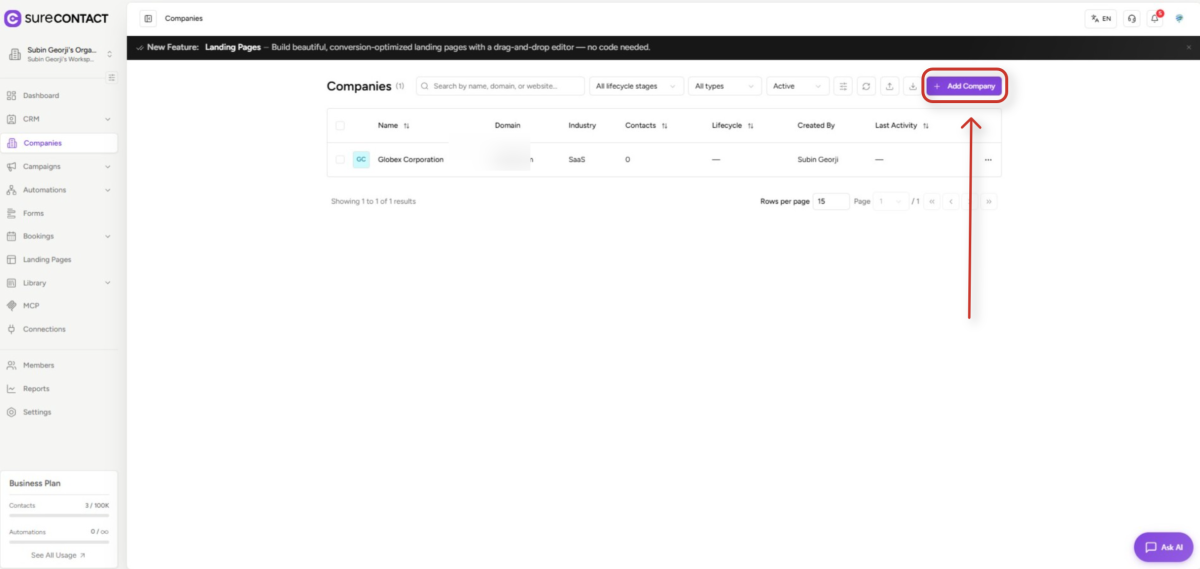
Step-by-step
- 1. Click Add Company. The right-side sheet opens.
- 2. Enter the Company Name. Required and unique per workspace.
- 3. Enter the Website. Domain is automatically derived from the URL.
- 4. Upload a Logo (optional). Accepts JPG, PNG, WebP, or GIF up to 2 MB. If you skip this, SureContact auto-fetches the favicon from the domain.
- 5. Fill in Phone and Industry as needed.
- 6. Pick Lifecycle Stage, Type, and Lead Status from the dropdowns.
- 7. Expand Firmographics, address, social to add employee range, revenue range, year founded, street address, LinkedIn / Twitter / Facebook URLs, and a description.
- 8. Click Create Company. You’re redirected to the new company’s detail page.
About the Logo
- Auto-fetched as the website favicon if no manual upload.
- Uploading a logo manually locks the auto-fetcher so it won’t overwrite your image.
4. After Creation: The Companies List
Once created, the company appears immediately in the list view with a confirmation toast.
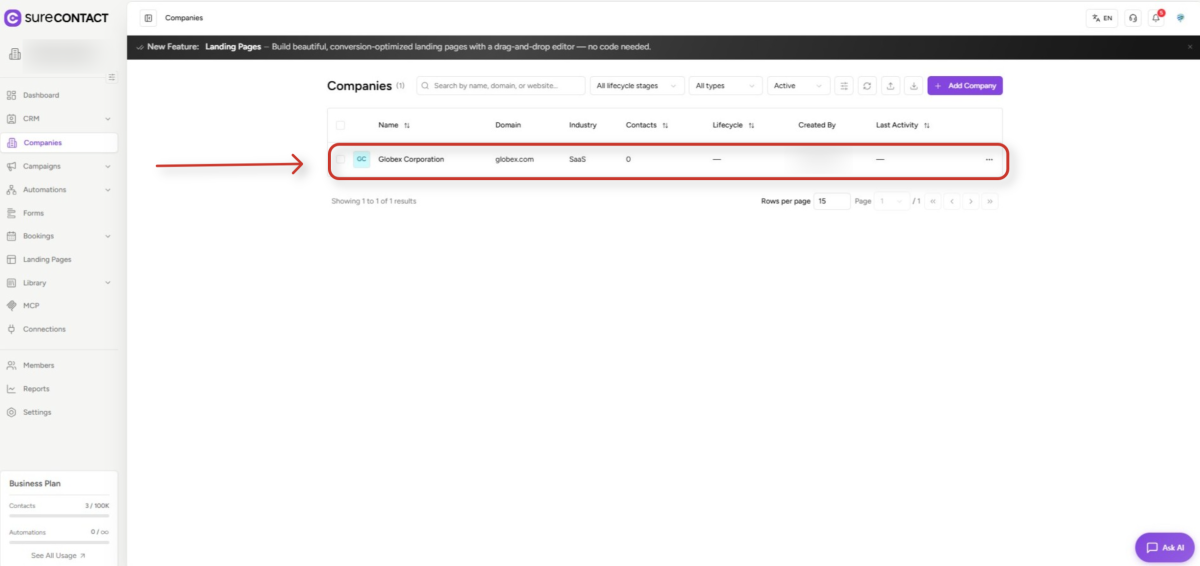
Each row shows the company logo, Name, Domain, Industry, Contacts count, Lifecycle, Created By, and Last Activity. Click any row to open the detail page.
5. Viewing a Company
The company detail page is organized into three tabs: Overview, Contacts, and Notes.
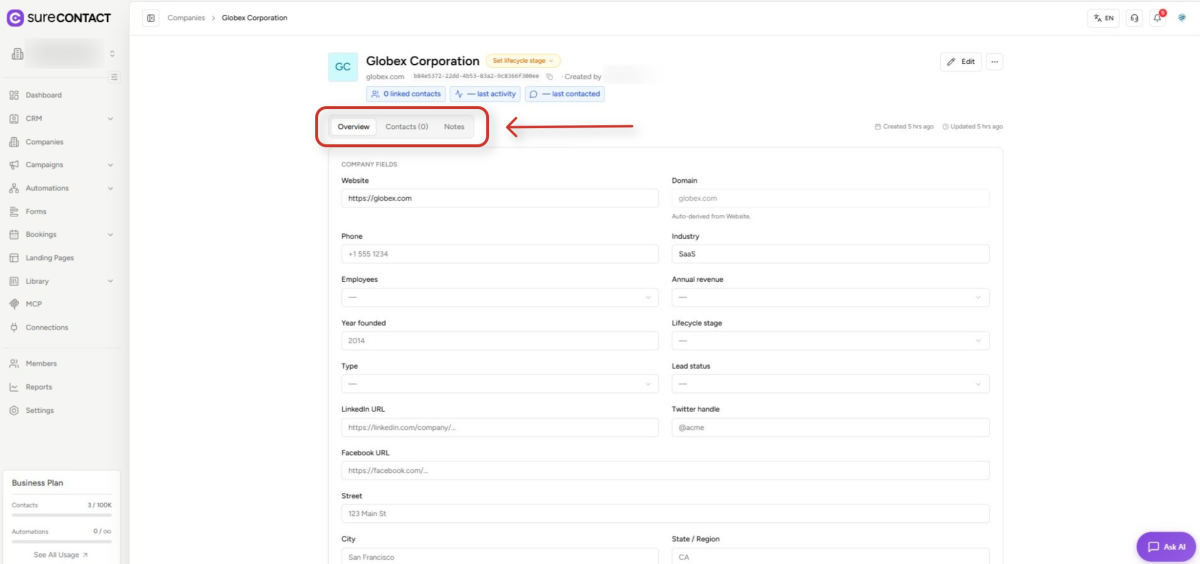
Overview tab
Shows the COMPANY FIELDS block, all editable firmographic fields including Website, Domain, Phone, Industry, Employees, Annual Revenue, Year Founded, Lifecycle Stage, Type, Lead Status, plus social URLs (LinkedIn, Twitter, Facebook) and address fields. Every field is editable inline.
Header stats
- Linked contacts count (clickable).
- Last activity timestamp.
- Last contacted timestamp.
- Lifecycle stage badge – click to change at any time.
6. Editing a Company
From the Overview tab, edit any field directly – changes save automatically. You can also click the Edit button in the top right of the header for a guided form view, or use the kebab (⋮) menu for actions like Delete, Archive, or Transfer Owner.
Logo management
- Upload a custom logo from the company detail header.
- Reset to the auto-favicon any time.
7. Linking Contacts to a Company
SureContact supports three ways to link contacts to a company.
7.1 From the Contacts tab
- 1. Open the Contacts tab on the company detail page.
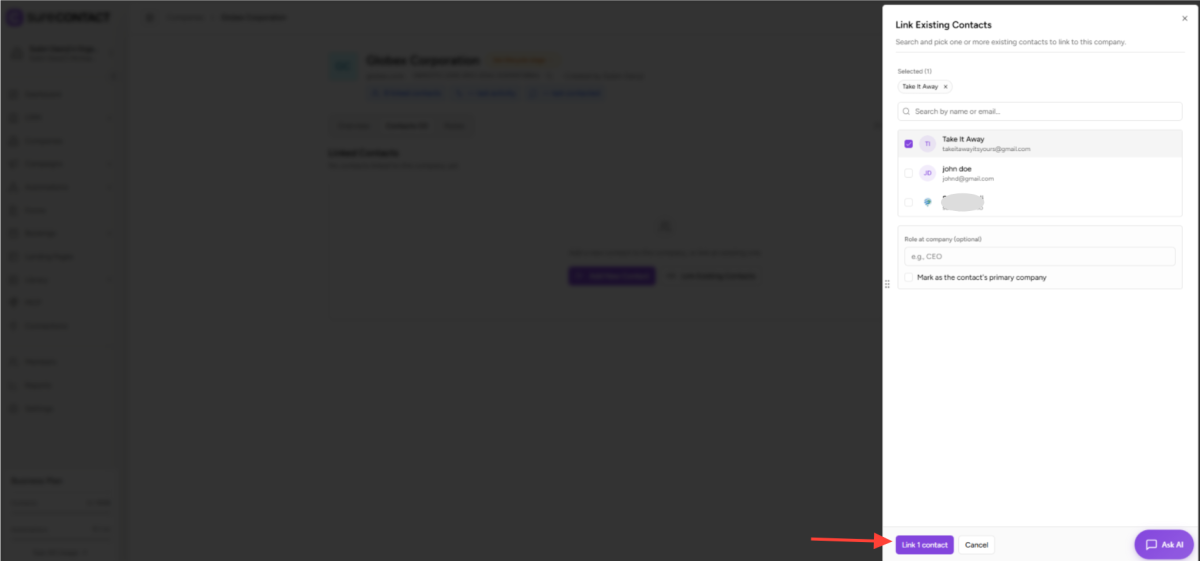
- 2. Click Link Existing Contacts to search your existing contact list, or click Add New Contact to create a new contact that’s pre-linked.
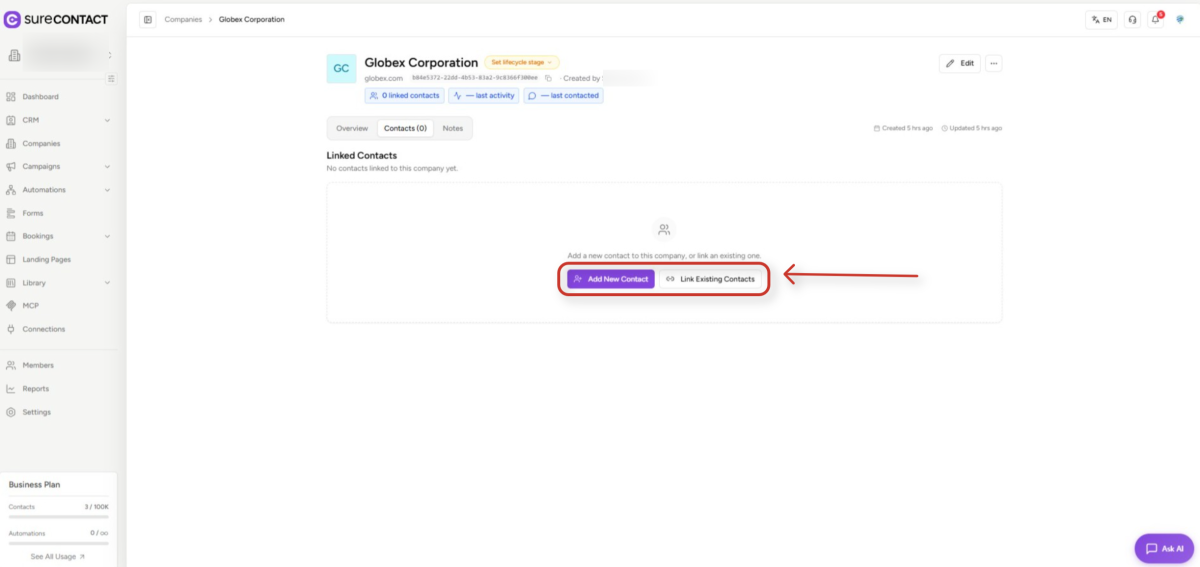
- 3. (Optional) set a Role (e.g., “CEO”) and mark one contact as Primary.
- 4. Save – the contact appears under Linked Contacts.
7.2 From a contact’s profile
- Open any contact → Companies tab.
- Click Link Company, search for and select a company.
- Set the role and primary flag, then save.
7.3 Auto-linking by domain
If a contact’s email domain matches a company’s domain, SureContact can suggest or automatically link them – useful when you bulk-import contacts with corporate emails.
7.4 Primary company rule
- Each contact may have multiple linked companies, but only one is marked primary at a time.
- Removing the primary link auto-promotes the next linked company to primary.
8. Managing Notes
Notes are company-level and kept separate from contact notes. They’re useful for capturing meeting summaries, account context, or deal-relevant information that applies to the whole organization.
Step-by-step
- 1. Open the company → Notes tab.
- 2. Click Add Note. A composer opens.
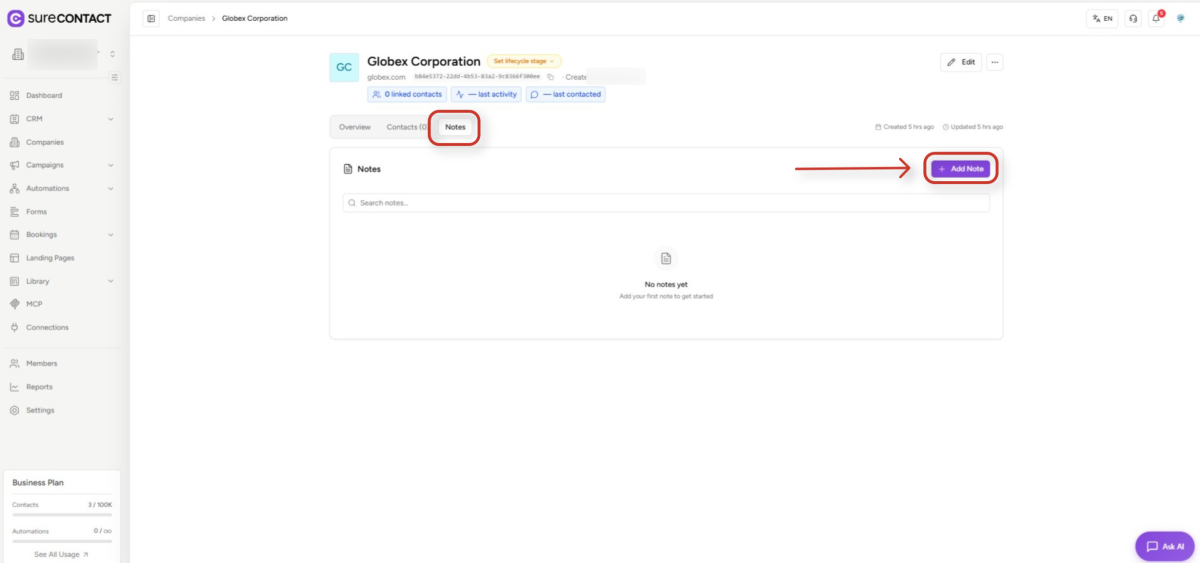
- 3. Enter an optional title and the note body.
- 4. Save. The note appears at the top of the list (most recent first).
Permissions
- Only the note creator or a manager-level user can edit or delete notes.
- All workspace members with company access can read notes.
9. Custom Fields
Custom fields let admins extend the standard company schema with workspace-specific data. Once defined, they appear on every company’s create and edit form.
9.1 Creating a custom field (admin)
- 1. Navigate to CRM → Custom Fields.
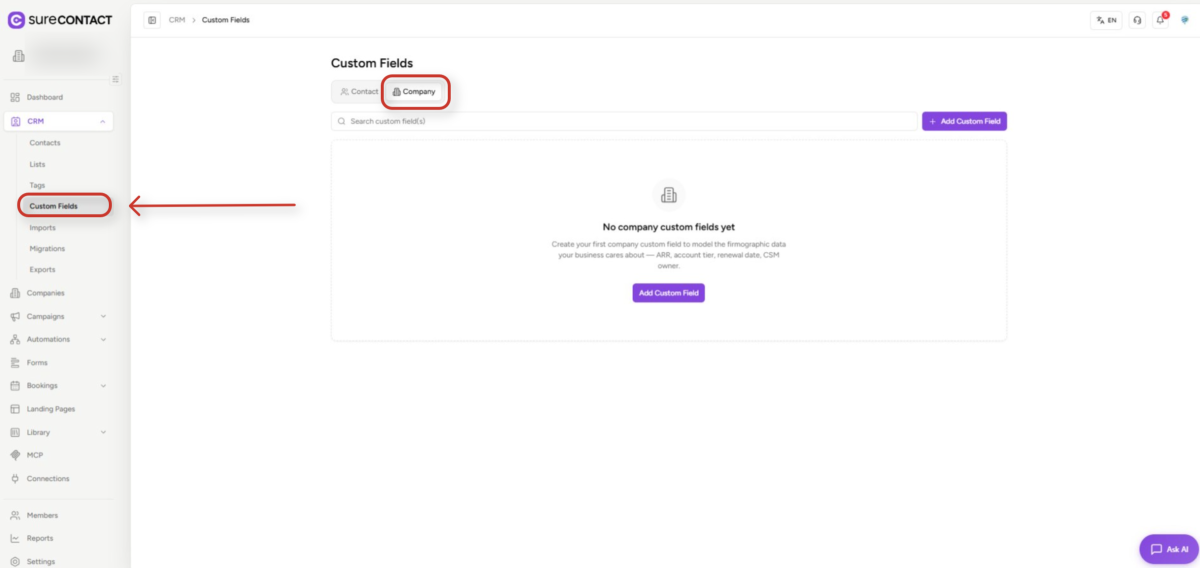
- 2. Click the Company tab (this scopes the field to companies, not contacts).
- 3. Click Add Custom Field.
- 4. Choose a type (text, select, checkbox, date, etc.).
- 5. Set the label, required flag, and default value.
- 6. Save – the field is immediately visible on every company create/edit form.
9.2 Supported field types
- Text – short, single-line input.
- Textarea – multi-line input for longer notes.
- Number – numeric only, useful for counts and amounts.
- Date – calendar picker.
- Timestamp – date plus time.
- Email – validated email address.
- URL – validated link.
- Phone – phone-format input.
- Select – dropdown with predefined single-choice options.
- Multi-select – dropdown allowing multiple selections.
- Checkbox – boolean true/false toggle.
10. Archiving vs. Deleting
SureContact distinguishes between archiving (reversible hide) and deleting (soft-delete with recovery window).
- Archive – hides the company from the active list. Toggle the Active filter to Archived to view; restore at any time.
- Delete – soft-delete. Recoverable within 60 days; after that, permanently removed.
Both actions are available from the kebab (⋮) menu on the company detail page, or via bulk actions on the list view.
11. Bulk Actions
Select multiple companies in the list view (using row checkboxes or the header select-all checkbox) to reveal the bulk action toolbar.
Available bulk actions
- Bulk delete – soft-delete every selected company at once.
- Bulk archive / restore – hide or unhide selected companies.
- Transfer owner – reassign created_by to another workspace member.
- Update lifecycle stage – change the lifecycle of every selected row in one action.
12. Import / Export
Use the toolbar import (↑) and export (↓) icons next to the filter row on the Companies list.
Import (CSV)
- Upload a CSV – SureContact lets you map CSV columns to standard and custom company fields.
- Duplicate detection is based on company Name and Domain.
Export (CSV)
- Choose which fields to include, then download a CSV of the filtered or selected companies.
- Useful for backups, reporting, or migrating to another tool.
13. Field Reference
Standard company fields available on every Add / Edit form:
- Company Name – required, unique per workspace.
- Website – full URL; domain is auto-derived.
- Logo – upload manually or use the auto-fetched favicon.
- Phone – free-form phone number.
- Industry – free-form text (e.g., SaaS, Manufacturing).
- Employees – predefined range buckets.
- Annual Revenue – predefined range buckets.
- Year Founded – year input.
- Lifecycle Stage – Lead / Subscriber / Customer / etc.
- Type – Customer, Partner, Vendor, Prospect, etc.
- Lead Status – New, Contacted, Qualified, Unqualified.
- LinkedIn / Twitter / Facebook URLs – social profile links.
- Street / City / State / Country / Postal code – full address block.
- About / Description – freeform long text.
Need Help?
If you need any assistance, please email [email protected], and our support team will be happy to help you.
We don't respond to the article feedback, we use it to improve our support content.