
- Introduction to SureContact Dashboard
- How to Install and Connect the SureContact WordPress Plugin
- What Do Contact Fields Mean in the SureContact WordPress Plugin
- How to Invite Members to a Workspace in SureContact
- How to Switch Organizations in SureContact
- Workspace-Level Contact Allocation in SureContact
- Workspace-Level Timezone Settings in SureContact
- How to Add a Custom Tracking Domain in a Workspace in SureContact
- SureContact MCP Server
- Creating Forms in SureContact
- Create Forms & assign lists & tags
- Multi Language Support(WordPress)
- Page Visit Tracking Guide (WordPress)
- Forms Custom Fields Sync Guide
- Landing Pages User Flow Guide
- SureContact Organization Workspace Setup Guide
- Companies User Flow Guide
- FAQs
- Bulk Operations SureContact
- SureContact Double Opt-In Guide
- SureContact API Keys Guide
- SureContact 2FA User Guide
- SureContact Bookings User Flow Guide
- SureContact MultiStep Forms Guide
- Zoom Integration with SureContact
- Group Booking User Flow Documentation
- Global Search – User Flow Documentation
- Folders in SureContact
- SureContact Email Tracking Pixel Regulations
- Email Open Tracking Consent SureContact
- Forms Custom Success Message Redirect Guide
- Partial Form Submission Guide
- Shopify Integration with SureContact Guide
- Migrate to Unified Preference Page
- Setup SMTP in SureContact
- Email Campaigns in SureContact
- How to Add a Preferences URL in Your Emails
- How to Share Email Templates in SureContact
- Spintax Feature in SureContact
- Deleting Sent Campaigns in SureContact
- A/B Testing Integration Guide
- Unsubscription Guide
- SureContact SMTP Setup Guide
- SMTP Routing User Flow
- FluentCRM Integration with SureContact
- SureContact Third-Party Integration — Step-by-Step Guide
- Fluent Forms Integration with SureContact
- SureForms Integration with SureContact
- WPForms Integration with SureContact
- Bulk Sync WordPress Users to SureContact
- Contact Form 7 Integration with SureContact
- Sync WooCommerce Customers with SureContact
- FluentCart & FluentCommunity Integration With SureContact
Page Visit Tracking Guide (WordPress)
SureContact can automatically track when your logged-in WordPress users visit specific pages or posts on your site. When a visit is detected, the system instantly applies tags, adds contacts to lists, or removes them, all based on rules you configure, with no cookies or tracking scripts required.
This guide explains how visit tracking works, how to configure rules for specific pages or posts as well as blanket rules, and how to use this feature effectively for segmentation and marketing automation.
Prerequisites
Before setting up visit tracking, please ensure the following:
1. SureContact Plugin Installed on WordPress
The SureContact plugin must be installed and activated on your WordPress site. Visit tracking runs entirely server-side; it adds no JavaScript, cookies, or tracking pixels to your frontend, so there is zero impact on page load performance.
2. Visitors Must Be Logged In to WordPress
Visit tracking only applies to users who are actively logged in to WordPress when they visit a page or post. Anonymous visitors browsing without a session are not tracked.
How Visit Tracking Works
When a logged-in user visits a page or post on your WordPress site, SureContact runs through the following sequence automatically:
| Step | What Happens |
| 1 | A logged-in user visits a page or post on your WordPress site. |
| 2 | SureContact checks whether the visitor exists as a contact or creates a new contact in your workspace if not found. |
| 3 | The system looks up any visit tracking rules configured for that specific page or post. |
| 4 | If matching rules are found, the configured list and tag actions are applied to the contact automatically. |
Note: Visit tracking is entirely server-side. It does not use cookies, JavaScript, or tracking pixels, and has no impact on page load speed for your visitors.
Setting Up Visit Tracking Rules
You can create rules that trigger on visits to a specific page or post, or create blanket rules that apply across all your pages or all your posts.
1.1 Rule for a Specific Page or Post
- Go to SureContact → Integrations.
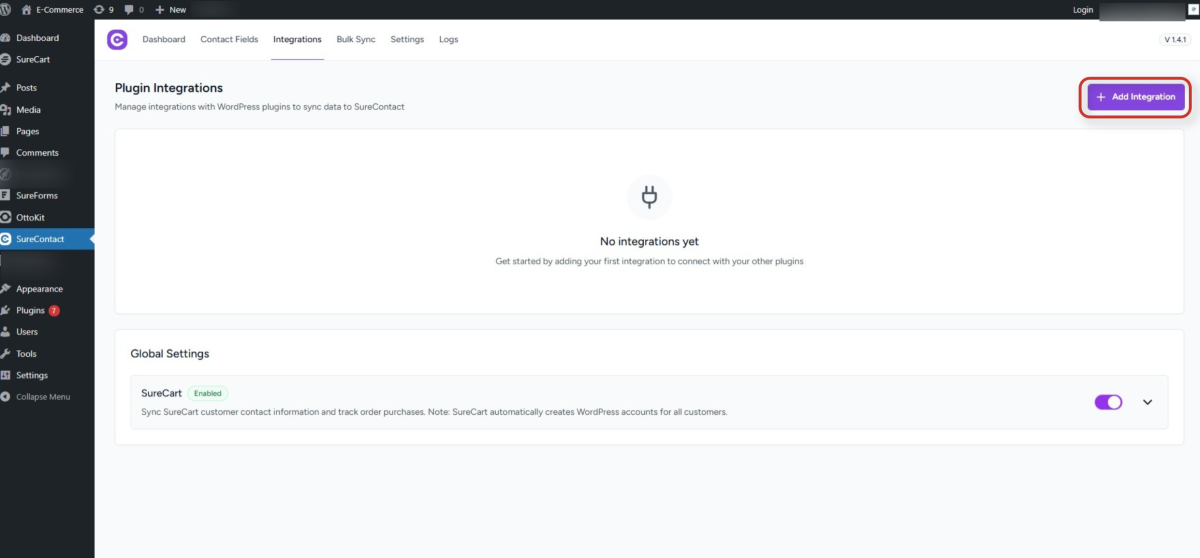
- Click the + Add Integration button in the top-right corner of the Plugin Integrations section.
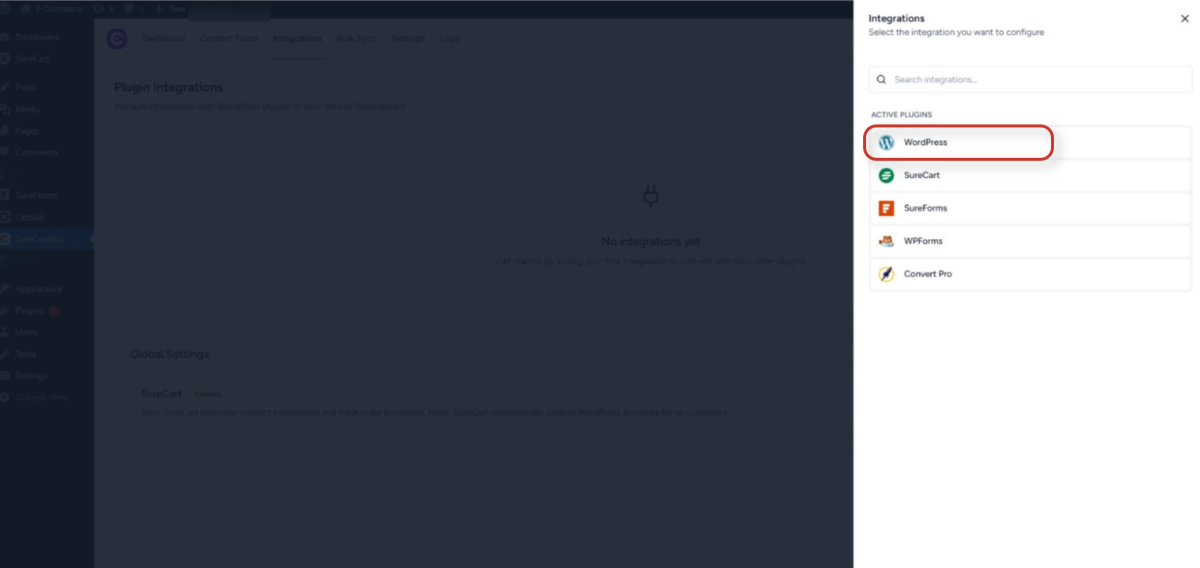
- In the integration picker that appears, select WordPress from the Active Plugins list.
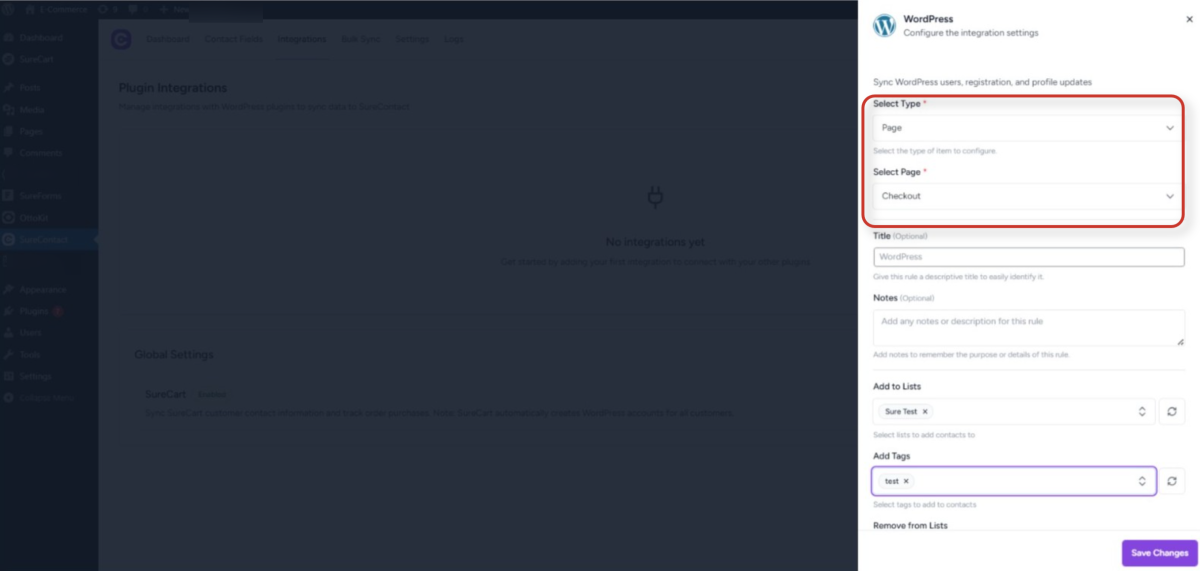
- Set Select Type to Page or Post, then choose a specific page or post from the dropdown.
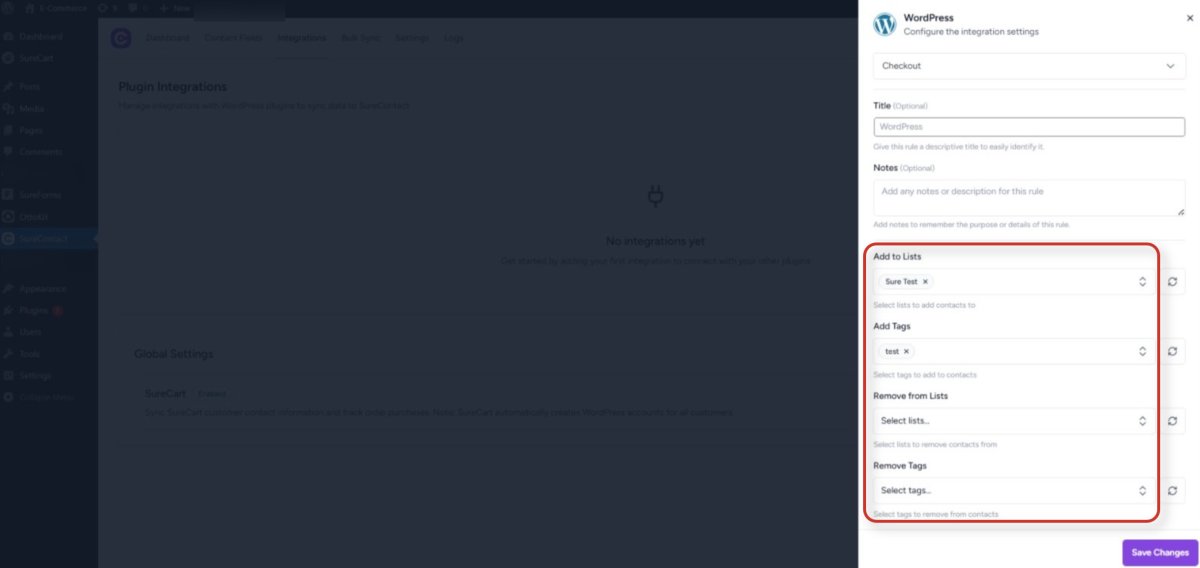
- Configure your actions – choose from any combination of the following:
- Add to Lists: Automatically add the contact to selected lists.
- Add Tags: Apply one or more tags to the contact.
- Remove from Lists: Remove the contact from selected lists.
- Remove Tags: Remove one or more tags from the contact.
- Click Save Changes.
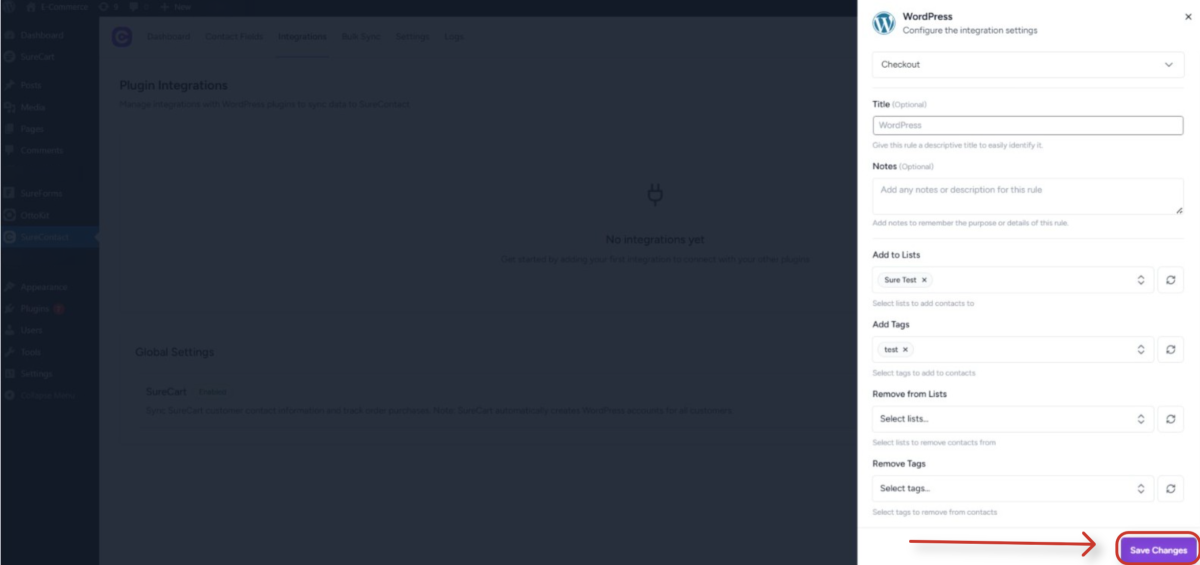
1.2 Rule for All Pages or All Posts
- Follow the same steps as above.
- Instead of selecting a specific page or post, choose All Pages or All Posts from the dropdown.
- Configure your desired actions and click Save Changes.
Tip: You can combine specific and blanket rules. For example, set a general “All Posts” rule to tag all readers as “blog-reader”, and add a specific rule for your pricing page to also tag those visitors as “pricing-interested”. Both rules will be applied when the pricing page is visited.
How Rule Priority Works
When both a specific page/post rule and a blanket All Pages or All Posts rule exist for the same content, both are applied; they do not override each other. SureContact processes them in the following order:
| Priority | Rule Type | Behavior |
| 1st | Specific Page / Post Rule | Processed first – actions for this exact page or post are applied. |
| 2nd | All Pages / All Posts Rule | Processed second – blanket actions applied after the specific rule. |
Example: A contact who visits your pricing page will receive tags from both the specific Pricing Page rule and the general All Pages rule, if both are configured.
Common Use Cases
| Use Case | How to Set It Up |
| Segment by Interest | Create a rule for your pricing page that tags visitors as “interested-in-pricing”. |
| Track Content Engagement | Create a rule for specific blog posts that adds readers to a “blog-readers” list. |
| Trigger Follow-Ups | Use tags from page visits to trigger email automation workflows in SureContact. |
| Lead Scoring | Apply different tags based on which pages contacts visit to build a picture of their intent. |
| Onboarding Tracking | Tag users who visit your getting-started or documentation pages to monitor onboarding progress. |
Requirements
For visit tracking to function correctly, all of the following conditions must be met at the time of the page visit:
| Requirement | Detail |
| Logged-in WordPress User | The visitor must be actively logged in to WordPress at the time of the page visit. |
| Existing & New SureContact Contact | The visitor can be existing, or in case a new user comes in, they will be created as a contact in SureContact, matched via their WordPress user account. |
| Active Visit Tracking Rule | At least one visit tracking rule must be configured and enabled for the page or post being visited. |
Need Help?
If you need any assistance, please email [email protected], and our support team will be happy to help you.
We don't respond to the article feedback, we use it to improve our support content.