
- Introduction to SureContact Dashboard
- How to Install and Connect the SureContact WordPress Plugin
- What Do Contact Fields Mean in the SureContact WordPress Plugin
- How to Invite Members to a Workspace in SureContact
- How to Switch Organizations in SureContact
- Workspace-Level Contact Allocation in SureContact
- Workspace-Level Timezone Settings in SureContact
- How to Add a Custom Tracking Domain in a Workspace in SureContact
- SureContact MCP Server
- Creating Forms in SureContact
- Create Forms & assign lists & tags
- Multi Language Support(WordPress)
- Page Visit Tracking Guide (WordPress)
- Forms Custom Fields Sync Guide
- Landing Pages User Flow Guide
- SureContact Organization Workspace Setup Guide
- Companies User Flow Guide
- FAQs
- Bulk Operations SureContact
- SureContact Double Opt-In Guide
- SureContact API Keys Guide
- SureContact 2FA User Guide
- SureContact Bookings User Flow Guide
- SureContact MultiStep Forms Guide
- Zoom Integration with SureContact
- Group Booking User Flow Documentation
- Global Search – User Flow Documentation
- Folders in SureContact
- SureContact Email Tracking Pixel Regulations
- Email Open Tracking Consent SureContact
- Forms Custom Success Message Redirect Guide
- Partial Form Submission Guide
- Shopify Integration with SureContact Guide
- Migrate to Unified Preference Page
- Setup SMTP in SureContact
- Email Campaigns in SureContact
- How to Add a Preferences URL in Your Emails
- How to Share Email Templates in SureContact
- Spintax Feature in SureContact
- Deleting Sent Campaigns in SureContact
- A/B Testing Integration Guide
- Unsubscription Guide
- SureContact SMTP Setup Guide
- SMTP Routing User Flow
- FluentCRM Integration with SureContact
- SureContact Third-Party Integration — Step-by-Step Guide
- Fluent Forms Integration with SureContact
- SureForms Integration with SureContact
- WPForms Integration with SureContact
- Bulk Sync WordPress Users to SureContact
- Contact Form 7 Integration with SureContact
- Sync WooCommerce Customers with SureContact
- FluentCart & FluentCommunity Integration With SureContact
Bulk Operations SureContact
SureContact allows you to perform bulk actions on multiple contacts, companies, tags, lists, and other records simultaneously, saving you time by eliminating the need to update records one by one.
This guide covers every available bulk action, how to select records, how to apply actions, and what to expect for each operation type.
Prerequisites
Before using bulk operations, please ensure the following:
1. You Have Contacts or Records in Your Workspace
Bulk actions require at least one contact, company, tag, list, or other record to exist in your SureContact workspace.
2. Active Sequences or Automations (for Enrollment Actions)
To use “Enroll in Sequence” or “Enroll in Automation”, you must have at least one active sequence or automation already created. If none exist, a warning will appear in the bulk actions modal.
3. Companies Feature Enabled (for Company Link/Unlink)
“Link to Company” and “Unlink from Company” actions require the Companies feature to be active on your SureContact plan.
Contacts – Bulk Operations
Navigate to the Contacts page from CRM → Contacts in the left sidebar.
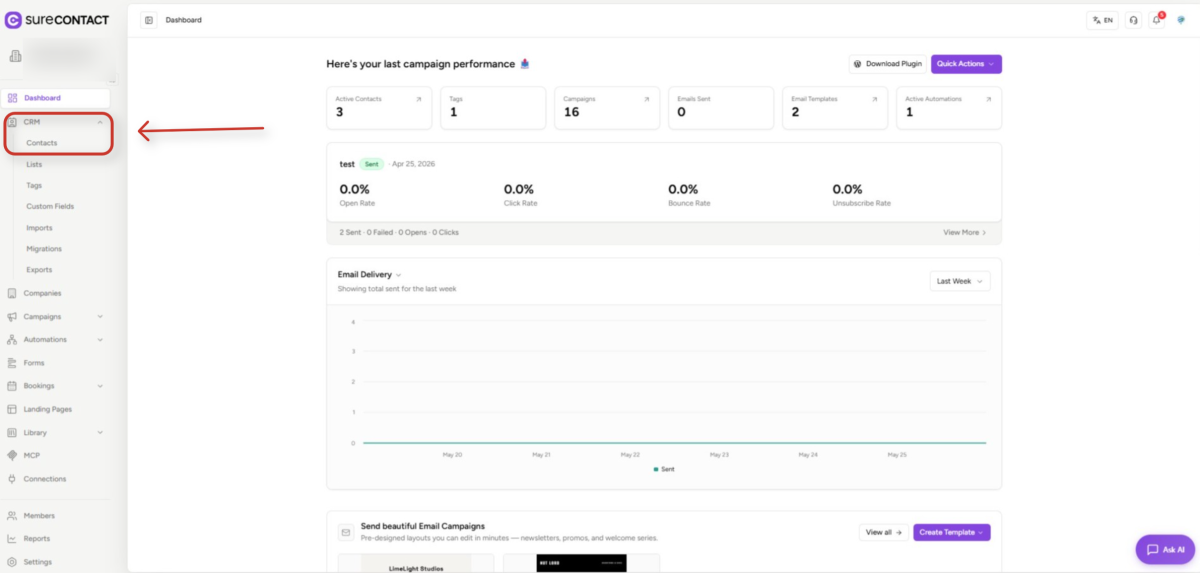
1. Select Contacts Using Checkboxes
- Click the checkbox on any individual contact row to select it.
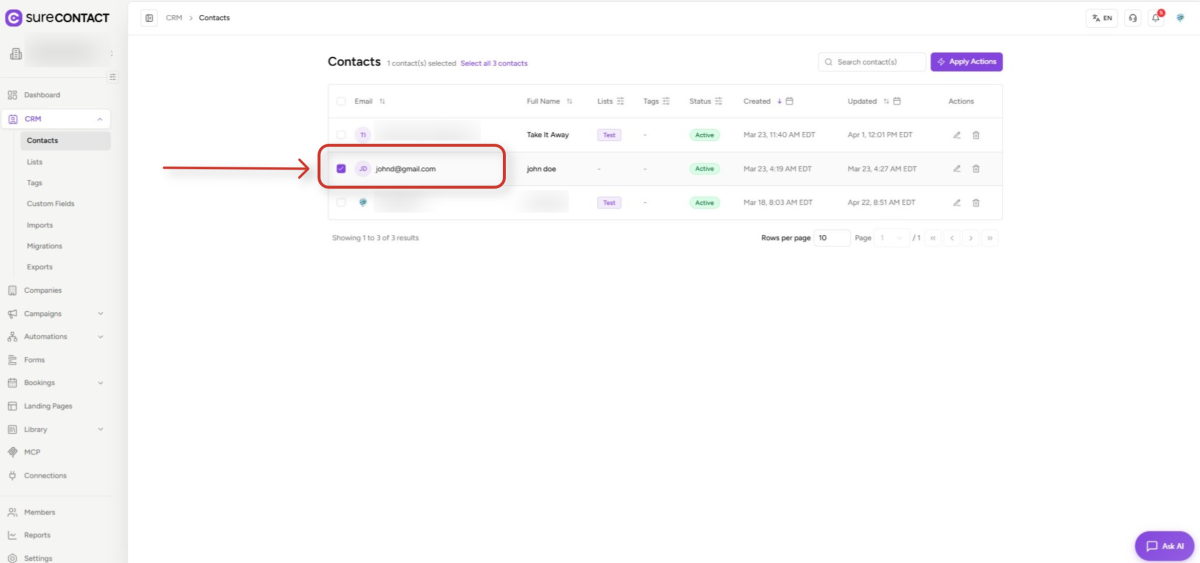
- To select all contacts on the current page, click the checkbox in the table header row.
- After selecting at least one contact, the selection toolbar appears at the top.
2. Optionally Select All Contacts Matching Active Filters
- After selecting contacts on the current page, a “Select all N contacts” link appears in the toolbar next to the selection count.
- Click this link to extend the selection to every contact that matches your current filters – not just the current page.
- To go back to page-only selection, click “Select only this page”.
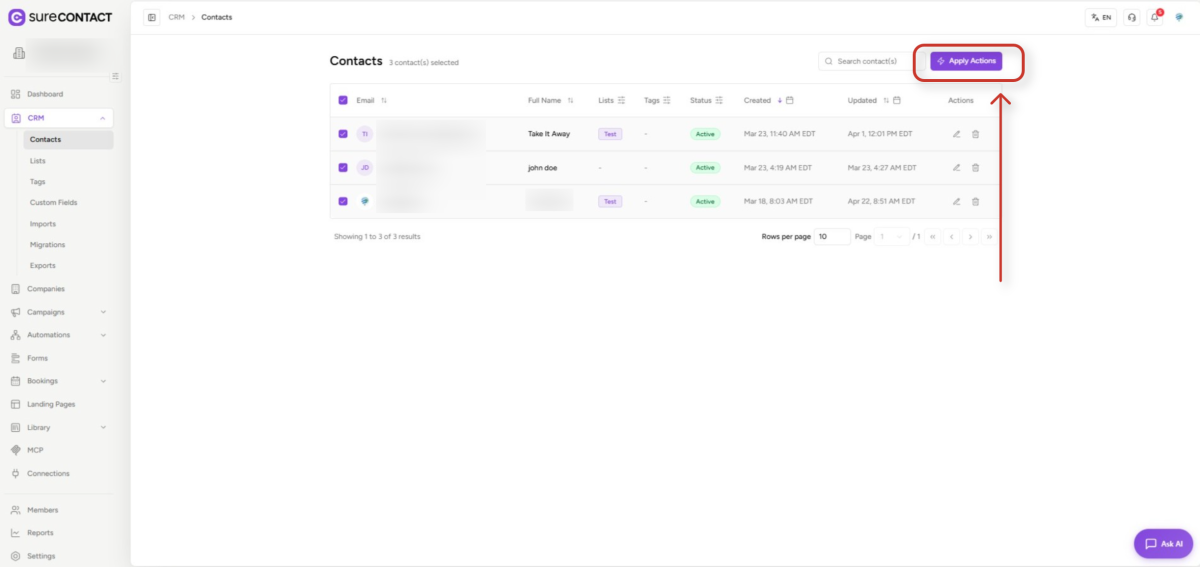
3. Click “Apply Actions”
- Once one or more contacts are selected, the purple “Apply Actions” button appears in the top-right of the toolbar.
- Click it to open the Apply Bulk Actions modal.
4. Choose an Action from the Dropdown
- The “Apply Bulk Actions” modal opens with a “Select Action” dropdown.
- Click “Choose an action…” to expand the list of all available bulk actions.
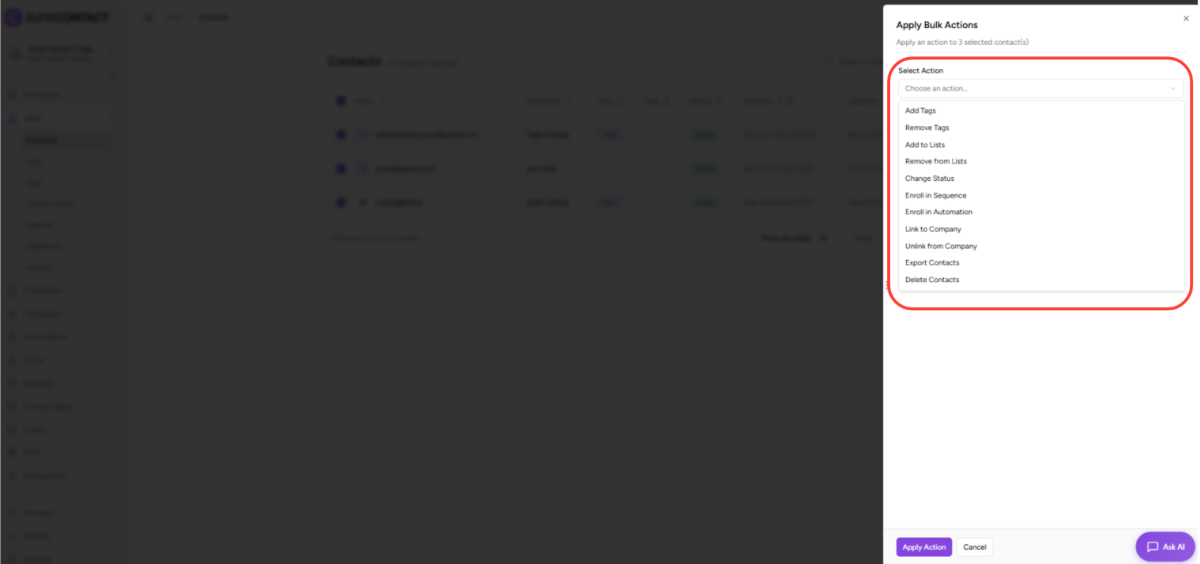
Available Bulk Actions – Contacts
5.1 Add Tags / Remove Tags
- Select “Add Tags” to attach one or more tags to all selected contacts.
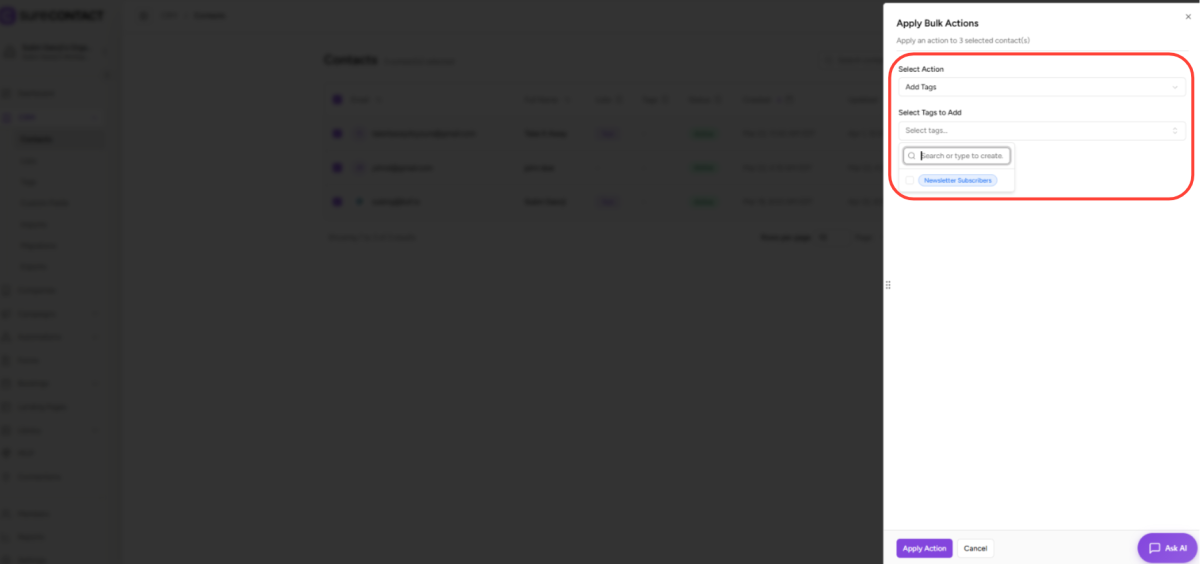
- Select “Remove Tags” to detach tags from selected contacts.
- Both actions show a searchable combobox. You can also create new tags inline by typing a new name.
5.2 Add to Lists / Remove from Lists
- Select “Add to Lists” to add selected contacts to one or more static lists.
- Note: Dynamic lists are excluded – they cannot accept manual assignments.
- “Remove from Lists” removes selected contacts from any chosen list.
5.3 Change Status
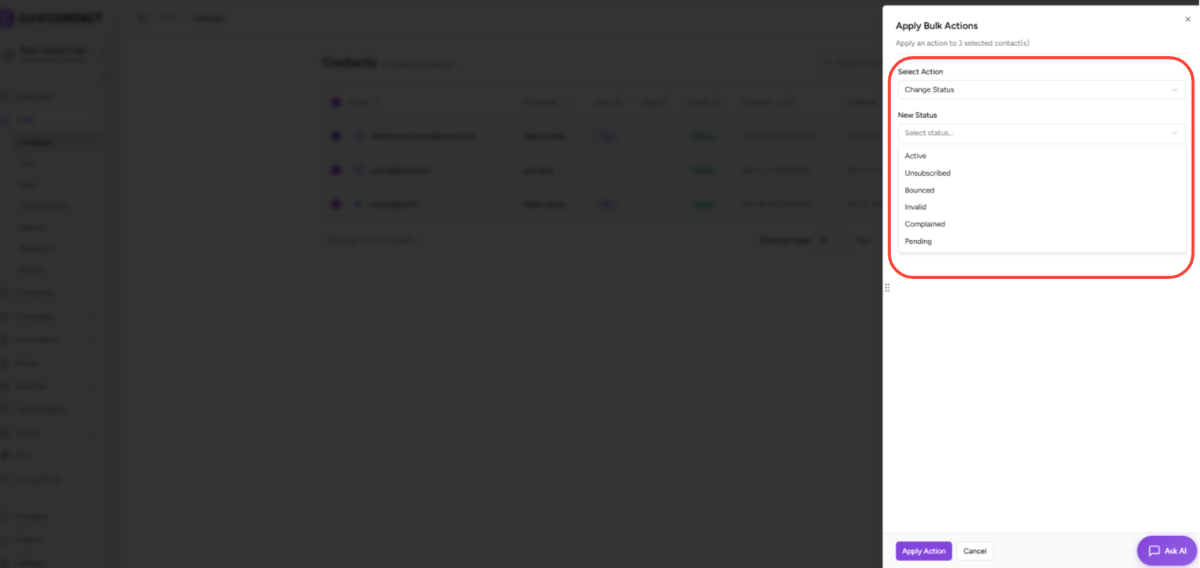
- Select “Change Status” to bulk-update the contact status.
- Available statuses: Active, Unsubscribed, Bounced, Invalid, Complained, Pending.
5.4 Enroll in Sequence
- Enrolls all selected contacts into an active email sequence.
- If no active sequences exist, a warning appears: “No active sequences found. Create and activate a sequence first.”
5.5 Enroll in Automation
- Enrolls selected contacts into an active workflow automation.
- Requires at least one active automation to be available.
5.6 Link to Company / Unlink from Company
- Link selected contacts to a specific company; optionally assign a role and mark one as the primary contact.
- “Unlink from Company” removes the association. If the unlinked contact was primary, the next linked contact auto-promotes.
- Requires the Companies feature on your plan.
5.7 Export Contacts
- Queues a CSV export of all selected contacts.
- The export includes all default fields and any custom fields.
- You will receive an email with a download link once the export is ready.
5.8 Delete Contacts
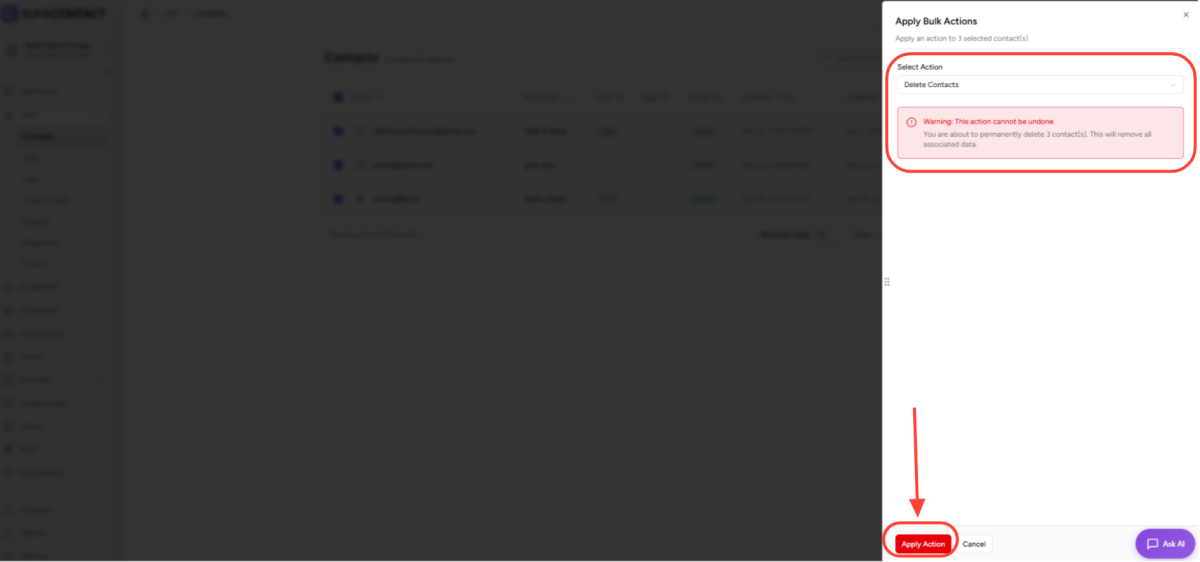
- Permanently deletes all selected contacts and all associated data (tags, lists, notes, activities, purchases, automations).
- A red warning banner is shown before confirming: “Warning: This action cannot be undone.”
- Click the red “Apply Action” button to confirm. This action cannot be reversed.
Applying the Action
6. Configure and Submit
- After selecting an action, configure its parameters (e.g., pick tags, choose a list, select a status).
- Click “Apply Action” to run the bulk operation.
- A toast notification appears: “Processing bulk action…”
- Once complete: “N contacts processed.” or “N processed, Y failed.” The table refreshes automatically.
- For export: “Export has been queued. You’ll receive an email when it’s ready to download.”
Combining Filters with Bulk Actions
All contact filters work together with bulk selection. When filters are active, selecting all will apply the bulk action to every matching contact across all pages – not just the current page.
Supported filters:
- Search (name / email)
- Status, Tags, Lists
- “No Tags” / “No Lists” filters
- Created / Updated date ranges
- Custom field filters
Companies – Bulk Operations
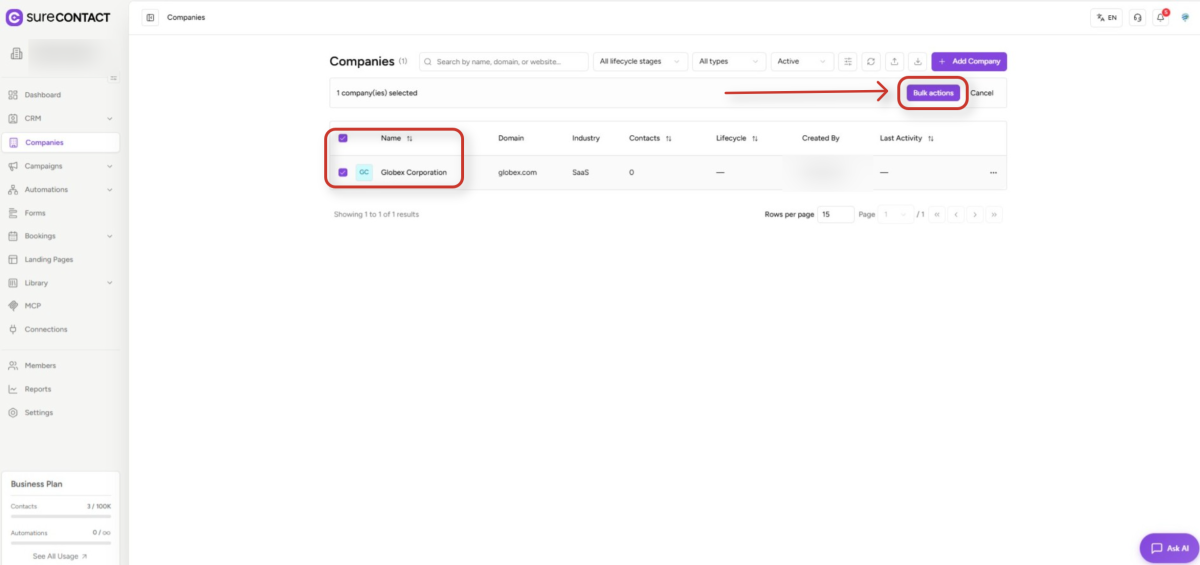
Navigate to CRM → Companies. Select companies via their checkboxes, then click the “Bulk action” button that appears in the selection toolbar.
Available Company Bulk Actions
- Archive – Soft-hides companies from the default view (recoverable).
- Restore – Restores archived companies (only visible in the Archived view).
- Update Lifecycle Stage – Changes the stage to: Subscriber, Lead, MQL, SQL, Opportunity, Customer, Evangelist, or Other.
- Transfer Owner – Changes the assigned owner of selected companies.
- Delete – Soft-deletes companies. A confirmation dialog is required.
Bulk Operations on Other Sections
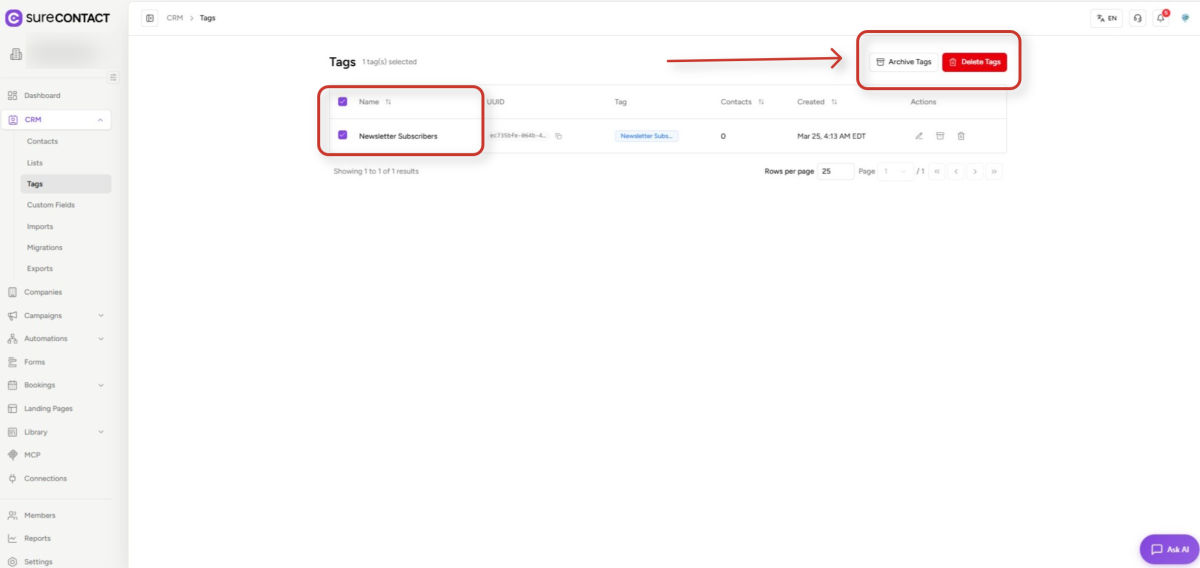
Most list-based sections in SureContact support selecting multiple items and performing bulk actions. Select items using their checkboxes, then use the bulk action bar that appears at the bottom of the screen. Eg- Tags-
Tags
- Archive, Unarchive, Delete
Lists
- Archive, Unarchive, Delete
Custom Fields
- Delete
Forms
- Delete
Email Templates
- Delete
Campaigns
- Delete
Automations
- Delete
Media / Assets
- Delete, Move (media only)
Key Limitations
- Contact deletion is permanent – all associated data (notes, tags, activities, purchases, automations) is removed. This cannot be undone.
- Company deletion is a soft-delete and is recoverable from the Archived view.
- Dynamic lists are excluded from “Add to Lists” – only static lists are shown.
- Sequence and Automation enrollment requires at least one active sequence or automation.
- “Link to Company” and “Unlink from Company” require the Companies feature on your plan.
- There is no maximum record limit enforced, but large operations may take longer to complete.
Need Help?
If you need any assistance, please email [email protected], and our support team will be happy to help you.
We don't respond to the article feedback, we use it to improve our support content.