
- Introduction to SureContact Dashboard
- How to Install and Connect the SureContact WordPress Plugin
- What Do Contact Fields Mean in the SureContact WordPress Plugin
- How to Invite Members to a Workspace in SureContact
- How to Switch Organizations in SureContact
- Workspace-Level Contact Allocation in SureContact
- Workspace-Level Timezone Settings in SureContact
- How to Add a Custom Tracking Domain in a Workspace in SureContact
- SureContact MCP Server
- Creating Forms in SureContact
- Create Forms & assign lists & tags
- Multi Language Support(WordPress)
- Page Visit Tracking Guide (WordPress)
- Forms Custom Fields Sync Guide
- Landing Pages User Flow Guide
- SureContact Organization Workspace Setup Guide
- Companies User Flow Guide
- FAQs
- Bulk Operations SureContact
- SureContact Double Opt-In Guide
- SureContact API Keys Guide
- SureContact 2FA User Guide
- SureContact Bookings User Flow Guide
- SureContact MultiStep Forms Guide
- Zoom Integration with SureContact
- Group Booking User Flow Documentation
- Global Search – User Flow Documentation
- Folders in SureContact
- SureContact Email Tracking Pixel Regulations
- Email Open Tracking Consent SureContact
- Forms Custom Success Message Redirect Guide
- Partial Form Submission Guide
- Shopify Integration with SureContact Guide
- Migrate to Unified Preference Page
- Setup SMTP in SureContact
- Email Campaigns in SureContact
- How to Add a Preferences URL in Your Emails
- How to Share Email Templates in SureContact
- Spintax Feature in SureContact
- Deleting Sent Campaigns in SureContact
- A/B Testing Integration Guide
- Unsubscription Guide
- SureContact SMTP Setup Guide
- SMTP Routing User Flow
- FluentCRM Integration with SureContact
- SureContact Third-Party Integration — Step-by-Step Guide
- Fluent Forms Integration with SureContact
- SureForms Integration with SureContact
- WPForms Integration with SureContact
- Bulk Sync WordPress Users to SureContact
- Contact Form 7 Integration with SureContact
- Sync WooCommerce Customers with SureContact
- FluentCart & FluentCommunity Integration With SureContact
Partial Form Submission Guide
Partial Form Submission is a new capability available for Multi-Step Forms in SureContact. When a visitor fills in part of a multi-step form but leaves before completing the final step, SureContact automatically captures and saves the partially filled details as a submission.
This guide explains how to enable Partial Form Submission on a multi-step form and how to review partially submitted entries from your dashboard.
Prerequisites
Before enabling Partial Form Submission, please ensure the following:
1. A Multi-Step Form Is Available
Partial Form Submission only works with Multi-Step forms. Create a new multi-step form, or use an existing one, before continuing. This guide uses an example 3-step multi-step form.
How to Enable Partial Form Submission
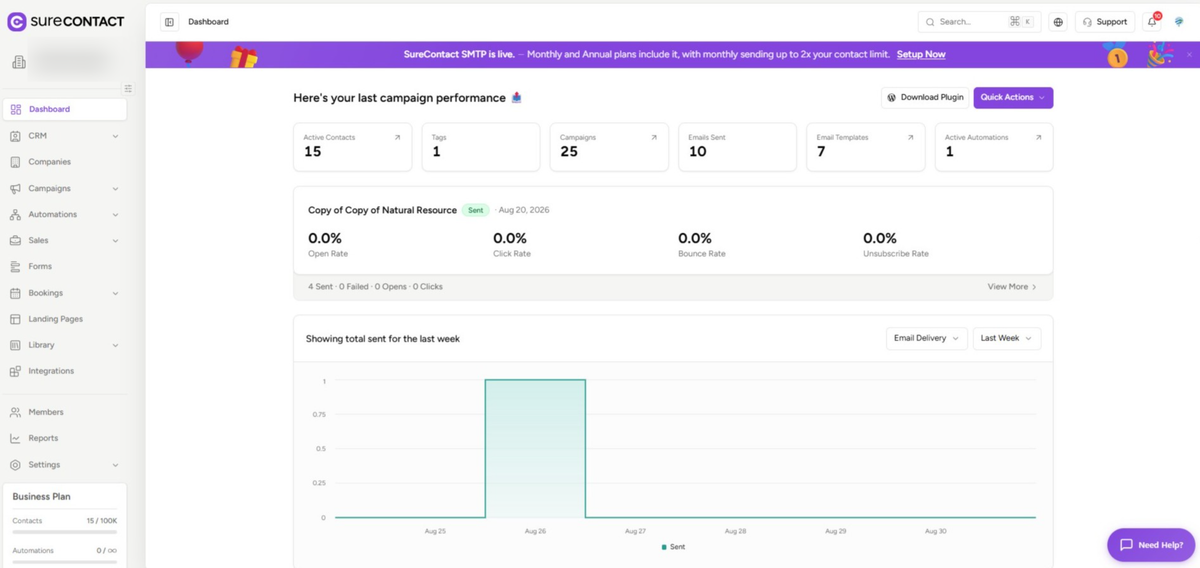
1. Log in to Your SureContact Account
- Open your SureContact account and log in with your credentials.
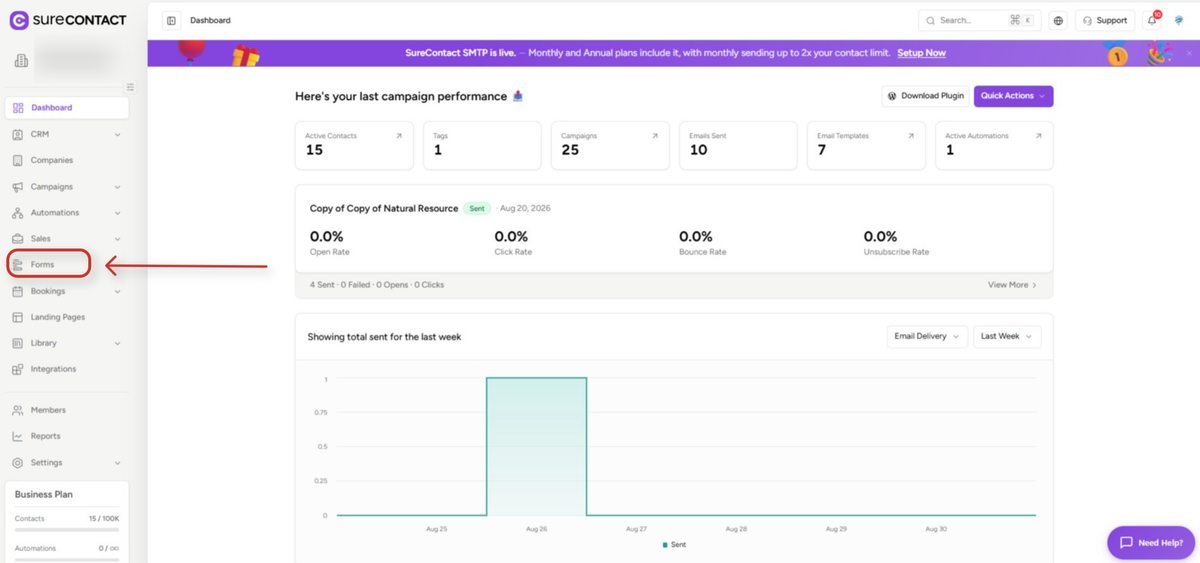
2. Go to Forms
- From the left sidebar of your dashboard, click on Forms.
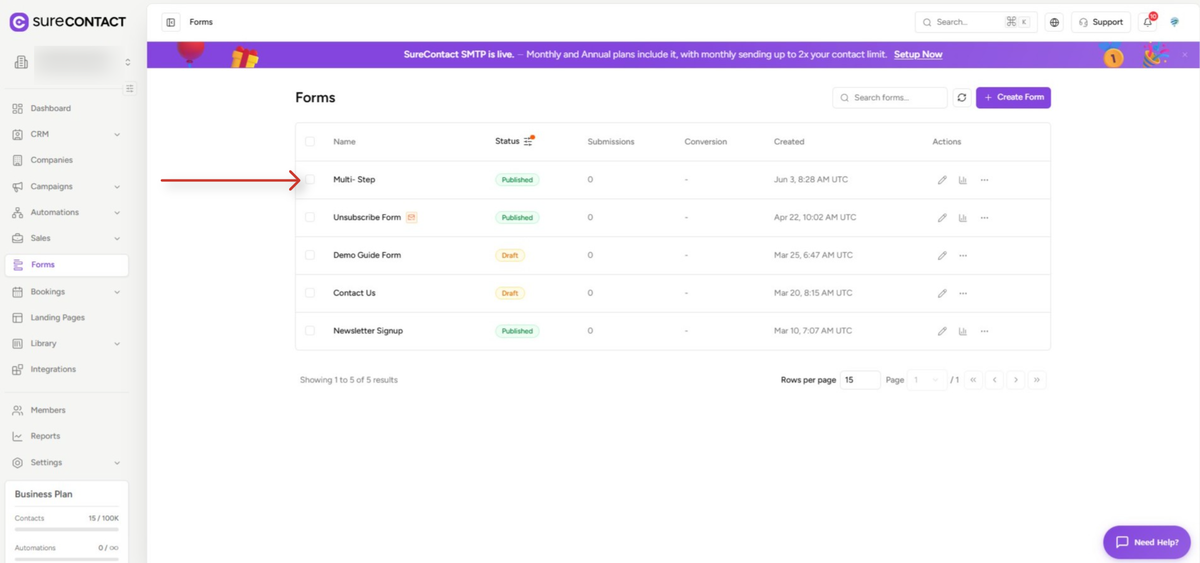
3. Open or Create a Multi-Step Form
- Click Create Form to build a new form, or click on an existing form to which you want to add partial submission.
- This example uses a form that has been set up with 3 steps.
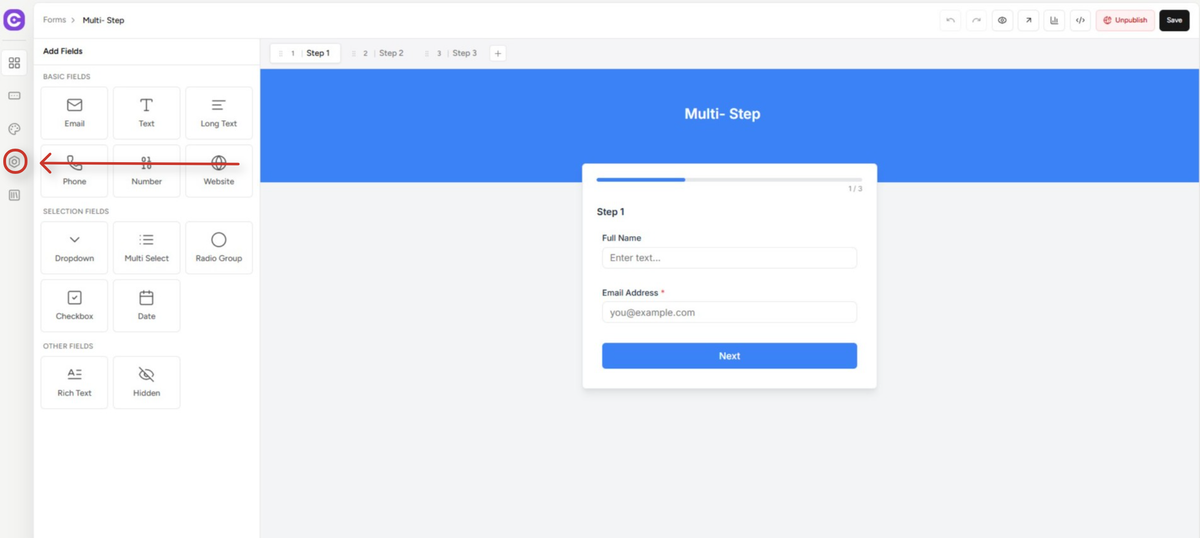
4. Open Form Settings
- On the form editor page, locate Form Settings in the left panel.
- Click on Form Settings to open its options.
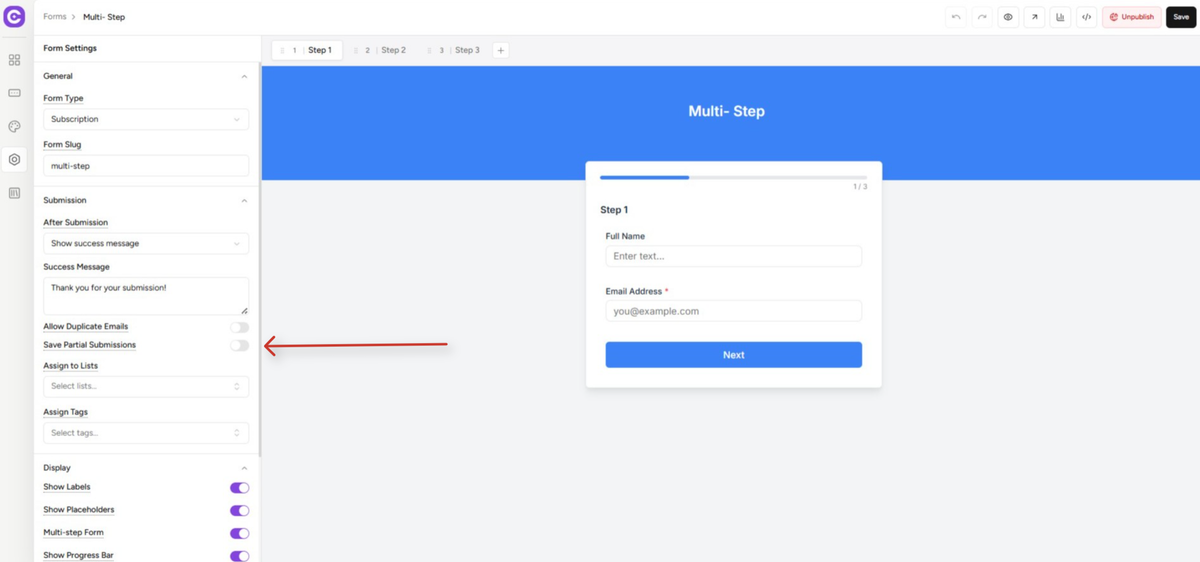
5. Enable Save Partial Submissions
- Scroll down within Form Settings until you see the Save Partial Submissions option.
- Toggle it on to enable partial submission capture for this form.
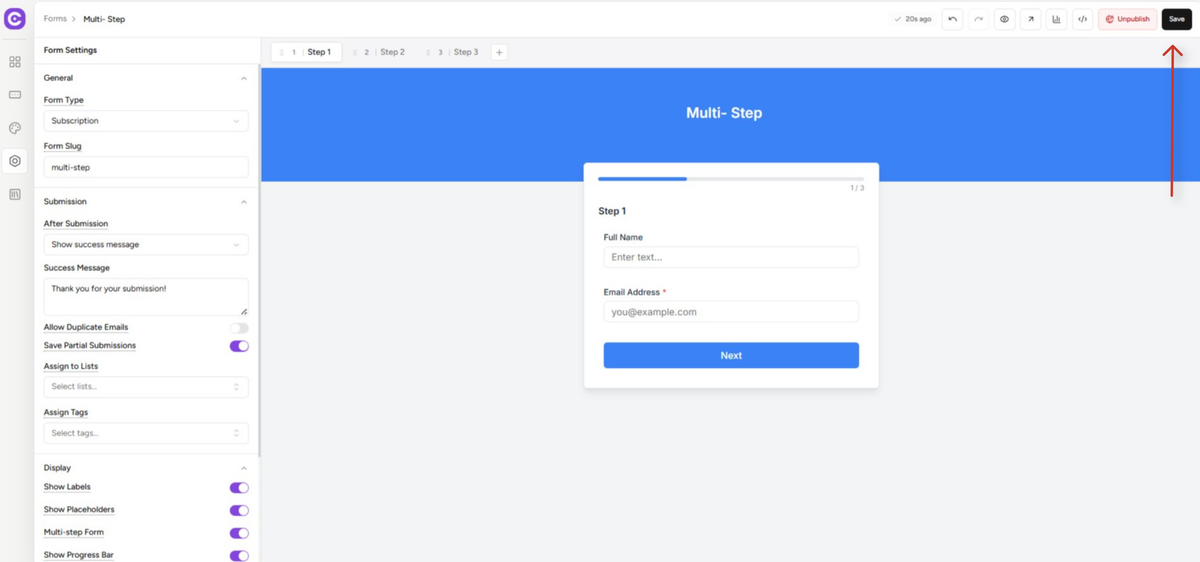
6. Save Your Changes
- Once enabled, click the Save button in the top right corner of the form editor.
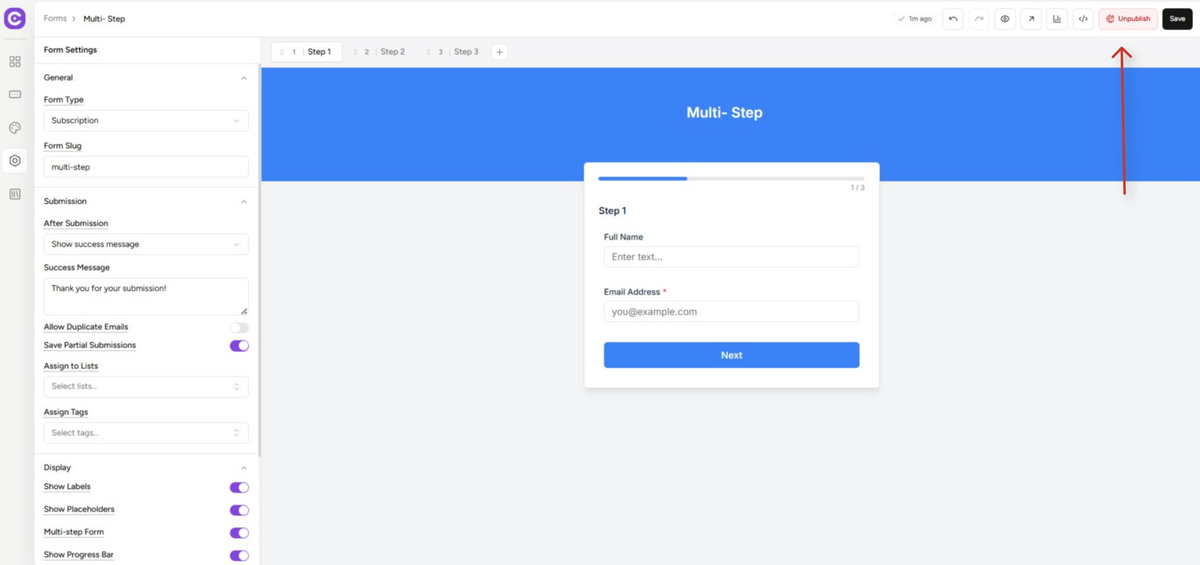
7. Make Sure the Form Is Published
- Go back to your Forms list and confirm that the form is published, since partial submissions are only captured on live, published forms.
Testing Partial Form Submission
1. Perform a Test Submission
- Open the published form and fill in the details on the first step only.
- Close the browser tab without completing the remaining steps.
2. Go to Forms in Your Dashboard
- Navigate back to Forms from your SureContact dashboard.
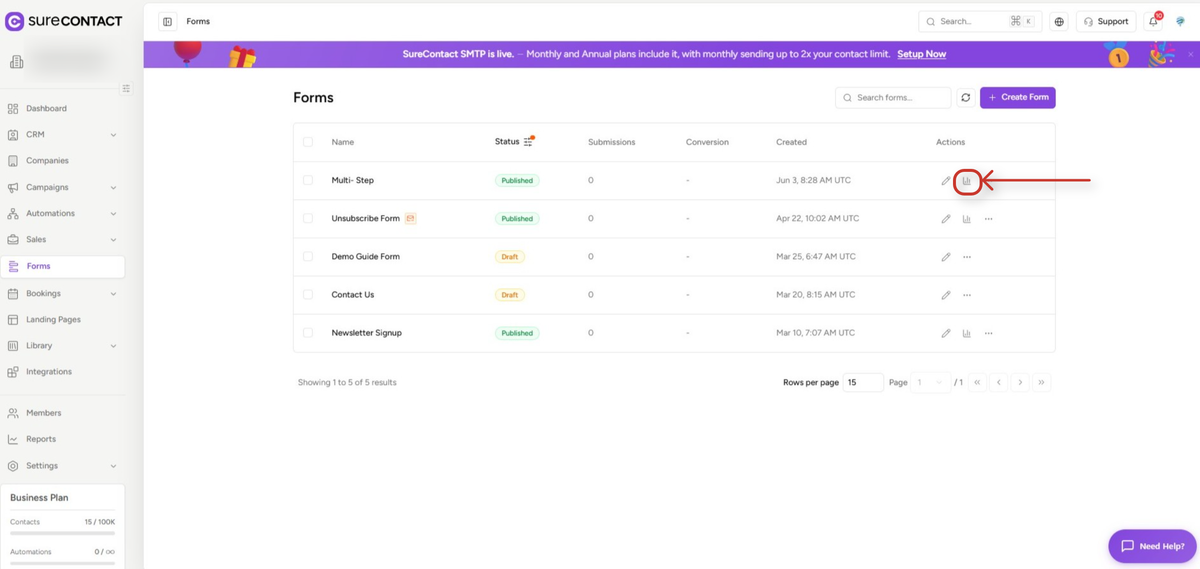
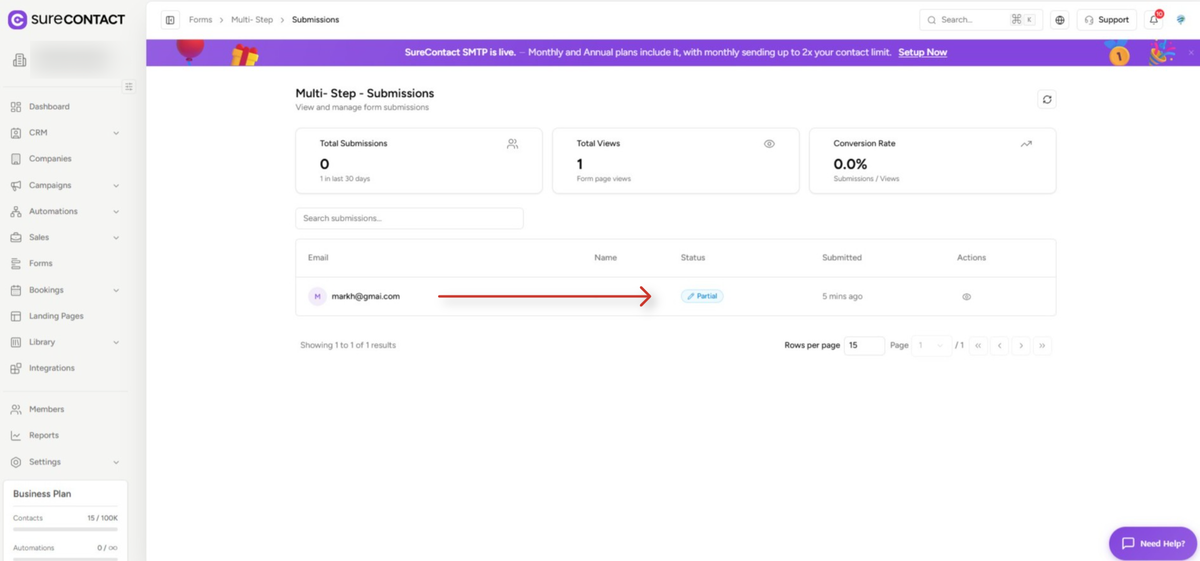
3. View Submissions
- Under the row action for your form, click View Submission.
4. Review the Partially Submitted Entry
- You will see the partially submitted details listed for your test entry.
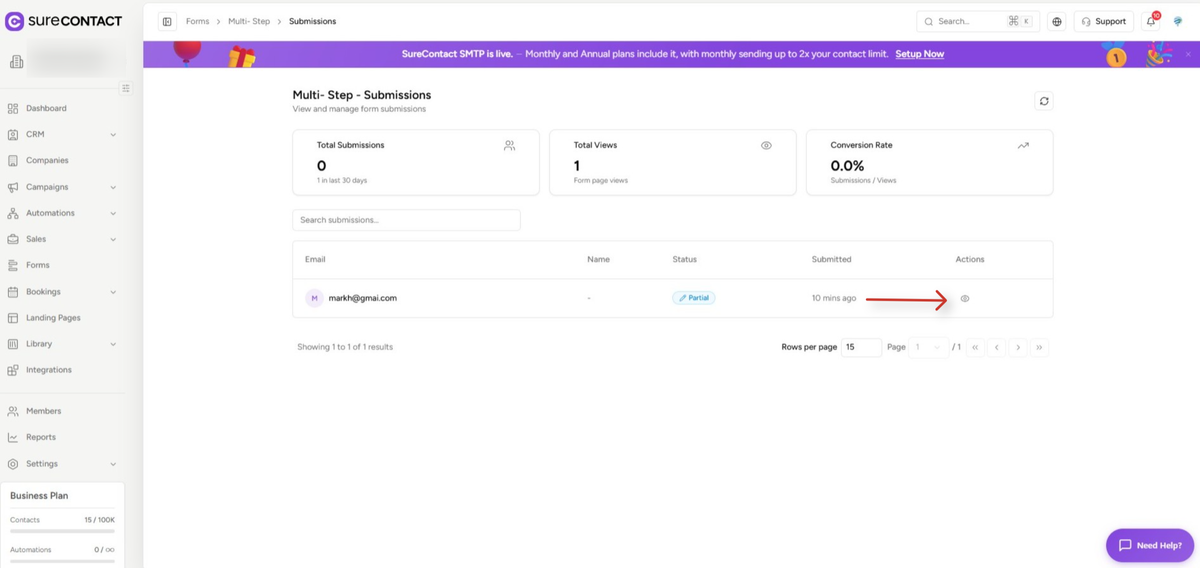
5. View Full Details
- Click the View Details option on the right side of the partially submitted contact entry to see the captured information.
- Here you can see the details of the partial form submission
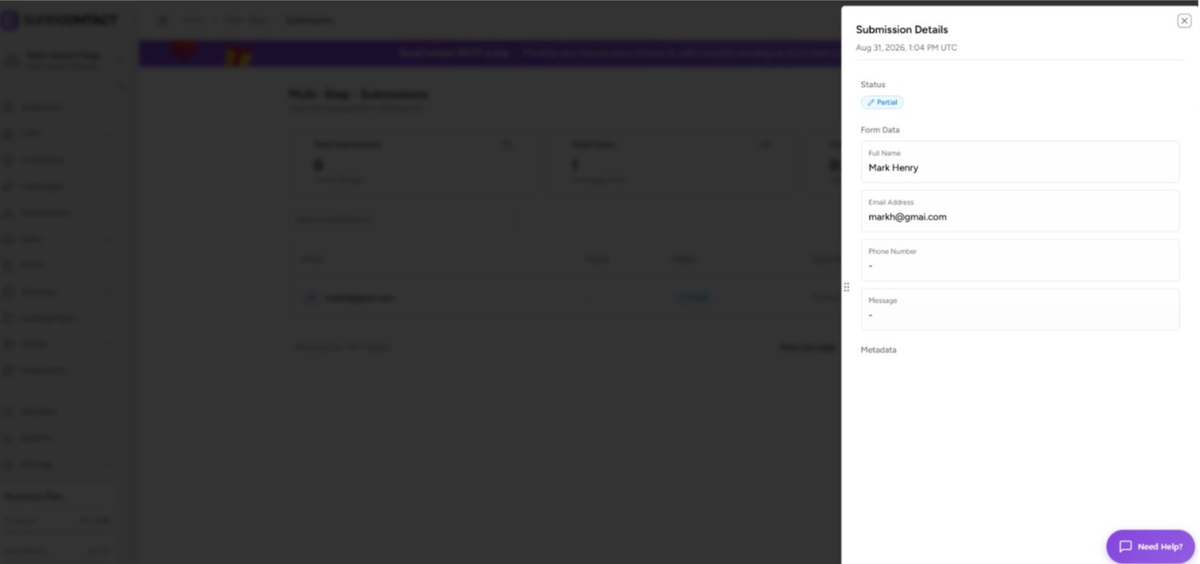
That’s it! Partial Form Submission is now enabled, and any visitor who partially completes your multi-step form will have their details automatically captured in SureContact.
Need Help?
If you need any assistance, please email [email protected], and our support team will be happy to help you.
We don't respond to the article feedback, we use it to improve our support content.