
- Introduction to SureContact Dashboard
- How to Install and Connect the SureContact WordPress Plugin
- What Do Contact Fields Mean in the SureContact WordPress Plugin
- How to Invite Members to a Workspace in SureContact
- How to Switch Organizations in SureContact
- Workspace-Level Contact Allocation in SureContact
- Workspace-Level Timezone Settings in SureContact
- How to Add a Custom Tracking Domain in a Workspace in SureContact
- SureContact MCP Server
- Creating Forms in SureContact
- Create Forms & assign lists & tags
- Multi Language Support(WordPress)
- Page Visit Tracking Guide (WordPress)
- Forms Custom Fields Sync Guide
- Landing Pages User Flow Guide
- SureContact Organization Workspace Setup Guide
- Companies User Flow Guide
- FAQs
- Bulk Operations SureContact
- SureContact Double Opt-In Guide
- SureContact API Keys Guide
- SureContact 2FA User Guide
- SureContact Bookings User Flow Guide
- SureContact MultiStep Forms Guide
- Zoom Integration with SureContact
- Group Booking User Flow Documentation
- Global Search – User Flow Documentation
- Folders in SureContact
- SureContact Email Tracking Pixel Regulations
- Email Open Tracking Consent SureContact
- Forms Custom Success Message Redirect Guide
- Partial Form Submission Guide
- Shopify Integration with SureContact Guide
- Migrate to Unified Preference Page
- Setup SMTP in SureContact
- Email Campaigns in SureContact
- How to Add a Preferences URL in Your Emails
- How to Share Email Templates in SureContact
- Spintax Feature in SureContact
- Deleting Sent Campaigns in SureContact
- A/B Testing Integration Guide
- Unsubscription Guide
- SureContact SMTP Setup Guide
- SMTP Routing User Flow
- FluentCRM Integration with SureContact
- SureContact Third-Party Integration — Step-by-Step Guide
- Fluent Forms Integration with SureContact
- SureForms Integration with SureContact
- WPForms Integration with SureContact
- Bulk Sync WordPress Users to SureContact
- Contact Form 7 Integration with SureContact
- Sync WooCommerce Customers with SureContact
- FluentCart & FluentCommunity Integration With SureContact
SureContact Organization Workspace Setup Guide
SureContact uses a two-tier structure: an Organization is the top-level container for all your workspaces and team members, while a Workspace lives inside an Organization and holds the actual contacts, campaigns, automations, and forms.
This guide walks you through the complete setup process- creating your Organization, adding a Workspace, configuring its settings, and inviting team members with the right roles and permissions.
Part 1: Setting Up Your Organization
An Organization is the top-level container in SureContact. It holds all your workspaces and team members under one account. Follow these four steps to create one.
1. Open the Organization panel
In the left sidebar, look for the organization switcher at the top, it shows your current organization name and workspace. Click it to expand the dropdown.
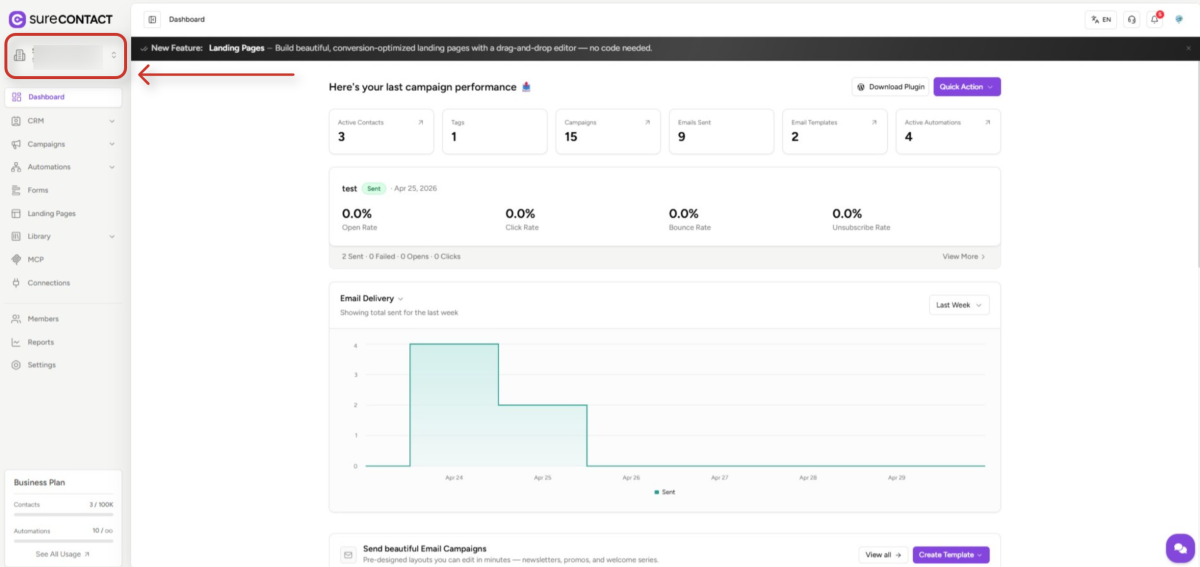
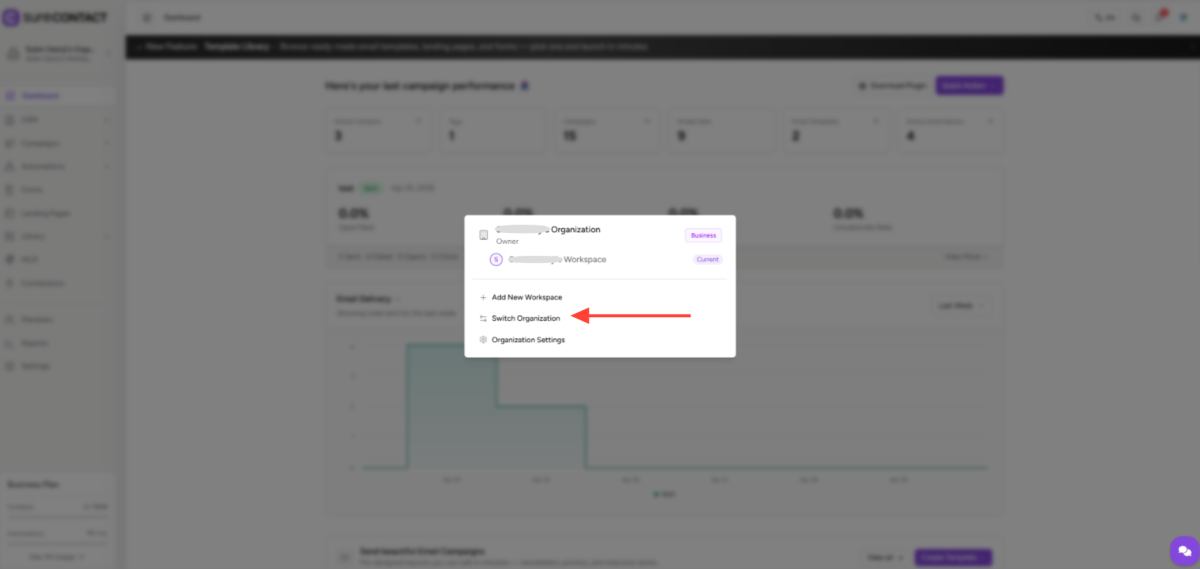
2. Create a new Organization
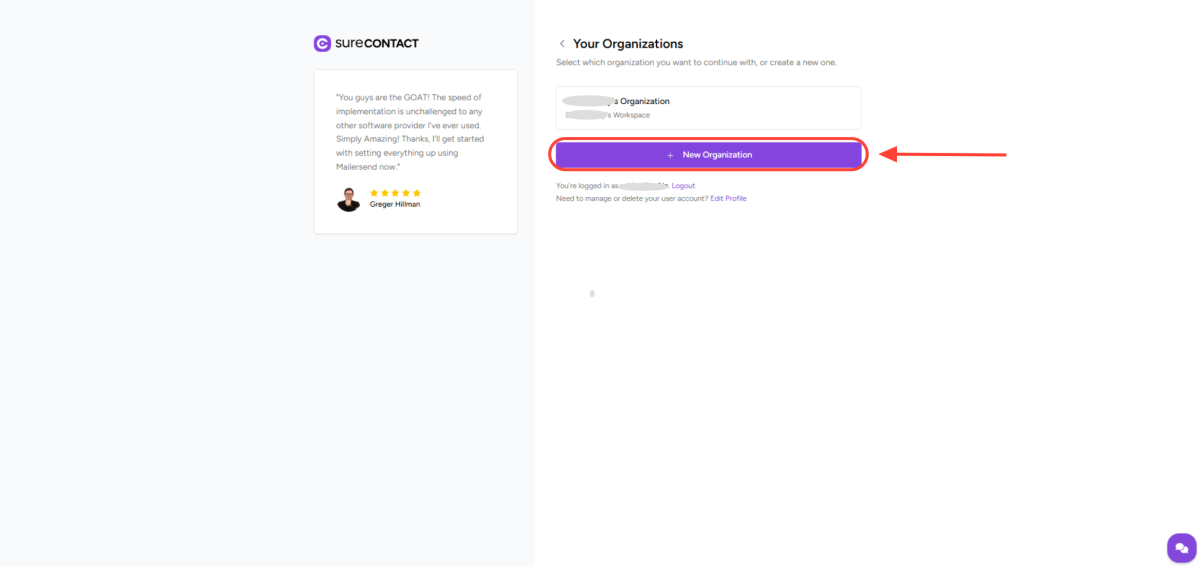
In the dropdown, click “Switch Organization” – this opens the Your Organizations page, where existing orgs are listed, and a New Organization button is shown at the bottom.
On the Your Organizations page, click the purple “New Organization” button. A dialog will appear.
3. Fill in the Organization details
Enter the required Organization Name and any optional information.
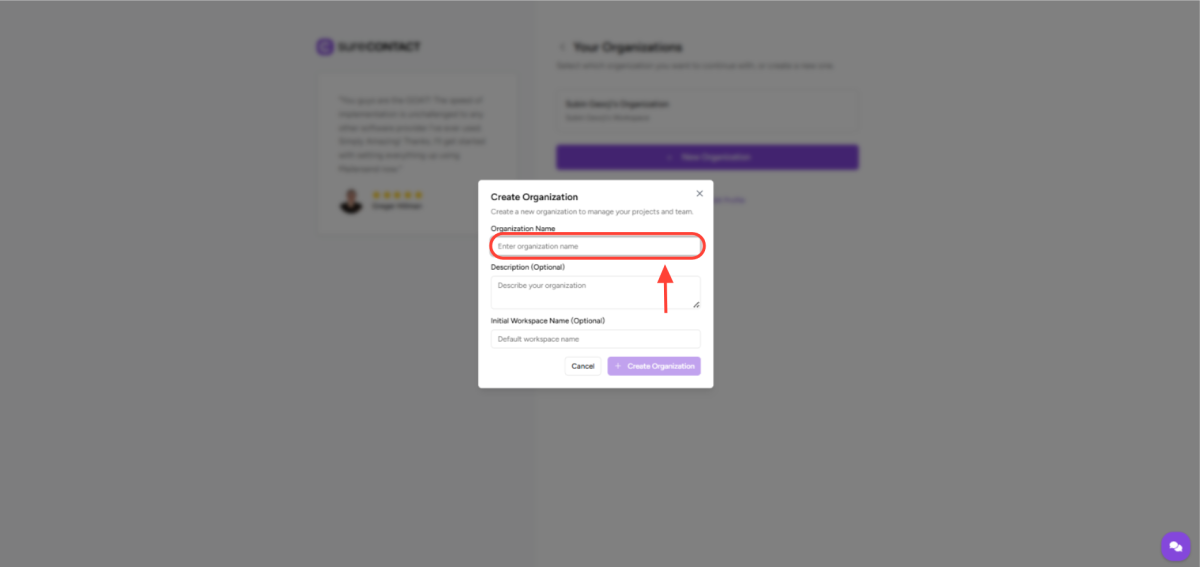
- Organization Name – Required. Minimum 1 character.
- Description – Optional. Briefly describe what this organization is for.
- Initial Workspace Name – Optional. Pre-creates a workspace at the same time so you can skip the workspace step later.
4. Click “Create Organization”
The Create Organization button stays disabled until the Organization Name field is filled in. Once submitted, your new organization becomes active and appears in the switcher.
Note: Each user can only create one free organization.
Part 2: Setting Up a Workspace
A Workspace lives inside an Organization and is where the actual work happens, contacts, campaigns, automations, and forms all belong to a workspace. Follow these four steps to create one.
1. Make sure you’re in the right Organization
Use the organization switcher in the sidebar to confirm you are in the organization where you want to add a new workspace. If not, switch to the correct one before continuing.
2. Open the Workspace creation dialog
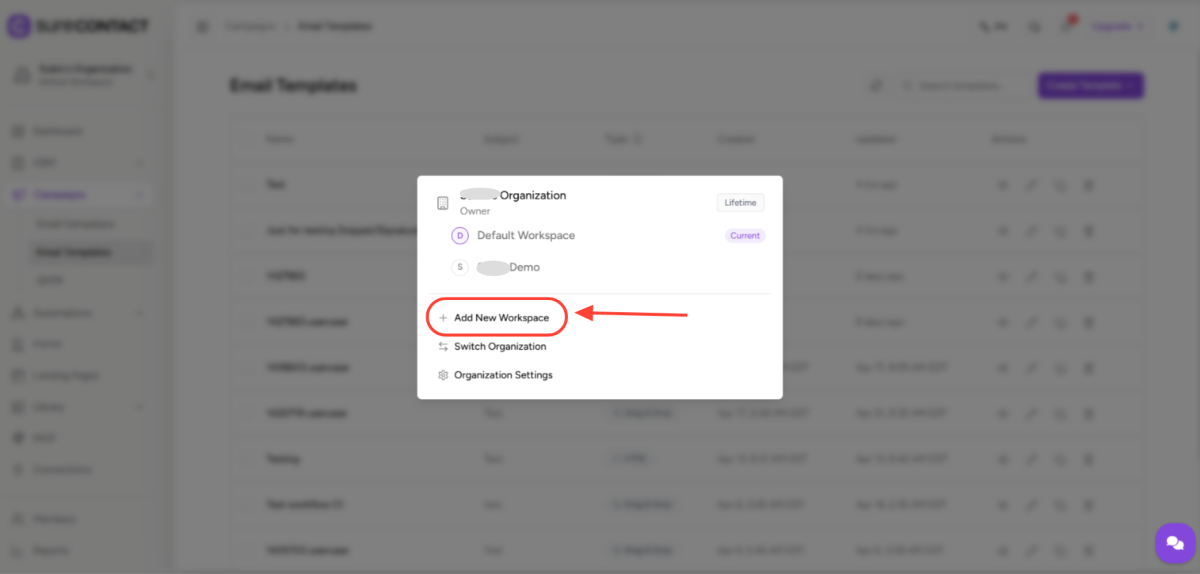
Click the organization switcher in the sidebar to expand the dropdown, then select “Add New Workspace” from the menu.
3. Fill in the Workspace details
In the Create Workspace dialog, enter a name for the workspace and an optional description.
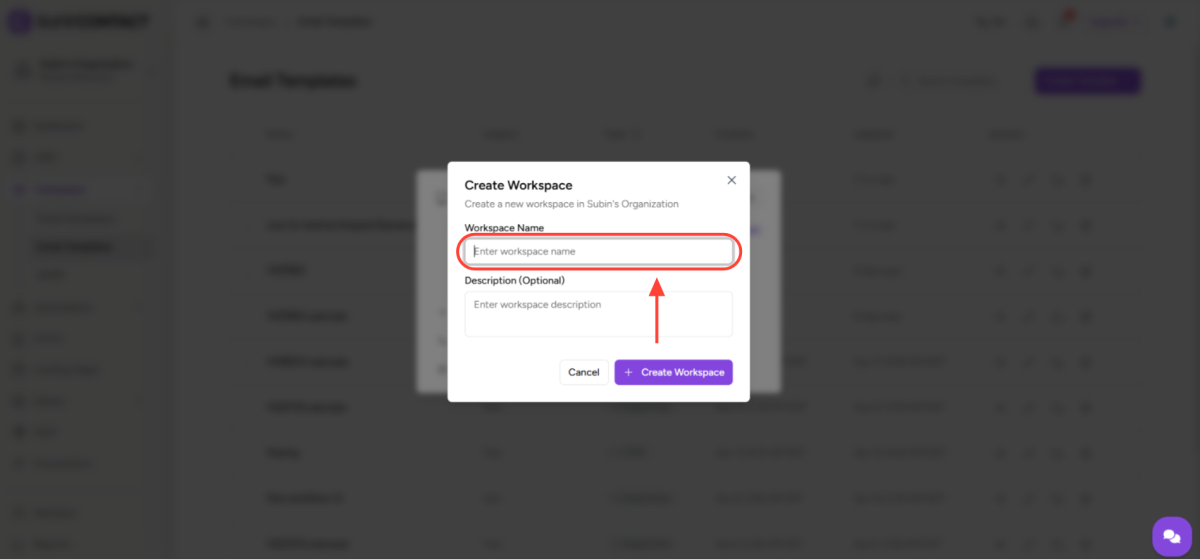
- Workspace Name – Required. Maximum 100 characters.
- Description – Optional. Maximum 500 characters.
4. Click “Create Workspace”
The workspace is created and linked to your current organization. The page refreshes with the new workspace automatically selected.
Note: Creating additional workspaces is a plan-gated feature – it requires an eligible paid plan.
Part 3: Configuring Workspace Settings
Once the workspace is created, go to Settings in the sidebar to update its details.
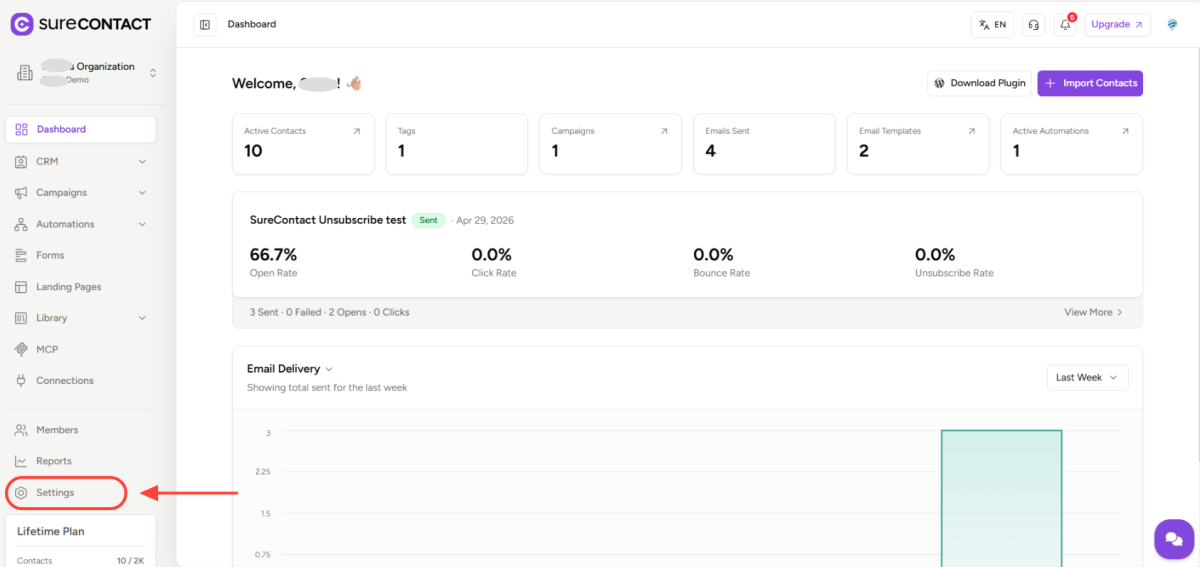
- Workspace Name – Required. Minimum 2 characters, maximum 100 characters.
- Description – Optional. Maximum 500 characters.
- Changes auto-save 2 seconds after you stop typing – there is no manual save button.
The Settings page also shows your Workspace UUID at the top right and includes additional sections for Company Address and Interface Language preferences.
Part 4: Inviting Team Members
Team members are invited at the Organization level and can be assigned to specific workspaces with view-only or edit access.
1. Go to the Members section
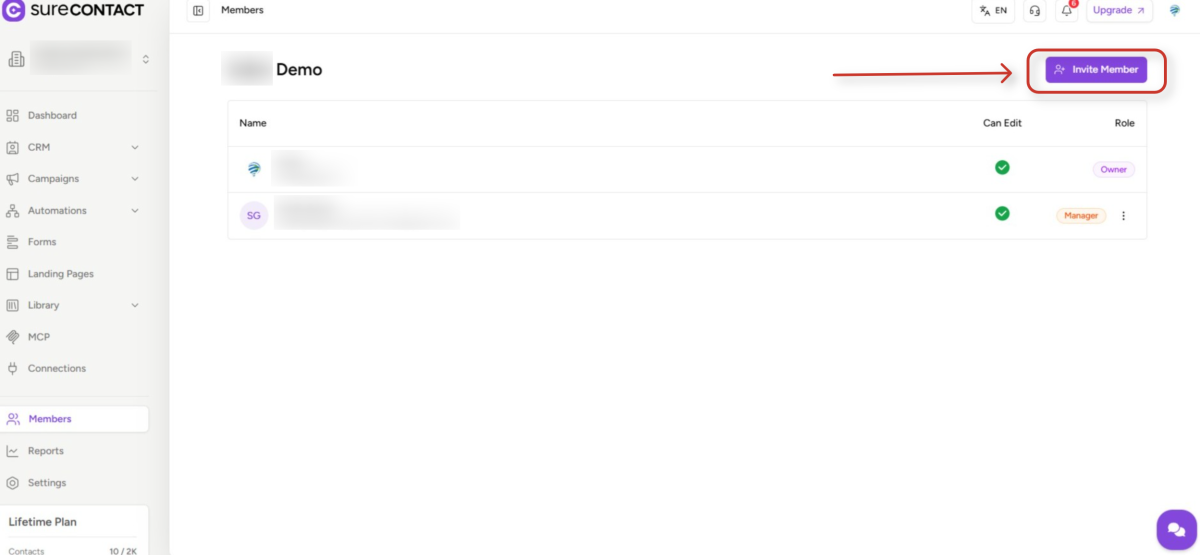
In the sidebar, click Members to open the workspace member list. The current members and their roles are shown in a table, and an “Invite Member” button is available in the top right corner.
2. Click “Invite Member”
Click the purple “Invite Member” button. A New Member Invitation dialog opens where you set up the invitation.
3. Enter the member’s email address
Type the invitee’s email into the Email field at the top of the dialog. They will receive the invitation at this address.
4. Choose their role
Select either Member or Admin. Each role determines what the user can access across the organization.
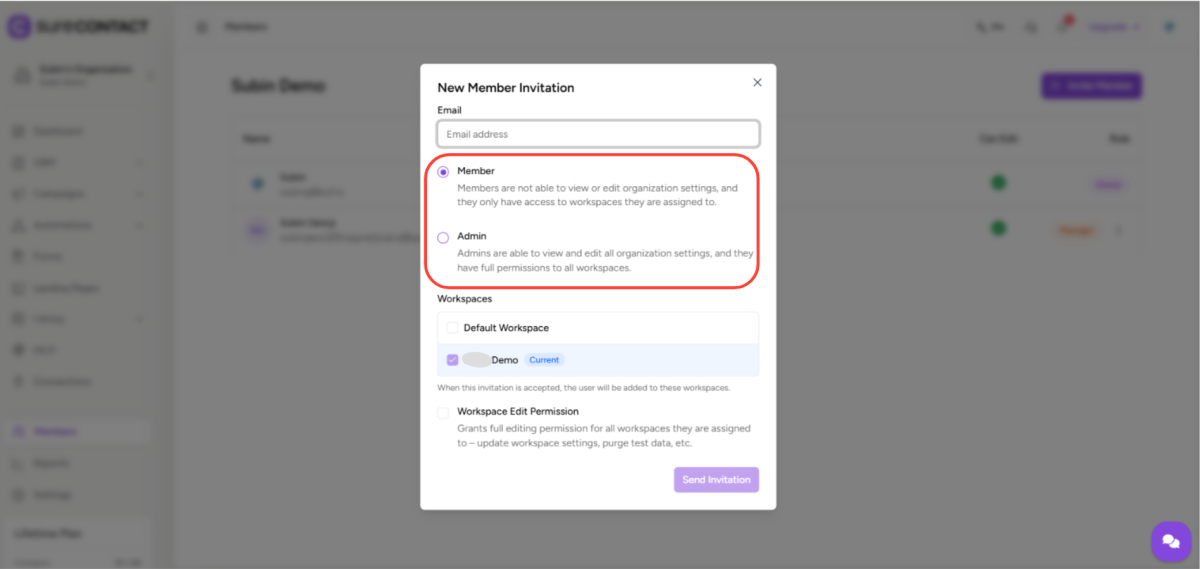
- Admin – Full access to all organization settings and all workspaces automatically.
- Member – Can only access workspaces they are explicitly assigned to; cannot view or edit organization settings.
5. (Members only) Assign Workspaces
If you selected Member, you must assign at least one workspace. Check the boxes next to the workspaces this member should access. The Workspaces section in the dialog lists every workspace under the organization.
6. (Optional) Grant Edit Permission
If the Member role is selected, you can enable Workspace Edit Permission – this lets them update workspace settings, manage data, and so on. Without it, they have view-only access (Viewer role).
7. Click “Send Invitation”
The Send Invitation button at the bottom of the dialog sends the invite. The invited user receives an email, and their access is activated once they accept the invitation.
Role Summary
Organization-level roles
- Owner – Full control; cannot be removed; can transfer ownership.
- Admin – Full access to all workspaces and organization settings.
- Member – Restricted to assigned workspaces only.
Workspace-level roles (for Members)
- Manager (Edit Permission ON) – Can edit workspace settings and data.
- Viewer (Edit Permission OFF) – Read-only access.
Need Help?
If you need any assistance with setting up your Organization, Workspace, or member invitations, please email [email protected], and our support team will be happy to help you.
We don't respond to the article feedback, we use it to improve our support content.