
- Introduction to SureContact Dashboard
- How to Install and Connect the SureContact WordPress Plugin
- What Do Contact Fields Mean in the SureContact WordPress Plugin
- How to Invite Members to a Workspace in SureContact
- How to Switch Organizations in SureContact
- Workspace-Level Contact Allocation in SureContact
- Workspace-Level Timezone Settings in SureContact
- How to Add a Custom Tracking Domain in a Workspace in SureContact
- SureContact MCP Server
- Creating Forms in SureContact
- Create Forms & assign lists & tags
- Multi Language Support(WordPress)
- Page Visit Tracking Guide (WordPress)
- Forms Custom Fields Sync Guide
- Landing Pages User Flow Guide
- SureContact Organization Workspace Setup Guide
- Companies User Flow Guide
- FAQs
- Bulk Operations SureContact
- SureContact Double Opt-In Guide
- SureContact API Keys Guide
- SureContact 2FA User Guide
- SureContact Bookings User Flow Guide
- SureContact MultiStep Forms Guide
- Zoom Integration with SureContact
- Group Booking User Flow Documentation
- Global Search – User Flow Documentation
- Folders in SureContact
- SureContact Email Tracking Pixel Regulations
- Email Open Tracking Consent SureContact
- Forms Custom Success Message Redirect Guide
- Partial Form Submission Guide
- Shopify Integration with SureContact Guide
- Migrate to Unified Preference Page
- Setup SMTP in SureContact
- Email Campaigns in SureContact
- How to Add a Preferences URL in Your Emails
- How to Share Email Templates in SureContact
- Spintax Feature in SureContact
- Deleting Sent Campaigns in SureContact
- A/B Testing Integration Guide
- Unsubscription Guide
- SureContact SMTP Setup Guide
- SMTP Routing User Flow
- FluentCRM Integration with SureContact
- SureContact Third-Party Integration — Step-by-Step Guide
- Fluent Forms Integration with SureContact
- SureForms Integration with SureContact
- WPForms Integration with SureContact
- Bulk Sync WordPress Users to SureContact
- Contact Form 7 Integration with SureContact
- Sync WooCommerce Customers with SureContact
- FluentCart & FluentCommunity Integration With SureContact
SureContact 2FA User Guide
SureContact’s Two-Factor Authentication (2FA) adds a second verification step when you log in. Even if your password is compromised, no one can access your account without also passing the second check.
This guide walks through every 2FA flow in SureContact: enabling Email OTP, setting up an Authenticator App, logging in with 2FA active, managing recovery codes, and disabling 2FA.
Prerequisites
Before configuring 2FA, please ensure the following:
1. You Have an Active SureContact Account
Log in at your workspace URL (e.g. app.surecontact.com). 2FA settings are per-user and available to all roles.
2. Authenticator App Installed (for TOTP method only)
If you plan to use the Authenticator App method, install one of the supported apps on your phone before starting: Google Authenticator, Microsoft Authenticator, Authy, or 1Password.
3. Access to Your Account Email (for Email OTP method)
Ensure your account email is correct and accessible. Email codes expire after 5 minutes. Verify your address under Profile → Personal Information if needed.
Where to Find 2FA Settings
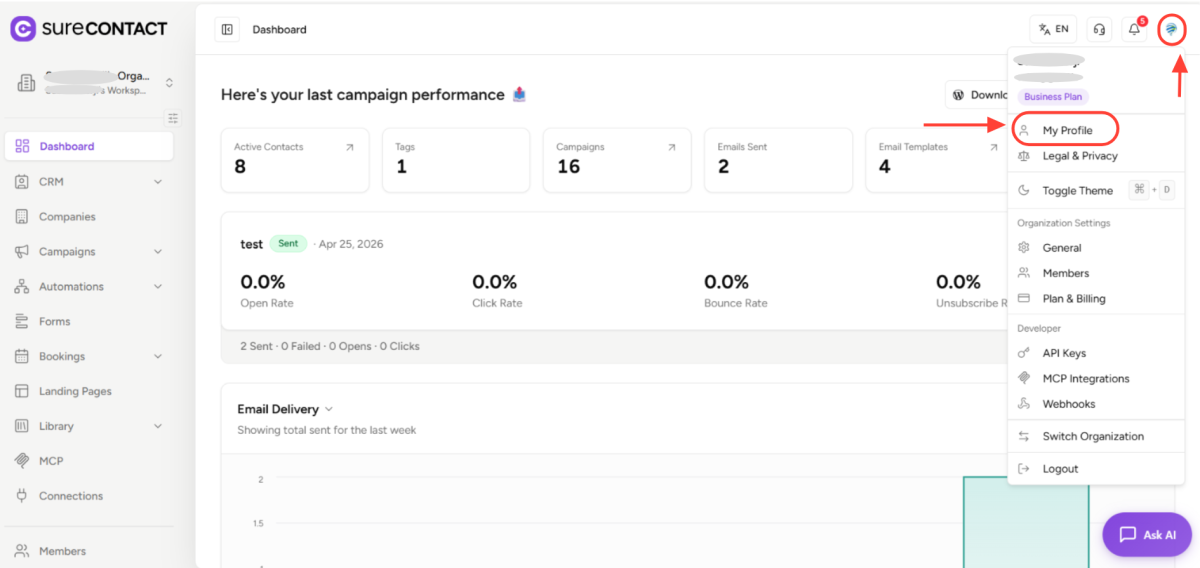
2FA is managed from your Profile page. Click your avatar in the top-right corner, then select My Profile. The Account & Security section contains all 2FA controls.
Scroll down on the Profile page to the Two-Factor Authentication section. You will see two method cards:
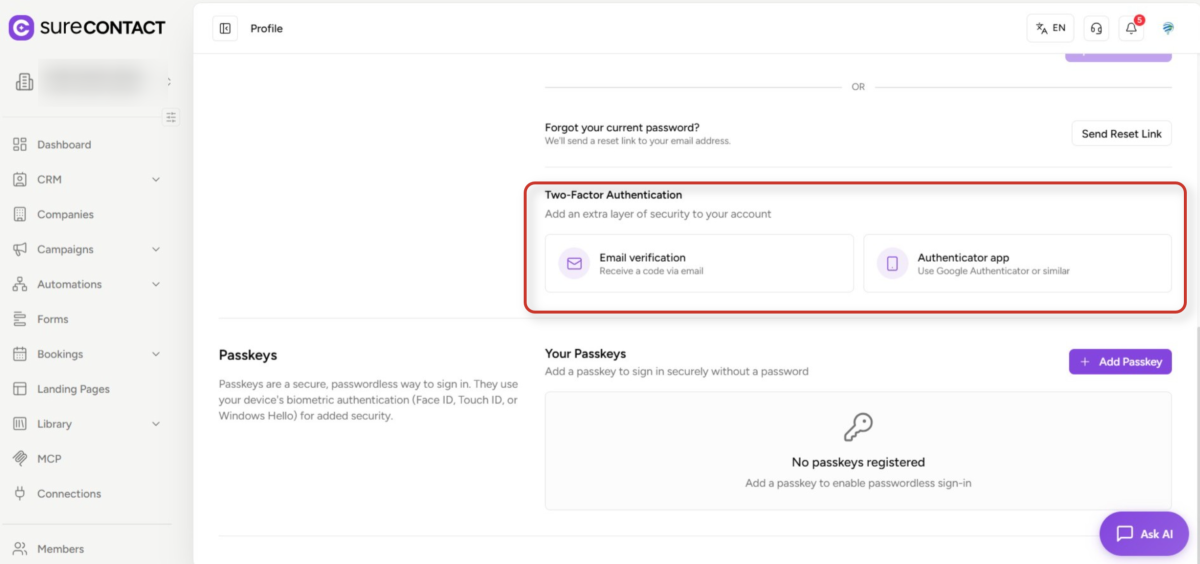
- Email verification – sends a 6-digit code to your account email on each login.
- Authenticator app – generates a 6-digit code every 30 seconds using an app on your phone (TOTP).
Method 1 – Enable Email OTP
Email OTP is the simplest setup: no extra app required. A code is sent to your email each time you sign in.
1. Open the Enable Dialog
- Navigate to Profile → Account & Security → Two-Factor Authentication.
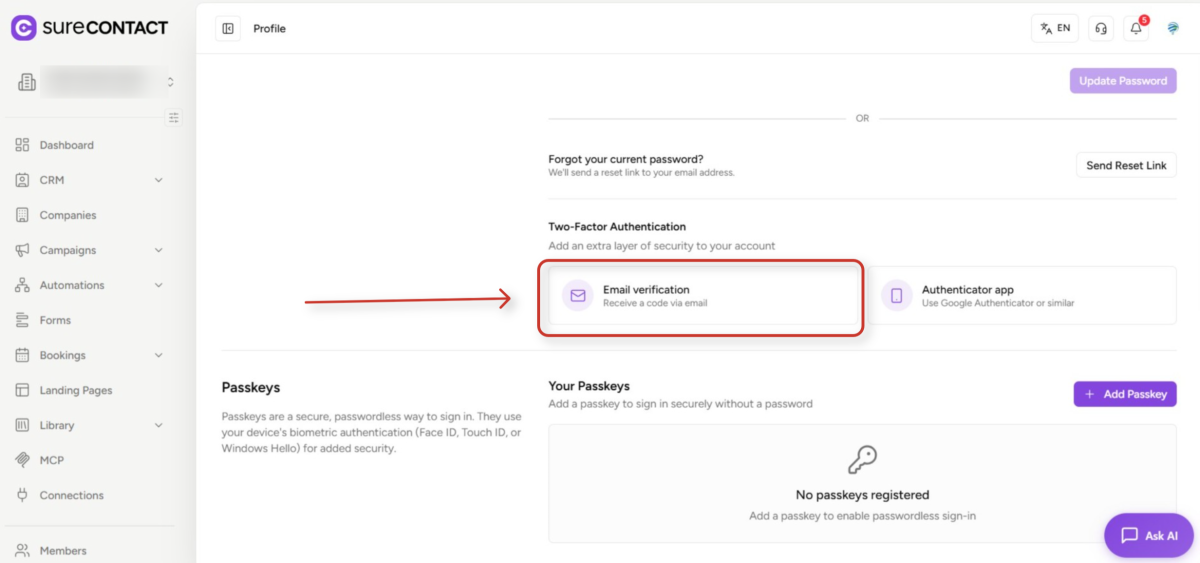
- Click the “Email verification” card.
2. Confirm and Enable
- Read the confirmation message, then click “Enable”.
- Google OAuth users: no password prompt is shown. Password-based users may be asked to confirm their current password.
3. Email 2FA is Now Active
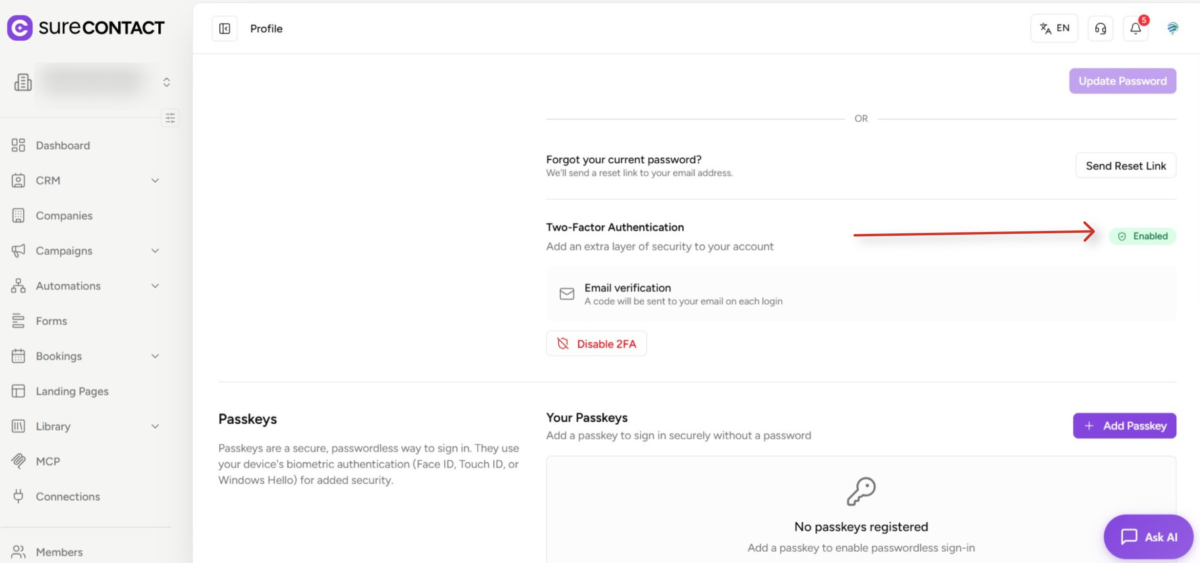
- A green “Enabled” badge appears next to the Two-Factor Authentication heading.
- From this point, every login will require a 6-digit code sent to your email.
Method 2 – Enable Authenticator App (TOTP)
The Authenticator App method provides stronger security and works offline. Setup takes about 2 minutes and follows a 3-step wizard.
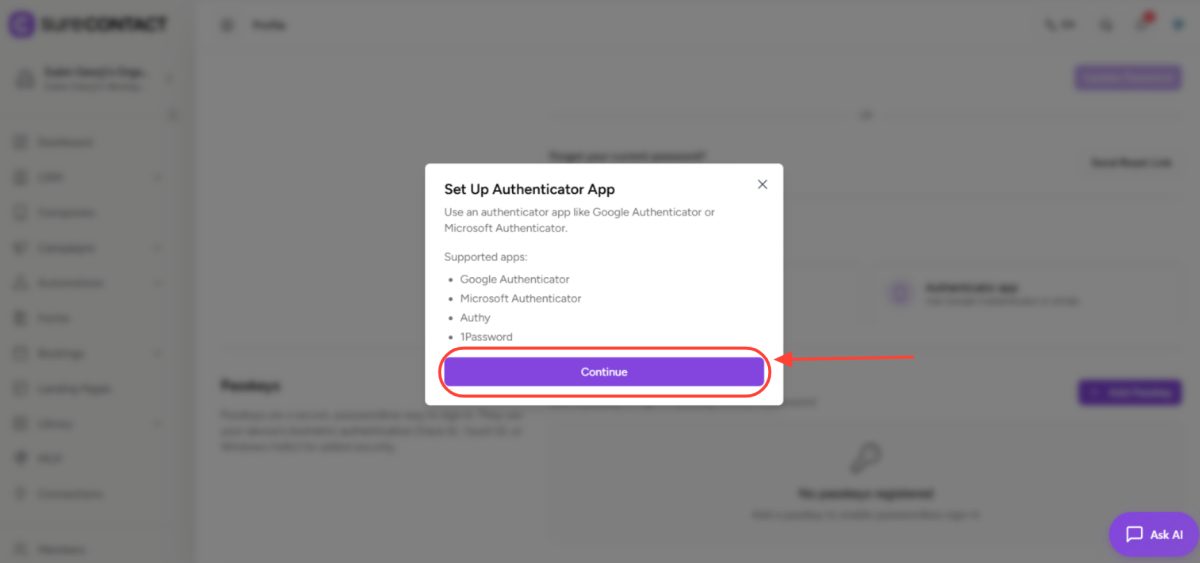
Step 1 – Choose Your App
- Click the “Authenticator app” card in the Two-Factor Authentication section.
- A dialog lists supported apps: Google Authenticator, Microsoft Authenticator, Authy, and 1Password.
- If you have not already, install one of these apps on your phone, then click “Continue”.
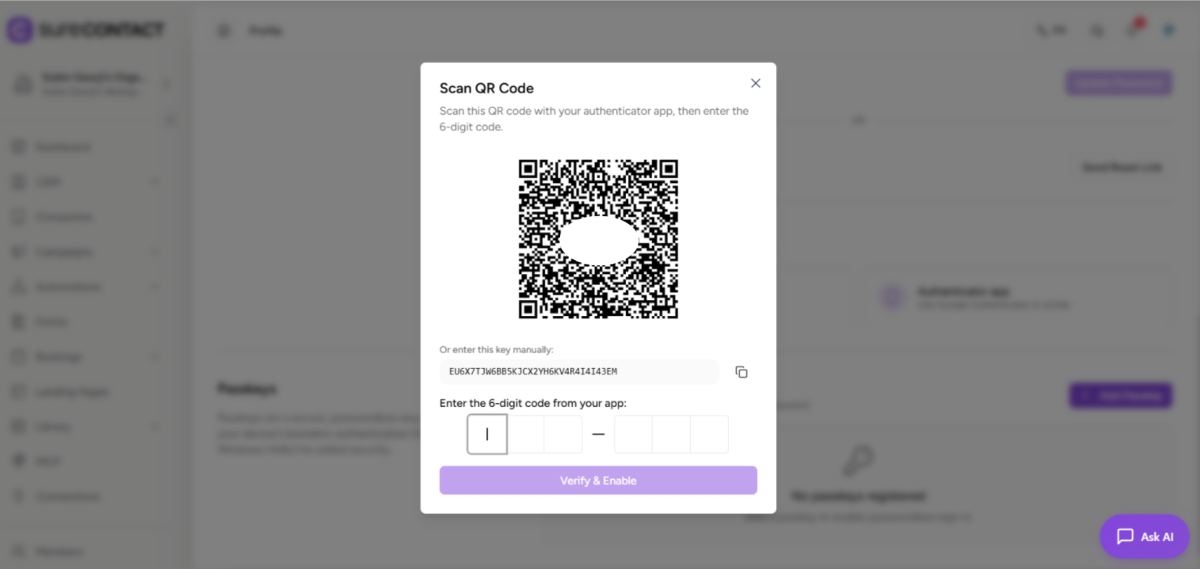
Step 2 – Scan the QR Code
- Open your authenticator app and tap Add account (or the + button).
- Choose Scan QR code and point your camera at the QR code shown on screen.
- If you cannot scan, tap “Can’t scan?” or use the “Or enter this key manually” option — copy the secret key and paste it into your app manually.
- Your app will start generating 6-digit codes that refresh every 30 seconds.
- Enter the current 6-digit code in the input boxes, then click Verify & Enable.
Step 3 – Save Your Recovery Codes
- On successful verification, 10 one-time recovery codes are displayed immediately.
- Click Copy to copy all codes to your clipboard, or click Download to save as a .txt file.
- Store these codes somewhere safe – a password manager or a printed copy in a secure place.
- Click “Done” to finish setup.
Logging In With 2FA Enabled
After entering your email and password at the login screen, you are redirected to the 2FA verification page.
1. Email OTP Challenge
- Check your email for the 6-digit code.
- Enter the code in the input field – it auto-submits when all 6 digits are entered.
- Optionally check Remember this device for 7 days to skip 2FA on this browser for a week.
- Click “Verify” to complete login.
2. Authenticator App Challenge
- Open your authenticator app and find the SureContact entry.
- Enter the current 6-digit code shown (codes refresh every 30 seconds).
- Optionally check Remember this device for 7 days.
- Click “Verify” to complete login.
3. Using a Recovery Code
- On any 2FA challenge page, click “Use recovery code instead”.
- Enter one of your saved recovery codes in the input field.
- Click “Verify”. That code is permanently consumed – you will have one fewer remaining.
Trusted Devices (Remember for 7 Days)
Checking Remember this device for 7 days during login stores a secure token in your browser. On your next login from the same browser, the 2FA step is skipped automatically.
Important notes about trusted devices:
- The trust expires after 7 days – you will be prompted again after that.
- Clearing browser cookies or data removes the trusted device token, triggering a 2FA prompt on next login.
- Trusted devices are cleared automatically when 2FA is disabled.
Disabling 2FA
1. Open the Disable Dialog
- Go to Profile → Account Security → Two-Factor Authentication.
- Click the “Disable 2FA” button (shown when 2FA is active).
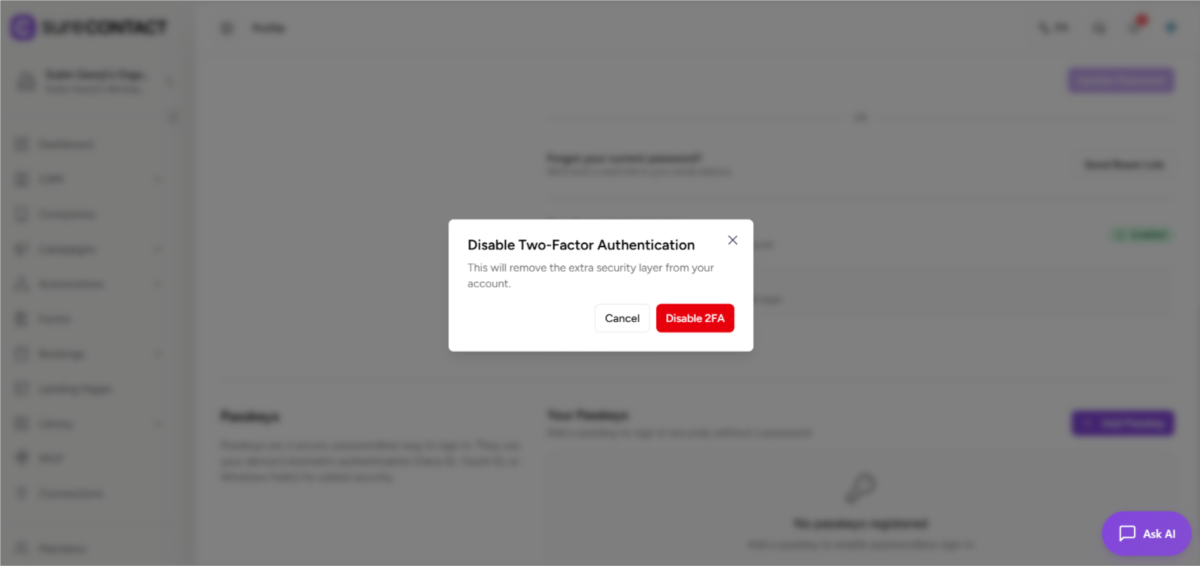
2. Confirm
- Click “Disable 2FA” in the confirmation dialog.
- 2FA is removed from your account. All trusted devices are also cleared.
Regenerating Recovery Codes
If you have used most of your codes, or believe they may have been seen by someone else, generate a fresh set.
Steps
- Go to Profile → Account Security → Two-Factor Authentication.
- Click “Regenerate Recovery Codes”.
- Confirm your current password (OAuth users: no password needed).
- 10 new codes are displayed – copy or download them immediately.
- Your old recovery codes are immediately invalidated.
Recovery Codes – Reference
Number of codes: 10 per generation
Format: XXXX-XXXX (uppercase letters and numbers)
Single-use: Yes – each code can only be used once
Expiry: 10 years
Where to find them: Shown once after authenticator setup, or after regeneration
How to use at login: Enter in the “Use recovery code” field on the 2FA challenge page
Troubleshooting
I didn’t save my recovery codes and lost access to my authenticator app
Contact your Org Admin or Owner – they can disable 2FA on your account from the admin panel, allowing you to log in and set it up again.
My 6-digit code from the app isn’t working
Authenticator app codes are time-sensitive. Check that your phone’s date and time are set to automatic/network time. If the clock is even a minute off, codes will fail.
I’m not receiving the email OTP
Check your spam/junk folder. If not there after 1–2 minutes, click Resend code on the challenge page (available after 60 seconds). Also confirm your account email is correct under Profile → Personal Information.
I changed phones and lost my authenticator app
Use one of your saved recovery codes to log in. Once in, go to Profile → Account Security, disable 2FA, and re-enable it with your new phone.
The ‘Remember this device’ stopped working
The trust lasts 7 days. If 7 days have passed, or if you cleared browser data, the 2FA prompt will appear again – this is expected behavior.
I want to switch from Email OTP to Authenticator App
Disable your current 2FA method first (Profile → Account Security → Disable 2FA), then re-enable using the Authenticator App setup wizard.
Need Help?
If you need any assistance, please email [email protected], and our support team will be happy to help you.
We don't respond to the article feedback, we use it to improve our support content.