
- Introduction to SureContact Dashboard
- How to Install and Connect the SureContact WordPress Plugin
- What Do Contact Fields Mean in the SureContact WordPress Plugin
- How to Invite Members to a Workspace in SureContact
- How to Switch Organizations in SureContact
- Workspace-Level Contact Allocation in SureContact
- Workspace-Level Timezone Settings in SureContact
- How to Add a Custom Tracking Domain in a Workspace in SureContact
- SureContact MCP Server
- Creating Forms in SureContact
- Setup SMTP in SureContact
- Email Campaigns in SureContact
- How to Add a Preferences URL in Your Emails
- How to Share Email Templates in SureContact
- Spintax Feature in SureContact
- Deleting Sent Campaigns in SureContact
- A/B Testing Integration Guide
- Unsubscription Guide
- SureContact SMTP Setup Guide
- SMTP Routing User Flow
- Gradual Send Feature Guide
- Reusable Email Templates Guide
- Conditional Blocks Guide
- Scheduling vs. Sending Immediately Emails in SureContact
- Campaign Analytics Guide
- Email Tracking Opens Clicks SureContact
- SureContact Email Template Library Guide
- Sending Domains Subdomain vs Root Domain Guide
- DMARC Setup Guide
- Warming Up a New Sending Domain
- How to Add an Unsubscribe Link in Your Emails
- Analyzing a Campaign with AI (Spam & Ethics Check)
- FluentCRM Integration with SureContact
- SureContact Third-Party Integration — Step-by-Step Guide
- Fluent Forms Integration with SureContact
- SureForms Integration with SureContact
- WPForms Integration with SureContact
- Bulk Sync WordPress Users to SureContact
- Contact Form 7 Integration with SureContact
- Sync WooCommerce Customers with SureContact
SureContact Email Template Library Guide
The Email Template Library (also called the Email Template Marketplace) is a gallery of professionally designed email templates that you can browse, preview, and import into your SureContact workspace. Templates can be imported as reusable email templates or used directly to create a new email campaign.
This guide walks through accessing the library, browsing and searching templates, previewing designs, importing a template, creating a campaign directly from a template, and working with Premium templates.
How to Access the Email Template Library
The Email Template Library can be reached from any of the following locations:
- Sidebar → Library → Email Templates
- The Compose step while creating an email campaign
- The Templates tab inside the email editor
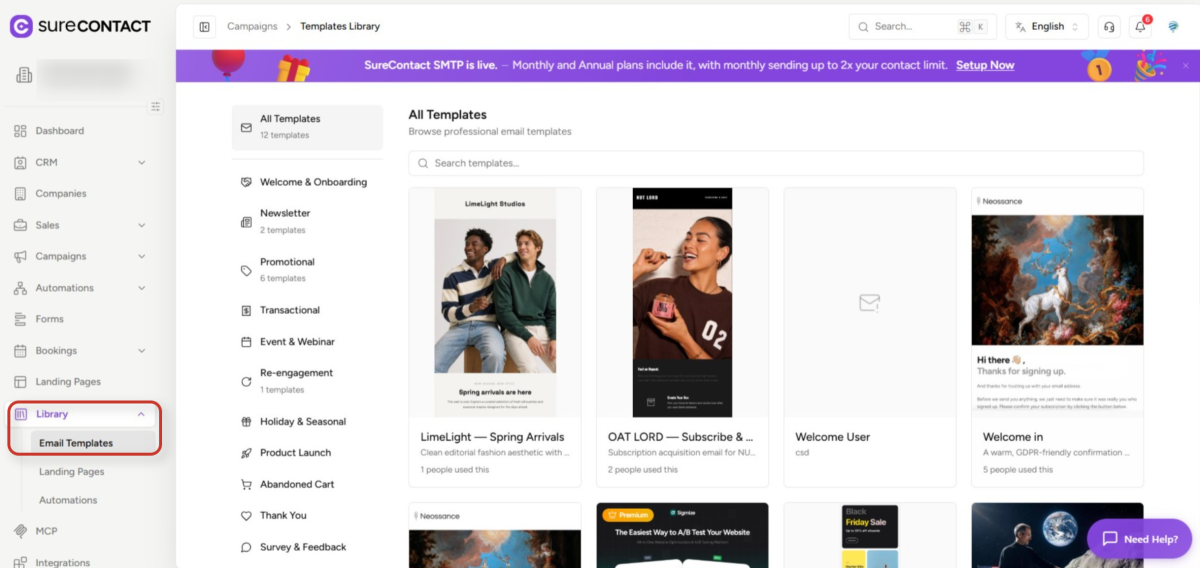
Browsing Templates
1. Browse by Category
- Categories are listed in the left panel on desktop (Welcome & Onboarding, Newsletter, Promotional, Transactional, Event & Webinar, Re-engagement, Holiday & Seasonal, Product Launch, Abandoned Cart, Thank You).
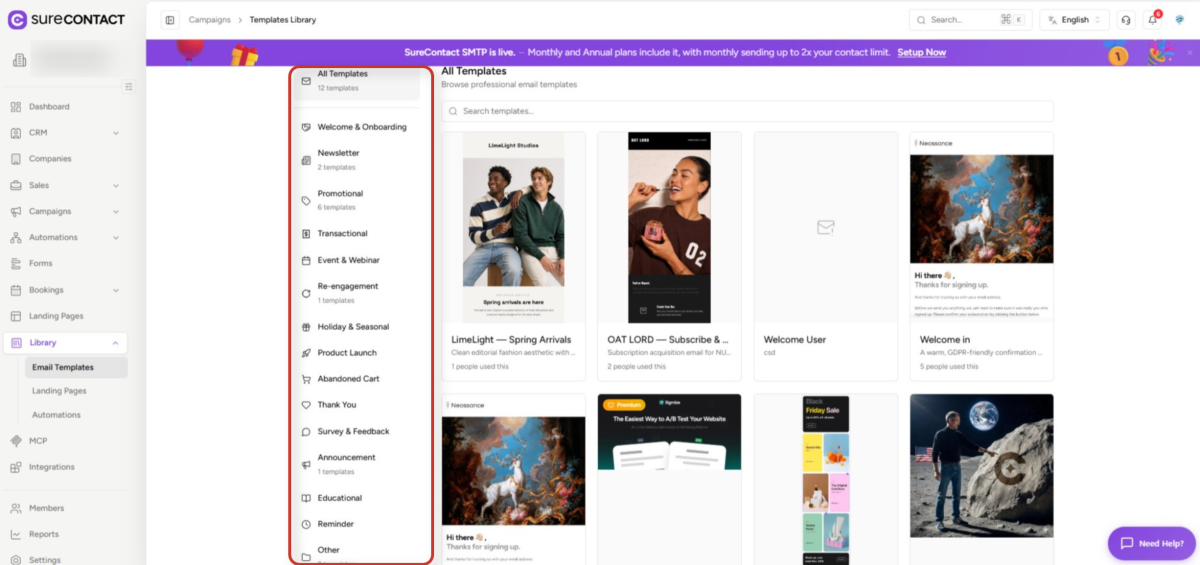
- On mobile devices, categories are available through a filter panel instead of a sidebar.
- Each category shows the number of templates it contains, and “All Templates” is selected by default.
2. Search for a Template
- Use the search field above the template grid to find a template by name.
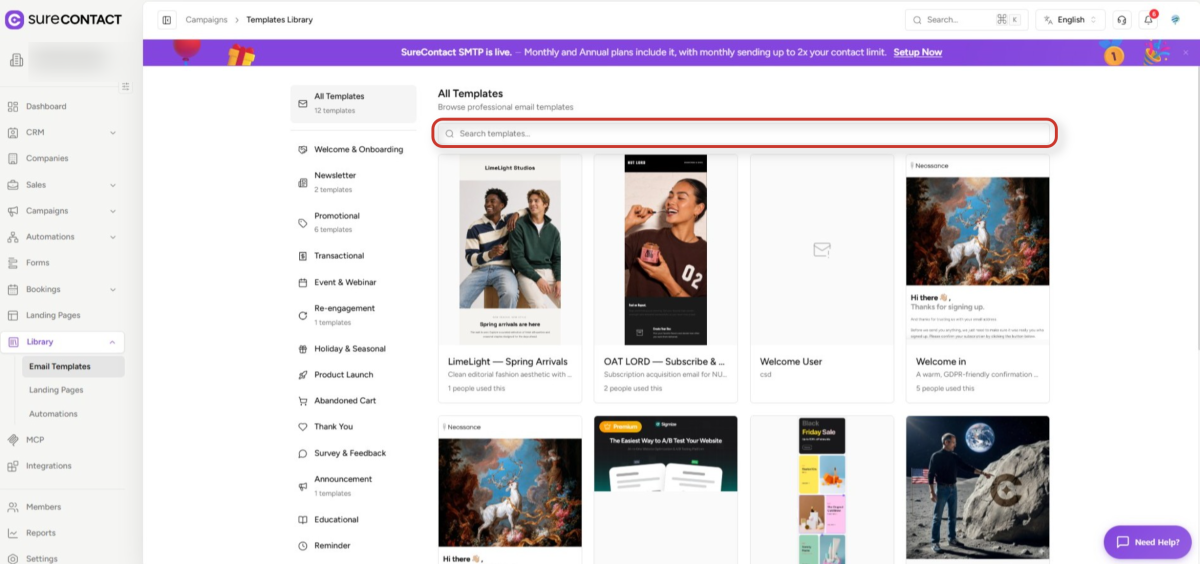
- Results update instantly and respect the currently selected category.
Previewing a Template
1. Open the Email Templates Library and hover over a template card
- Hovering reveals three actions: Preview, Create Template, and Create Campaign.
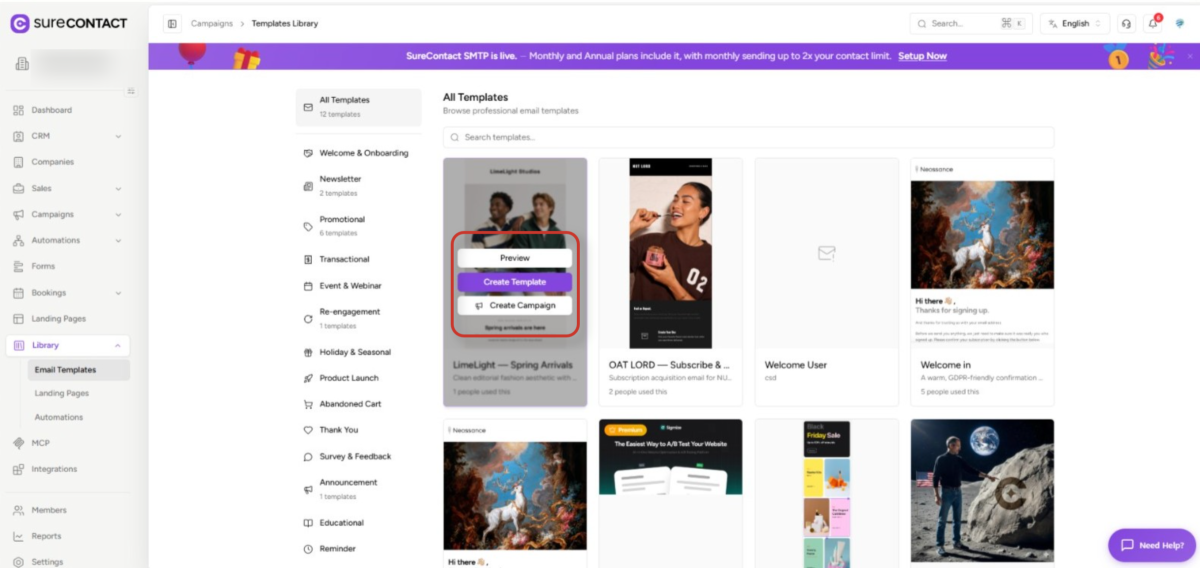
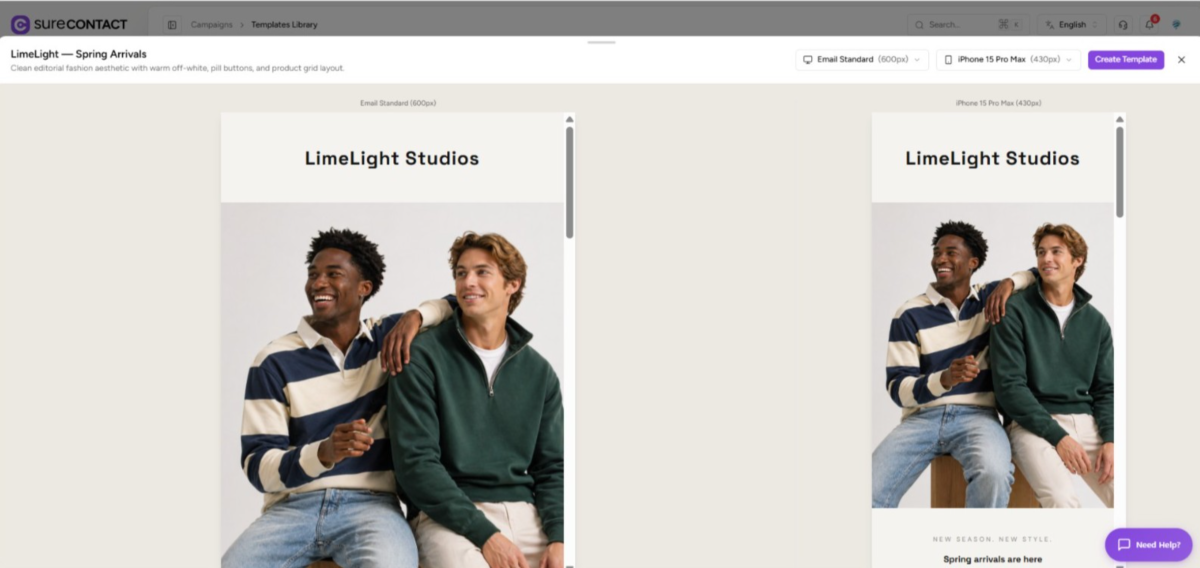
2. Click Preview to see the full design
- The preview opens side by side in Email Standard (600px) and mobile (iPhone 15 Pro Max, 430px) views so you can check the layout at both sizes before importing.
Importing a Template
To bring a template into your workspace as a reusable design:
- Open the Email Templates Library.
- Select a template.
- Click Create Template from the hover menu or from inside the preview modal.
SureContact imports a copy of the template into your workspace and opens it directly in the email editor, ready to customize.
Creating a Campaign Directly from a Template
To skip the template library and start a campaign right away:
- Open the Email Templates Library.
- Select a template.
- Click Create Campaign.
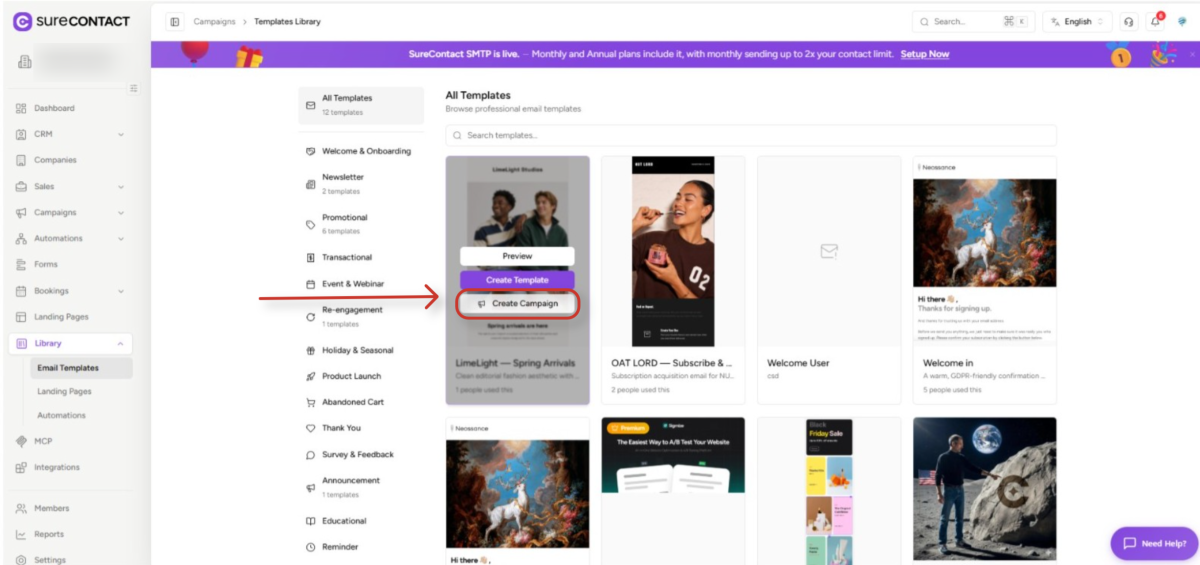
SureContact creates a new campaign using the selected design and redirects you to the campaign editor, with the Subject and Compose steps pre-filled from the template.
Premium Templates
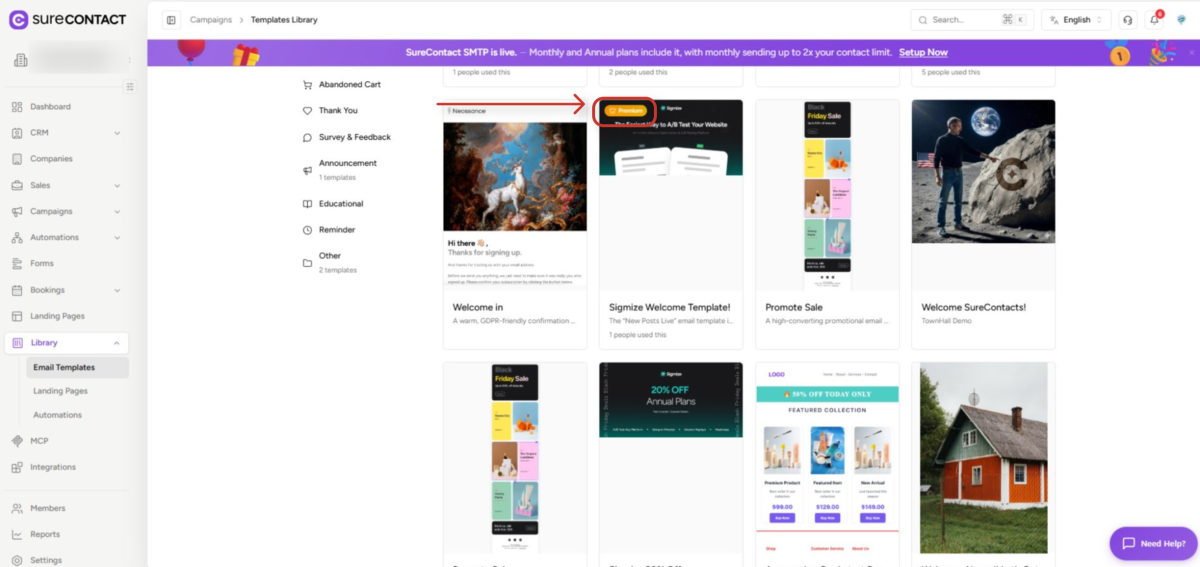
Some templates in the library are marked as Premium.
- Free plan users see an upgrade prompt when trying to use a Premium template.
- Paid plan users can use Premium templates the same way as any other template.
Mobile Device Limitations
The email builder currently requires a desktop experience. If you’re on a mobile device, some actions may display a “Desktop Required” message; switch to a desktop or laptop to continue.
Troubleshooting
No SMTP Configured
If you see a “No SMTP Configured” message while creating a campaign:
- Configure an SMTP provider.
- Verify the SMTP connection.
- Try again.
Template Not Available
This usually means the template has been removed from the marketplace.
Desktop Required
Switch to a desktop or laptop device to continue.
Need Help?
If you need any assistance, please email [email protected], and our support team will be happy to help you.
We don't respond to the article feedback, we use it to improve our support content.