
- Introduction to SureContact Dashboard
- How to Install and Connect the SureContact WordPress Plugin
- What Do Contact Fields Mean in the SureContact WordPress Plugin
- How to Invite Members to a Workspace in SureContact
- How to Switch Organizations in SureContact
- Workspace-Level Contact Allocation in SureContact
- Workspace-Level Timezone Settings in SureContact
- How to Add a Custom Tracking Domain in a Workspace in SureContact
- SureContact MCP Server
- Creating Forms in SureContact
- Setup SMTP in SureContact
- Email Campaigns in SureContact
- How to Add a Preferences URL in Your Emails
- How to Share Email Templates in SureContact
- Spintax Feature in SureContact
- Deleting Sent Campaigns in SureContact
- A/B Testing Integration Guide
- Unsubscription Guide
- SureContact SMTP Setup Guide
- SMTP Routing User Flow
- Gradual Send Feature Guide
- Reusable Email Templates Guide
- Conditional Blocks Guide
- Scheduling vs. Sending Immediately Emails in SureContact
- Campaign Analytics Guide
- Email Tracking Opens Clicks SureContact
- SureContact Email Template Library Guide
- Sending Domains Subdomain vs Root Domain Guide
- DMARC Setup Guide
- Warming Up a New Sending Domain
- Email Link Actions in SureContact
- How to Add an Unsubscribe Link in Your Emails
- Analyzing a Campaign with AI (Spam & Ethics Check)
- FluentCRM Integration with SureContact
- SureContact Third-Party Integration — Step-by-Step Guide
- Fluent Forms Integration with SureContact
- SureForms Integration with SureContact
- WPForms Integration with SureContact
- Bulk Sync WordPress Users to SureContact
- Contact Form 7 Integration with SureContact
- Sync WooCommerce Customers with SureContact
- FluentCart & FluentCommunity Integration With SureContact
Scheduling vs. Sending Immediately Emails in SureContact
SureContact gives you two ways to deliver email campaigns: send them immediately upon confirmation, or schedule them for a specific future date and time. Both options are available in the same place, the Review & Send step of the campaign creation wizard.
This guide explains how each option works, what happens behind the scenes, and how to manage a scheduled campaign after it has been created.
Prerequisites
Before you can access the Send Timing options, please ensure the following:
1. A Campaign Must Be Created and All Steps Completed
Navigate to Campaigns → Email Campaigns, then click + Create Campaign. Complete all four wizard steps: Subject, Compose, Recipients, and Review & Send. The Review & Send tab becomes fully accessible once the first three steps have been filled in.
2. At Least One Recipient Must Be Added
The campaign must have at least one contact assigned in the Recipients step. Attempting to send or schedule without recipients will trigger a validation error.
3. Sender Email Must Be Configured (SMTP)
A valid Send From (SMTP) configuration must be selected in the Subject step. Navigate to Settings → SMTP to add or verify your sending configuration before creating the campaign.
How to Access Send Timing Options
The Send Timing options live at the bottom of the Review & Send tab in the campaign wizard. Here is how to reach them:
1. Open the Campaign Wizard
- Go to Campaigns → Email Campaigns from the left sidebar.
- Click + Create Campaign, or click the edit (pencil) icon next to an existing Draft campaign.
- The campaign wizard opens on the Subject step.
2. Complete Steps 1–3
- Fill in Subject (email subject line, sender name, from email, SMTP).
- Compose your email body in the Compose step.
- Add recipients (contact lists or individual contacts) in the Recipients step.
- All three steps must show a green checkmark (✓) before the Review & Send tab is unlocked.
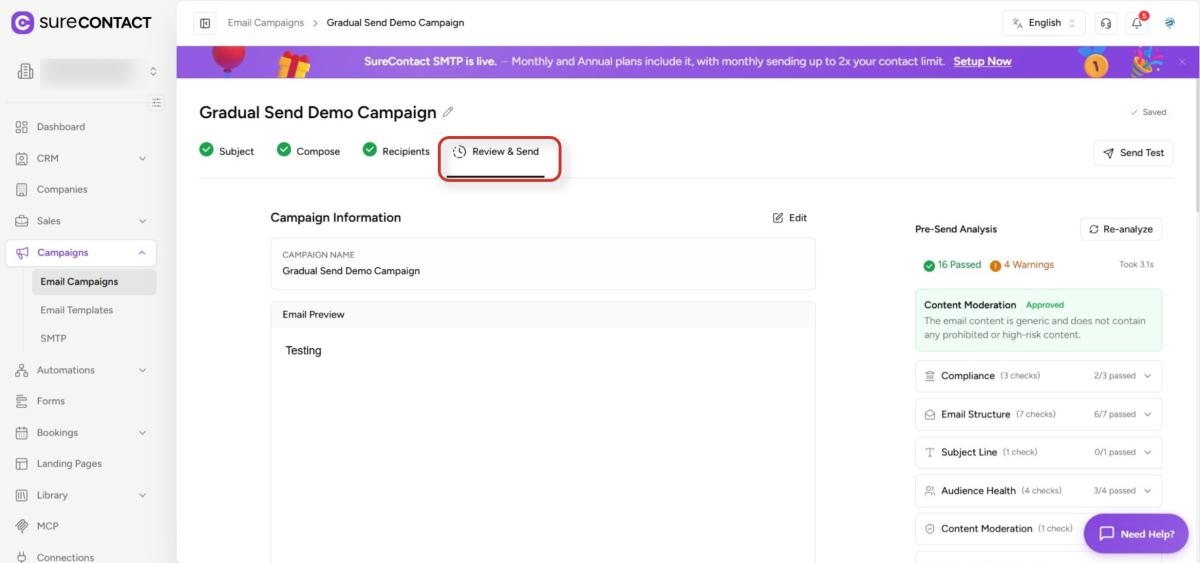
3. Navigate to Review & Send
- Click the Review & Send tab in the wizard header.
- The tab shows a clock icon (⏱) until you click it; it becomes active and underlined when selected.
4. Scroll Down to Send Timing
- On the Review & Send page, scroll past Campaign Information, Email Settings, Recipients, and Campaign Settings.
- The Send Timing section appears near the bottom, just above the action buttons.
Flow 1: Send Immediately
Sending immediately dispatches the campaign as soon as you confirm. This is the default option.
1. Select Send Immediately
- In the Send Timing section, the Send immediately radio button is selected by default.
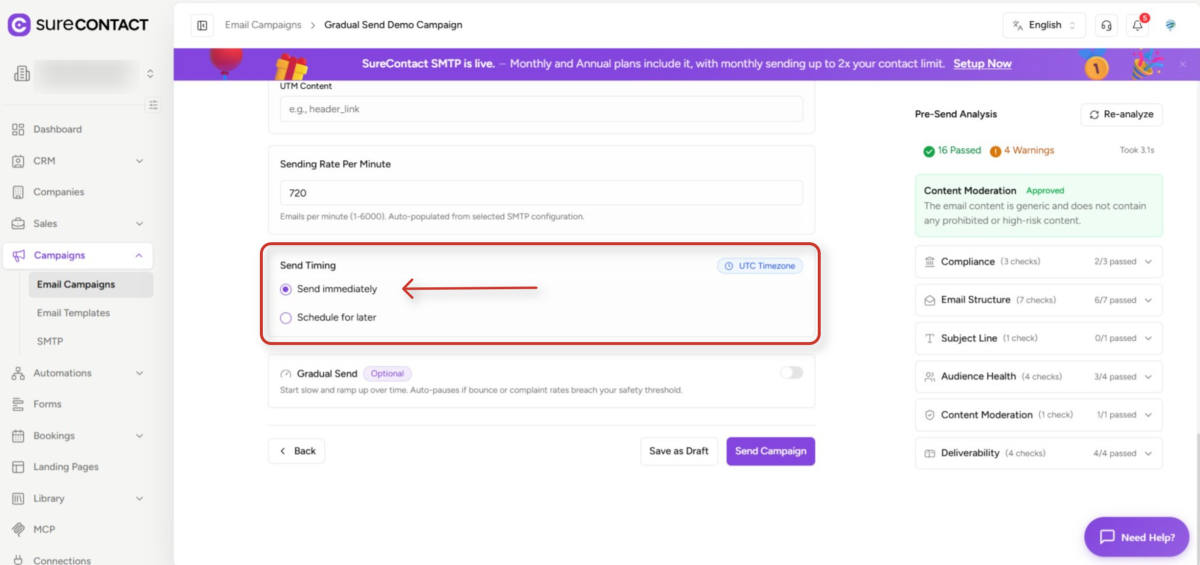
- No additional input is required – no date or time needs to be entered.
2. Click Send Campaign
- The primary action button at the bottom reads Send Campaign.
- Clicking it calls the backend with no scheduled time. The campaign is queued immediately.
3. What Happens Next
- The campaign status briefly shows Scheduled, then transitions to Preparing, then Sending, then Sent.
- Emails are sent in batches of 50 at a default rate of 12 emails per second (720/min).
- Delivery begins within approximately 60 seconds of confirmation.
Flow 2: Schedule for Later
Scheduling allows you to choose a future date and time for the campaign to be sent automatically.
1. Select Schedule for Later
- In the Send Timing section, click the Schedule for later radio button.
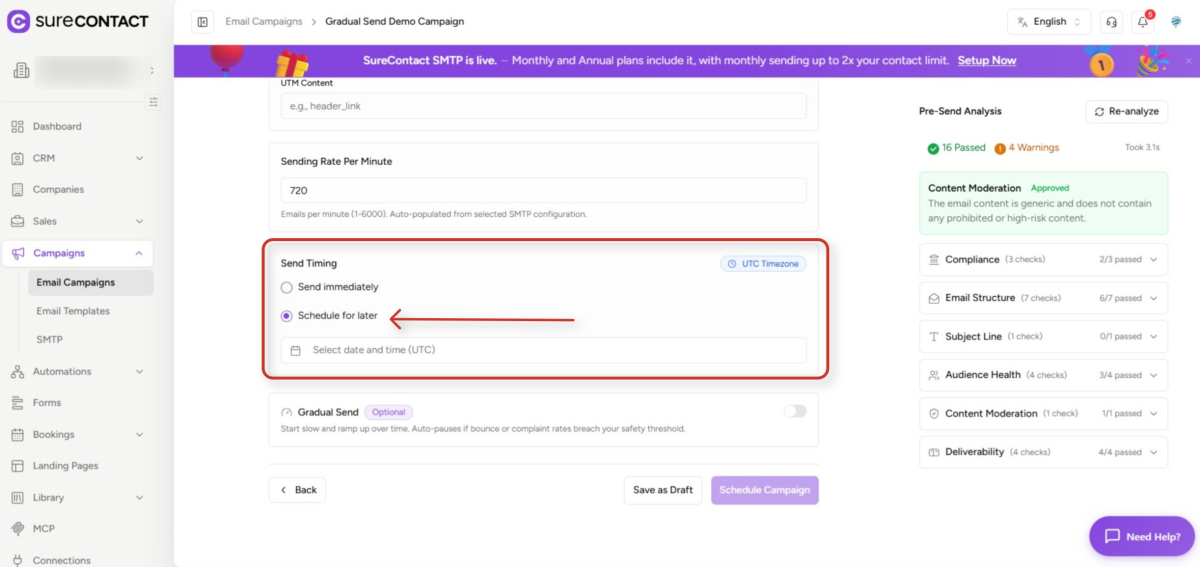
- A date and time picker appears immediately below the radio options.
2. Choose a Date and Time
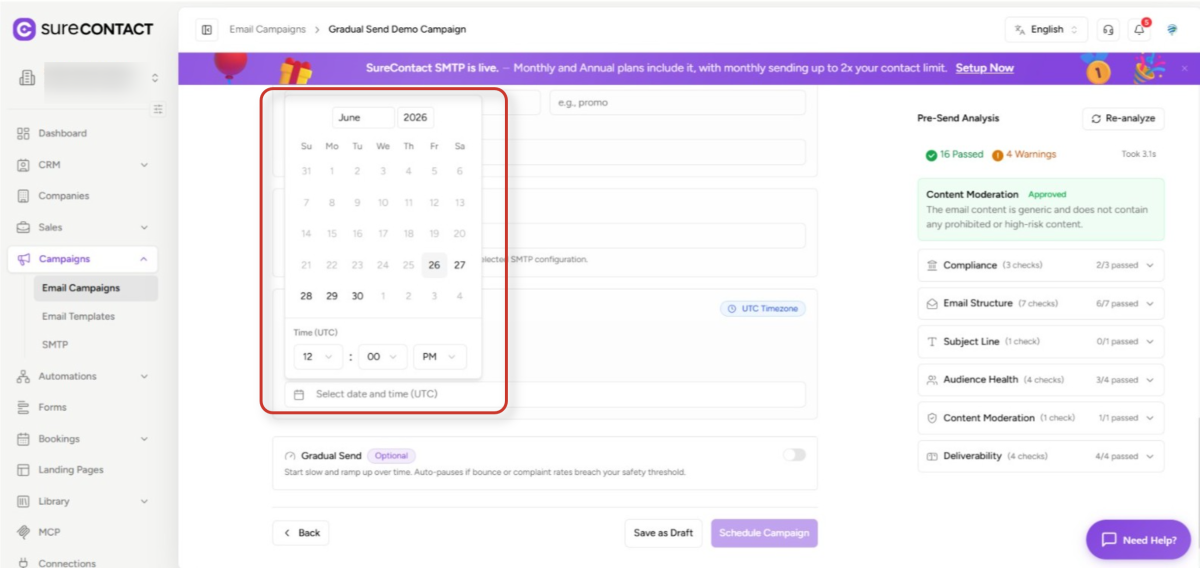
- Click the Select date and time (UTC) field to open the calendar picker.
- Select a future date from the calendar. Past dates are not accepted – if a past date is entered, the system treats it as ‘now’.
- Set the hour, minute, and AM/PM using the dropdowns in the Time (UTC) row.
- The time shown and stored is always in UTC. A UTC Timezone badge is displayed in the top-right corner of the Send Timing section for reference.
3. Click Schedule Campaign
- The primary action button changes from Send Campaign to Schedule Campaign when Schedule for later is selected.
- Clicking it converts the chosen time to UTC (ISO 8601 format) and stores it on the campaign.
- The campaign status is set to Scheduled.
4. What Users See After Scheduling
- The campaign appears in the Email Campaigns list with a Scheduled status badge.
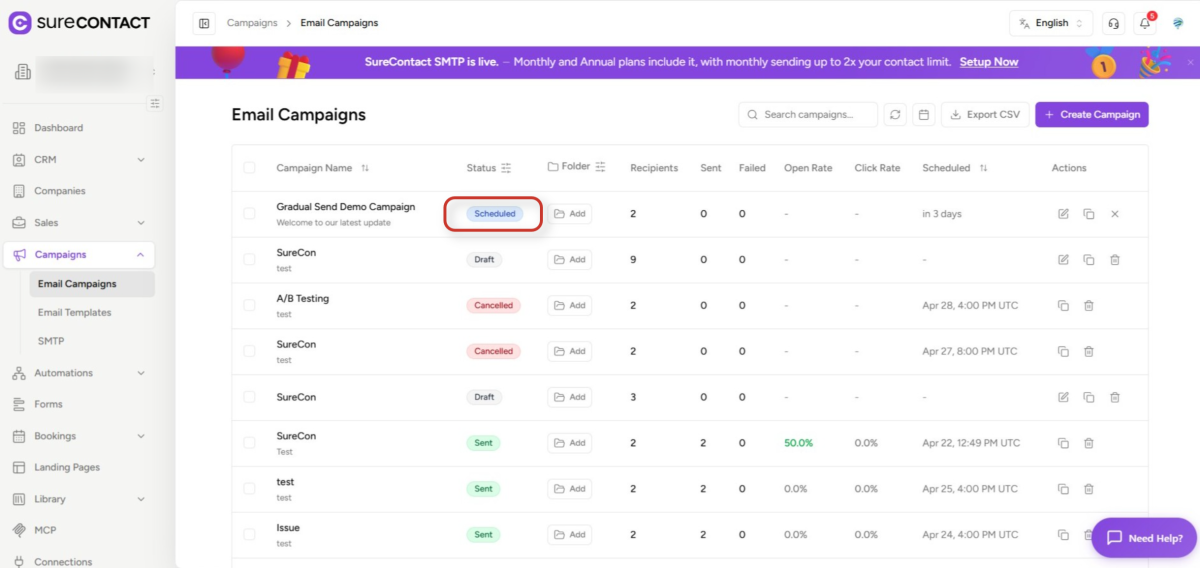
- The scheduled send date is displayed in the Scheduled column.
- SureContact’s background process checks every minute for campaigns whose scheduled time has arrived, then begins sending automatically.
Editing a Scheduled Campaign
While a campaign is in Scheduled status, you can still make changes. Once it moves to Preparing or Sending, editing is no longer possible.
1. Open the Scheduled Campaign
- Click Edit Campaign in the Email Campaigns list to open its detail view.
2. Change the Scheduled Time
- Click Review & Send step to reopen the campaign wizard.
- Select a new date and time, then click Schedule Campaign again to save.
3. Cancel the Schedule
- Click Cancel to remove the scheduled send time.
- No emails are sent.
Pausing and Resuming a Campaign
A campaign can be paused at any point during Scheduled, Preparing, or Sending status. When resumed from a Paused state, sending continues from exactly where it stopped – contacts who already received the email are not sent it again.
Pause
- Available when status is Scheduled, Preparing, or Sending.
- Click the Pause button from the campaign detail view.
- Status changes to Paused.
Resume
- Available when status is Paused.
- Click Resume to restart sending.
- For A/B test campaigns, the pause duration is excluded from winner determination timing.
Validation Rules
The following checks must pass before a campaign can be sent or scheduled:
- Subject line – must not be empty.
- Email content – HTML body must be present.
- Recipients – at least one contact must be included.
- Sender email – must be configured and valid.
- Reply-To – must be configured.
- Send Time – must be in the future (past times are treated as ‘now’).
- Content Moderation – must pass if content moderation is enabled.
- A/B Test – all variants must be configured if an A/B test is active.
Need Help?
If you need any assistance, please email [email protected], and our support team will be happy to help you.
We don't respond to the article feedback, we use it to improve our support content.