
- Introduction to SureContact Dashboard
- How to Install and Connect the SureContact WordPress Plugin
- What Do Contact Fields Mean in the SureContact WordPress Plugin
- How to Invite Members to a Workspace in SureContact
- How to Switch Organizations in SureContact
- Workspace-Level Contact Allocation in SureContact
- Workspace-Level Timezone Settings in SureContact
- How to Add a Custom Tracking Domain in a Workspace in SureContact
- SureContact MCP Server
- Creating Forms in SureContact
- Setup SMTP in SureContact
- Email Campaigns in SureContact
- How to Add a Preferences URL in Your Emails
- How to Share Email Templates in SureContact
- Spintax Feature in SureContact
- Deleting Sent Campaigns in SureContact
- A/B Testing Integration Guide
- Unsubscription Guide
- SureContact SMTP Setup Guide
- SMTP Routing User Flow
- Gradual Send Feature Guide
- Reusable Email Templates Guide
- Conditional Blocks Guide
- Scheduling vs. Sending Immediately Emails in SureContact
- Campaign Analytics Guide
- Email Tracking Opens Clicks SureContact
- SureContact Email Template Library Guide
- Sending Domains Subdomain vs Root Domain Guide
- DMARC Setup Guide
- Warming Up a New Sending Domain
- Email Link Actions in SureContact
- SureContact – Email Flagged or Rejected Guide
- How to Generate a Campaign Report in SureContact
- How to Add an Unsubscribe Link in Your Emails
- Analyzing a Campaign with AI (Spam & Ethics Check)
- FluentCRM Integration with SureContact
- SureContact Third-Party Integration — Step-by-Step Guide
- Fluent Forms Integration with SureContact
- SureForms Integration with SureContact
- WPForms Integration with SureContact
- Bulk Sync WordPress Users to SureContact
- Contact Form 7 Integration with SureContact
- Sync WooCommerce Customers with SureContact
- FluentCart & FluentCommunity Integration With SureContact
SureContact SMTP & API User Guide
SureContact SMTP lets your website, plugin or app send transactional email, such as password resets, order confirmations and alerts, from your own domain. Connect any SMTP tool with a username and password, or send from your own code with one HTTPS request. Both use the same credential and the same quota, and every email appears in one Sending Activity log.
This guide walks through the complete flow: generating a credential, connecting over SMTP or the HTTP API, and tracking every email you send.
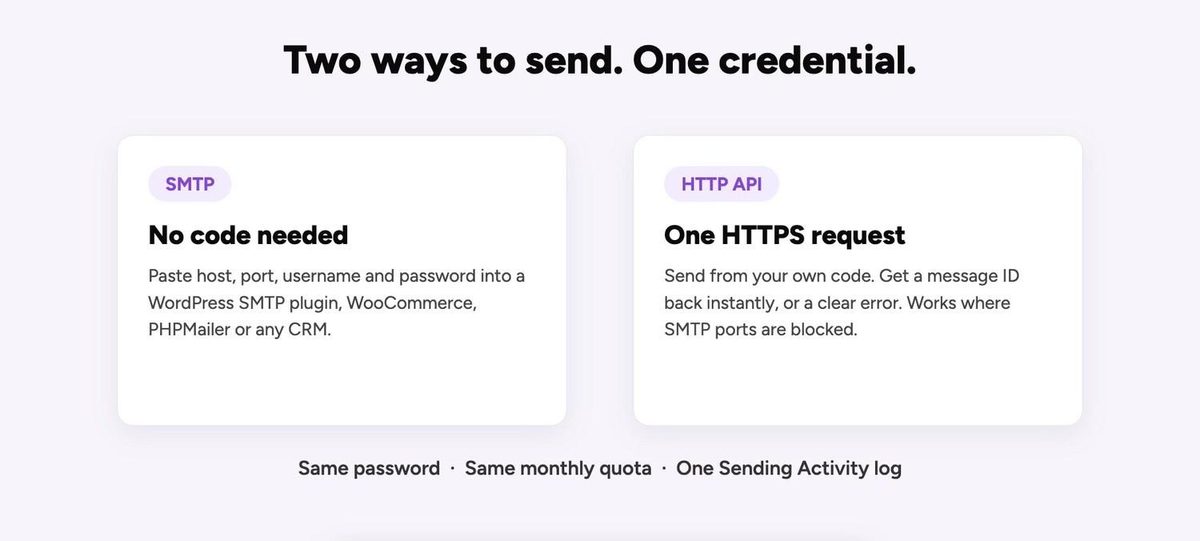
SMTP or API: Which Should I Use?
| SMTP | HTTP API | |
|---|---|---|
| Best for | Tools that already send over SMTP: WordPress SMTP plugins, WooCommerce, PHPMailer, Nodemailer, CRMs | Your own code, or hosts that block SMTP ports 465 and 587 |
| Code needed | None. Paste host, port, username and password into your tool. | One HTTPS POST request |
| You get back | 250 accepted, or an SMTP error code | 202 with a message uuid, or a JSON error with an error_code |
| Recipients per email | Up to 50 | Up to 50 (one to, plus cc and bcc) |
| Attachments | Anything your tool attaches, within the 25 MB message limit | Up to 10 files, 8 MB in total, common file types only |
| Retry-safe sends | No | Yes, with idempotency_key |
Both paths use the same credential, the same rules and the same monthly quota. You can use both at once.
Prerequisites
Before generating SMTP & API credentials, please ensure the following:
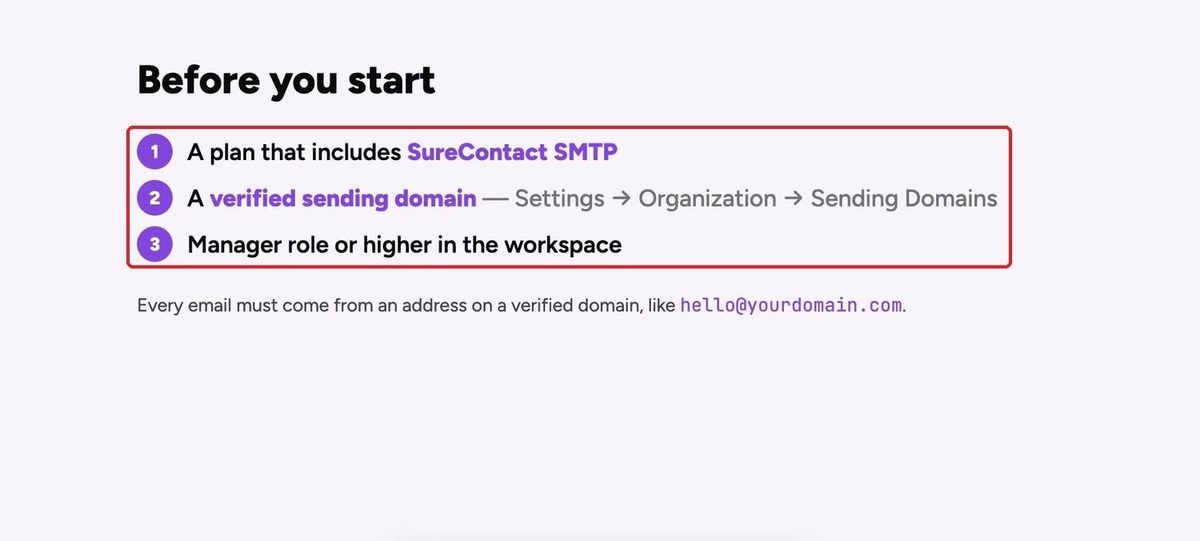
1. Your Plan Includes SureContact SMTP
If your plan doesn’t include it, the button on the SMTP & API screen reads Upgrade to Generate Credentials and opens the SMTP plans.
2. A Verified Sending Domain
Add and verify one under Settings → Organization → Sending Domains. SureContact won’t generate a credential until at least one domain is verified. Every email must come from an address on a verified domain, for example [email protected]. Subdomains such as mail.yourdomain.com need their own verification.
3. Manager Role or Higher
Workspace Managers and Organization Admins or Owners can create and manage credentials.
How to Set Up SureContact SMTP & API
One credential gives you an SMTP username and a password. The same password is also your API key.
1. Open the SMTP & API Screen
- In SureContact, go to Settings → Developer → SMTP & API (marker 1).
- Click + Generate Credential in the top-right corner (marker 2).
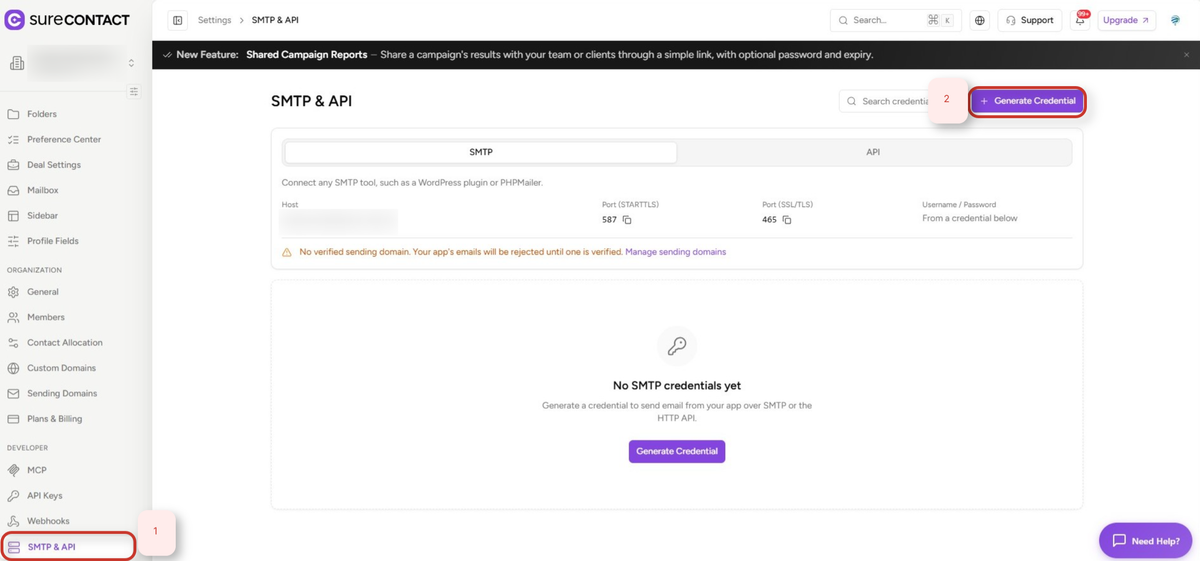
- The top card shows the connection details you’ll need later: Host smtp.surecontact.com, Port 587 (STARTTLS) and Port 465 (SSL/TLS).
2. Name and Generate the Credential
- In the Generate SMTP Credential panel, enter a Name you’ll recognise, such as “WordPress site” or “Production app”.
- Click Generate.
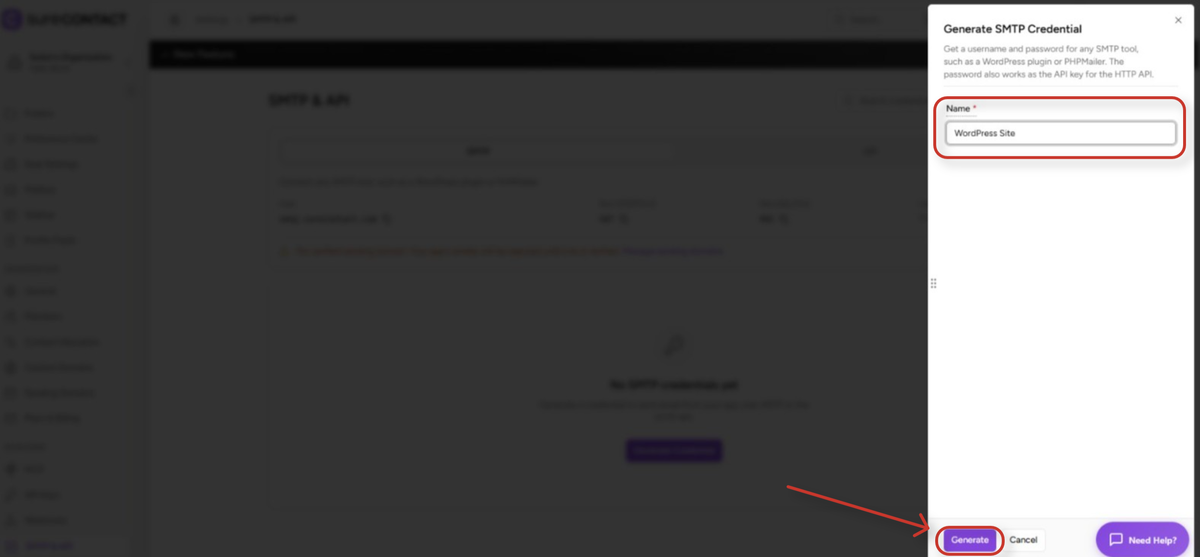
- Tip: create one credential per site or app. You can then revoke one without breaking the others, and filter Sending Activity by credential.
3. Copy the Password (Also Your API Key)
- The SMTP Credential Generated dialog appears. Click Copy next to Password (also your API key).
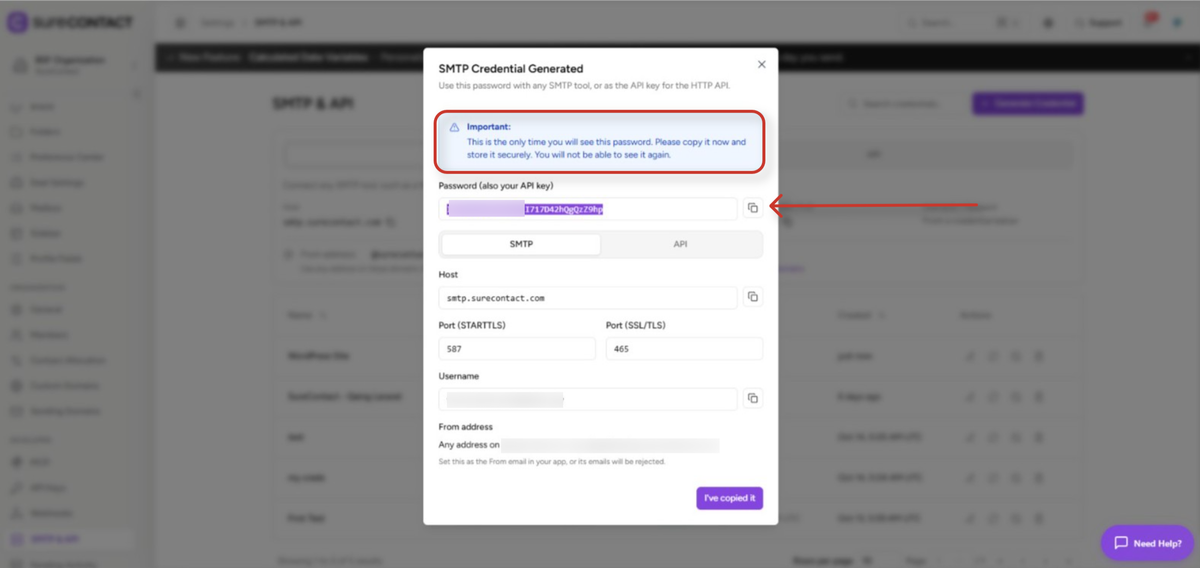
Important: The password is shown only once. Store it in your tool’s settings, your app’s environment variables or a secrets manager, never in source code. If you lose it, use Regenerate on the credential to get a new one.
4. Copy the Connection Details
- Copy the details for your path (marker 1): the SMTP tab shows Host, ports and Username; the API tab shows the endpoint and ready-to-run code with your password already filled in.
- Click I’ve copied it to close the dialog (marker 2).
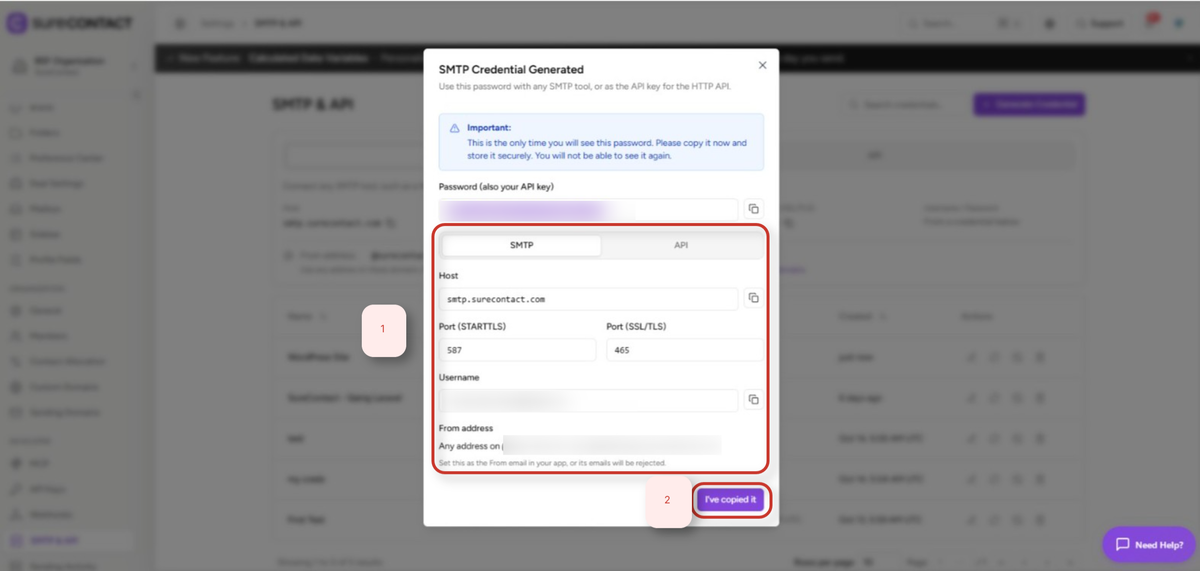
Next, connect over SMTP (Step 5) or send with the HTTP API (Step 6).
5. Connect Your SMTP Tool
- Enter these settings in any SMTP tool. They’re also on the SMTP tab of the SMTP & API screen, ready to copy.
| Setting | Value |
|---|---|
| Host | smtp.surecontact.com |
| Port and encryption | 587 with STARTTLS (recommended), or 465 with SSL/TLS |
| Authentication | On. Username and password (PLAIN or LOGIN) |
| Username | The credential’s SMTP Username, shown in the credentials table |
| Password | The credential’s password from Step 3 |
| From email | Any address on a verified sending domain, e.g. [email protected] |
- SureContact only accepts a login over an encrypted connection (TLS 1.2 or newer). Ports 25 and 2525 are not supported.
5.1 Example: A WordPress SMTP Plugin
- Choose Other SMTP (or Custom SMTP) as the mailer.
- Set SMTP Host to smtp.surecontact.com, Encryption to TLS and Port to 587. If your plugin only offers SSL, use 465 (marker 1).
- Turn Authentication on, paste the Username and Password, and set From Email to an address on your verified domain (marker 2). If the plugin has a “Force From Email” option, turn it on so other plugins can’t override it.
- Save, then click Send test email (marker 3). It appears in Sending Activity within seconds.
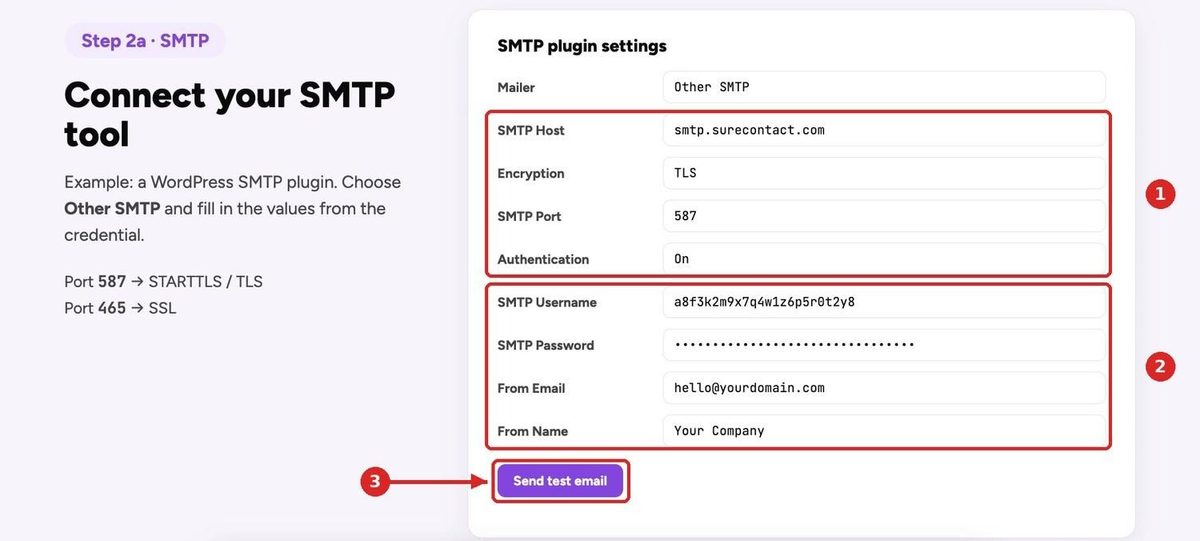
- A 250 reply means SureContact accepted the email. SureContact still checks each recipient and the content before delivery, so always confirm the final status in Sending Activity.
- Using the SureMails plugin? You don’t need a credential. SureMails connects to SureContact directly:
- https://suremails.com/docs/connecting-surecontact-inside-suremails/
6. Send with the HTTP API
- Send a POST request to https://api.surecontact.com/api/v1/emails with the credential’s password as a Bearer token (marker 1) and the email as JSON.
- A 202 Accepted response means SureContact queued the email for delivery (marker 2). Keep the uuid to find it later in Sending Activity (marker 3).
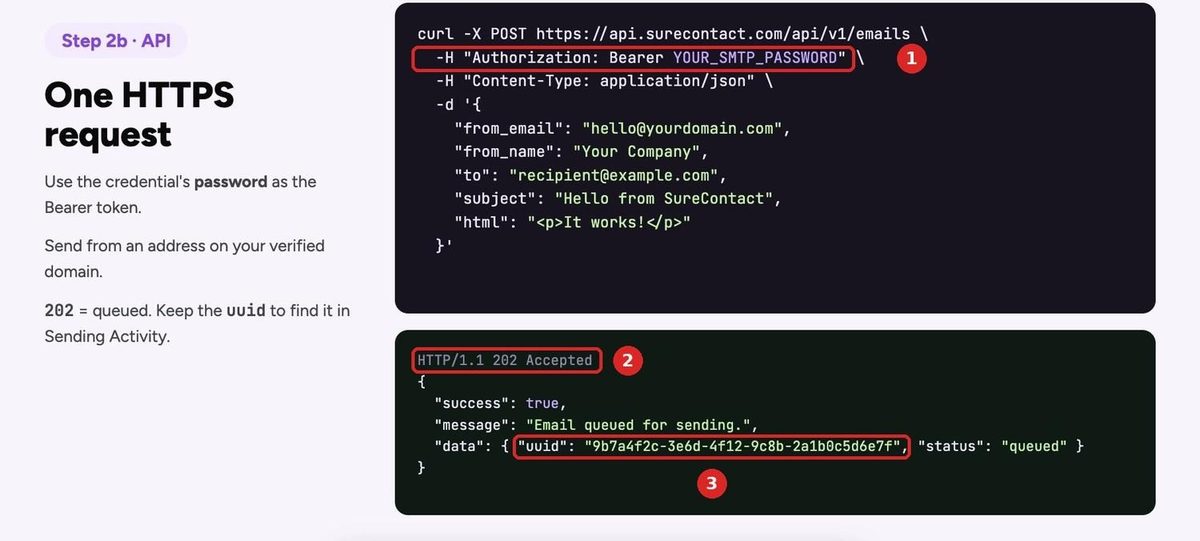
6.1 Example Request
curl -X POST https://api.surecontact.com/api/v1/emails \
-H “Authorization: Bearer YOUR_SMTP_PASSWORD” \
-H “Content-Type: application/json” \
-d ‘{
“from_email”: “[email protected]”,
“from_name”: “Your Company”,
“to”: “[email protected]”,
“subject”: “Hello from SureContact”,
“html”: “<p>It works!</p>”
}’
- The API tab on the SMTP & API screen has the same example in cURL, PHP, Node.js and Python, with your password already filled in.
Use the credential’s password, not your regular SureContact API key from Settings → Developer → API Keys. Those keys manage contacts and campaigns and can’t send email.
6.2 Request Fields
You must include from_email, to, subject, and at least one of html or text.
| Field | Type | Required | Description |
|---|---|---|---|
| from_email | string | Yes | Sender address. Must be on a verified sending domain. |
| from_name | string | No | Sender display name. Up to 255 characters. |
| to | string or object | Yes | One recipient: “[email protected]” or {“email”, “name”}. |
| cc / bcc | array | No | Objects of {“email”, “name”}. Bcc is never visible to other recipients. |
| reply_to / reply_to_name | string | No | Address (and display name) that replies go to. |
| subject | string | Yes | Up to 998 characters. |
| html / text | string | One of | HTML and/or plain-text body. Send both for the best deliverability. |
| attachments | array | No | Objects of {“name”, “content”, “content_type”}; content is base64. |
| headers | object | No | Custom headers, e.g. {“X-Order-Id”: “1234”}. Up to 50. |
| idempotency_key | string | No | Up to 255 characters. Prevents duplicate sends on retry. |
6.3 Avoid Duplicate Sends
- Add an idempotency_key unique to the email in your system, such as order-1234-confirmation.
- If SureContact receives the same key again within 24 hours, it skips the send and returns the original result. This makes retries after a timeout safe. Idempotency keys are available on the API only.
7. Track Your Emails in Sending Activity
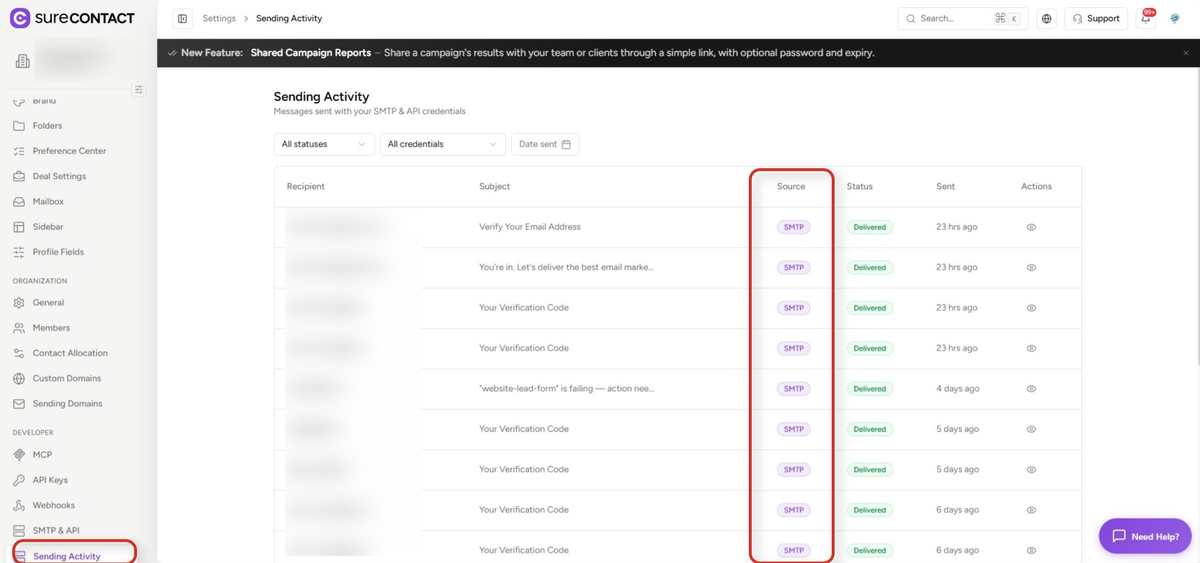
- Go to Settings → Developer → Sending Activity. Every email sent with an SMTP & API credential appears here, including emails SureContact refused.
- The Source column shows whether each email came from SMTP or the API.
7.1 Filter and Check Status
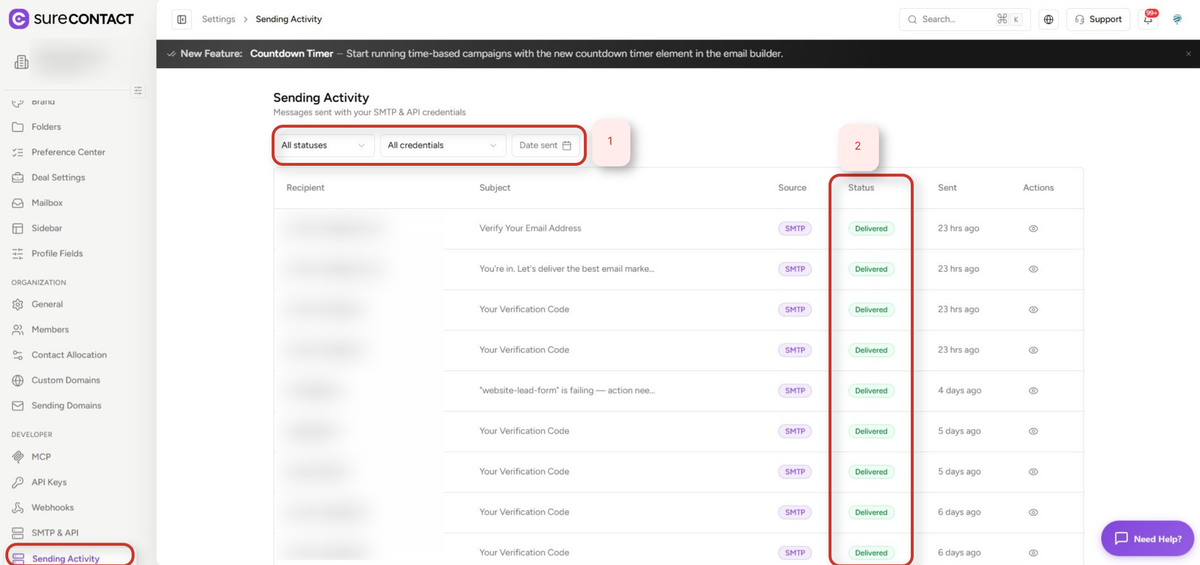
- Filter by Status, Credential or Date sent (marker 1).
- Check the Status column for each email (marker 2), and click the eye icon on a row to open Message Details with each recipient’s own status.
| Status | Meaning |
|---|---|
| Pending | Accepted and waiting to send. |
| Sent | Handed to the receiving mail server. |
| Delivered | The receiving server accepted it. |
| Partially delivered | Some recipients got it and others didn’t. Open the email to see who. |
| Bounced | The receiving server refused it. The address is suppressed for future sends. |
| Complained | The recipient marked it as spam. The address is suppressed for future sends. |
| Rejected | SureContact refused it before sending. The reason appears under the status. |
| Failed | Sending failed after it was accepted. |
- Rejected emails don’t use up your quota. Sending Activity keeps 90 days of history.
Manage Credentials
The credentials table on Settings → Developer → SMTP & API shows each credential’s Name, SMTP Username, Status, Last Used and Created date. Use the action buttons on each row:
| Action | What happens |
|---|---|
| Rename | Changes the name only. The username and password keep working. |
| Regenerate | Keeps the username and creates a new password. The old password stops working right away for both SMTP and API. |
| Revoke | Stops the credential right away. It stays in the list as Revoked. This can’t be undone. |
| Delete | Removes the credential permanently. Past emails stay in Sending Activity. |
If a password may have leaked, regenerate it straight away.
Limits and Quota
| Limit | SMTP | API |
|---|---|---|
| Recipients per email | 50 | 50 across to, cc and bcc |
| Email size | 25 MB including attachments | 25 MB including attachments |
| Attachments | Any, within 25 MB | Up to 10 files, 8 MB in total |
| Sending rate per workspace | 60 / minute and 1,000 / hour (shared) | Same |
| Monthly volume | Plan’s SureContact SMTP emails (shared) | Same |
- Each recipient counts as one email toward the sending rate and monthly volume. An email to 1 to and 2 cc addresses counts as 3.
- SureContact alerts you at 80%, 90% and 100% of your quota. At 100%, the API returns 429 QUOTA_EXCEEDED and SMTP replies 452 Sending quota exceeded. Click Add SMTP Plan in the alert to buy more.
Troubleshooting
I don’t see SMTP & API under Settings → Developer.
You need the Manager role or higher in the workspace. If you have it and still don’t see the screen, contact support.
I can’t generate a credential.
Verify at least one sending domain first under Settings → Organization → Sending Domains.
My SMTP plugin says authentication failed.
Copy the SMTP Username from the credentials table and the password, with no spaces. Use port 587 with STARTTLS or 465 with SSL/TLS. If you regenerated the credential, update the password everywhere.
The API returns 401 API_KEY_INVALID.
The header must be exactly Authorization: Bearer <password>, with one space and no quotes. Use the credential’s password, not the username and not a key from API Keys.
I get SENDER_DOMAIN_NOT_VERIFIED or 550 5.7.1 Sender domain is not verified.
The domain after the @ in the From address must be verified. A subdomain counts as a separate domain. In WordPress, check that another plugin isn’t changing the From address.
My tool says the email was sent, but nobody received it.
Open Sending Activity. If the status is Rejected, the reason is shown under it. If it’s Bounced, the recipient’s server refused it.
My host blocks SMTP ports.
Use the HTTP API instead; it runs over standard HTTPS.
Need Help?
If you need any assistance, please email [email protected], and our support team will be happy to help you.
We don't respond to the article feedback, we use it to improve our support content.